You're about to leave our website

This is to inform that by clicking on the hyperlink, you will be leaving sc.com/je and entering a website operated by other parties.

Such links are only provided on our website for the convenience of the Client and Standard Chartered Bank does not control or endorse such websites, and is not responsible for their contents.

The use of such website is also subject to the terms of use and other terms and guidelines, if any, contained within each such website. In the event that any of the terms contained herein conflict with the terms of use or other terms and guidelines contained within any such website, then the terms of use and other terms and guidelines for such website shall prevail.

Thank you for visiting www.sc.com/je

Proceed to Third Party Website

SC Mobile Key

This advanced authentication solution provides a more secure and convenient login experience for Online Banking and the Mobile Banking app.

  • Je sc mobile keystep
  • Je sc mobile keystep
  • Je sc mobile keystep
  • Je sc mobile keystep
  • Je sc mobile keystep
  • Je sc mobile keystep
  • Je sc mobile keystep

How to Register for SC Mobile Key

Step 1

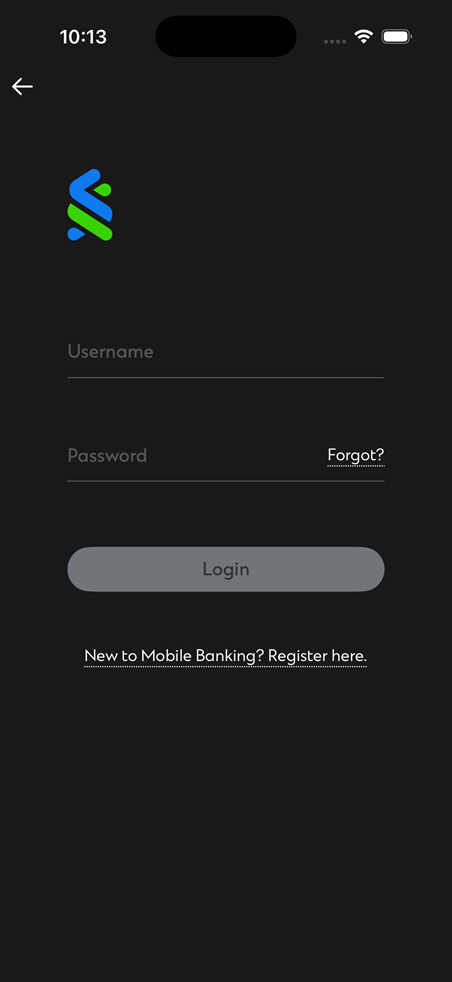
Login to your SC Mobile App with username and password

Step 2

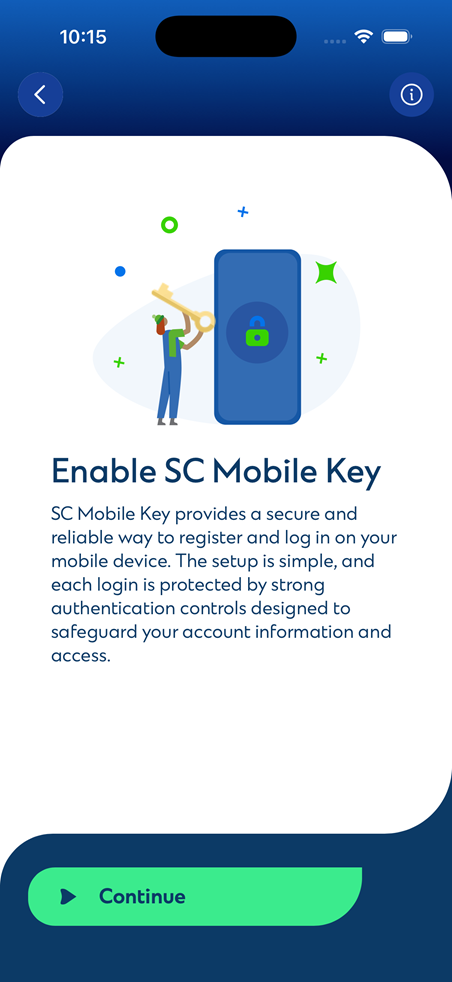
Click on the ‘Continue’ button to set up the SC Mobile Key

Step 3

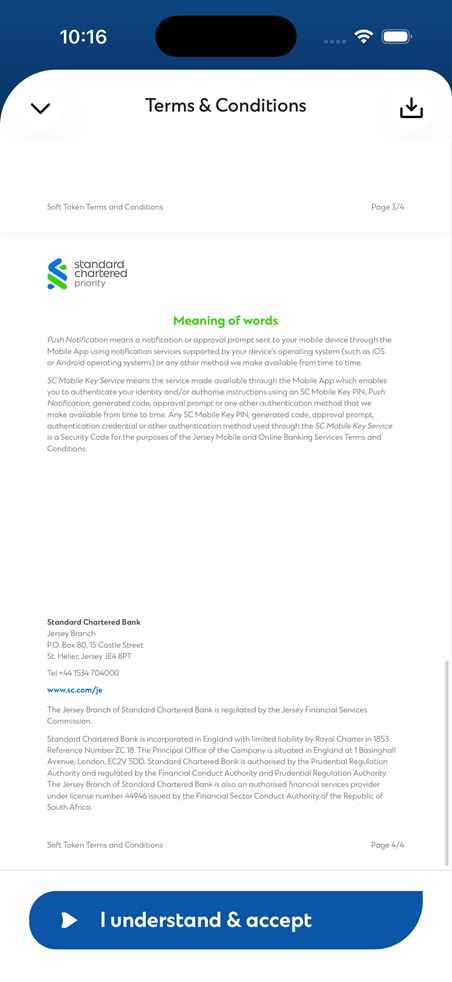
Accept the Terms and Conditions

Step 4

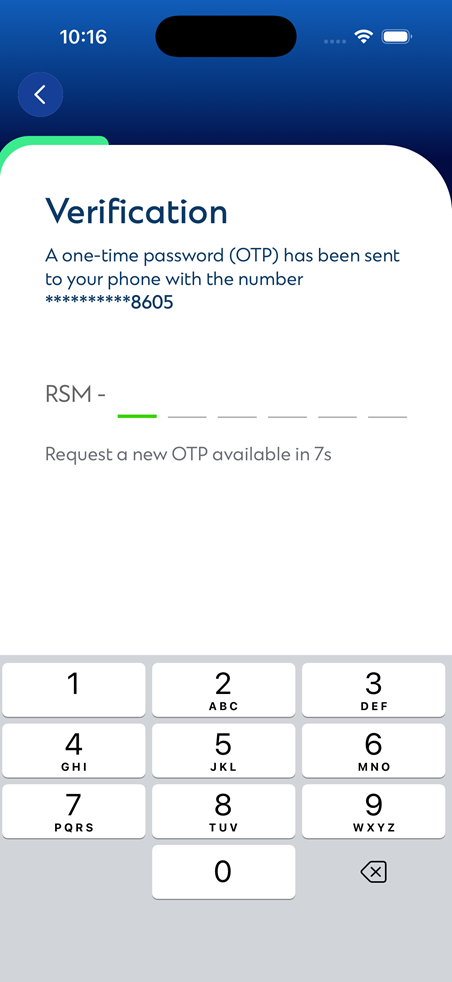
Enter the OTP received on your registered mobile number

Step 5

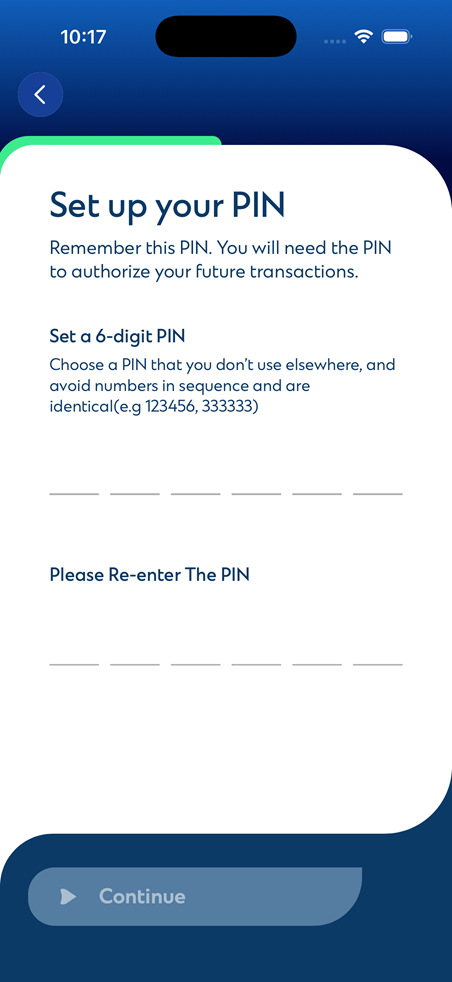
Set and confirm your 6-digit SC Mobile Key

Step 6

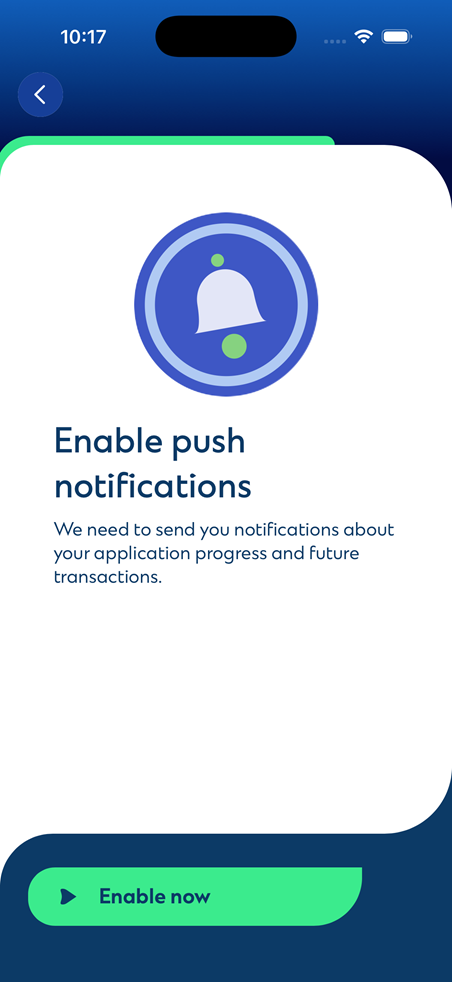
Allow notifications and enable the same on your mobile

Step 7

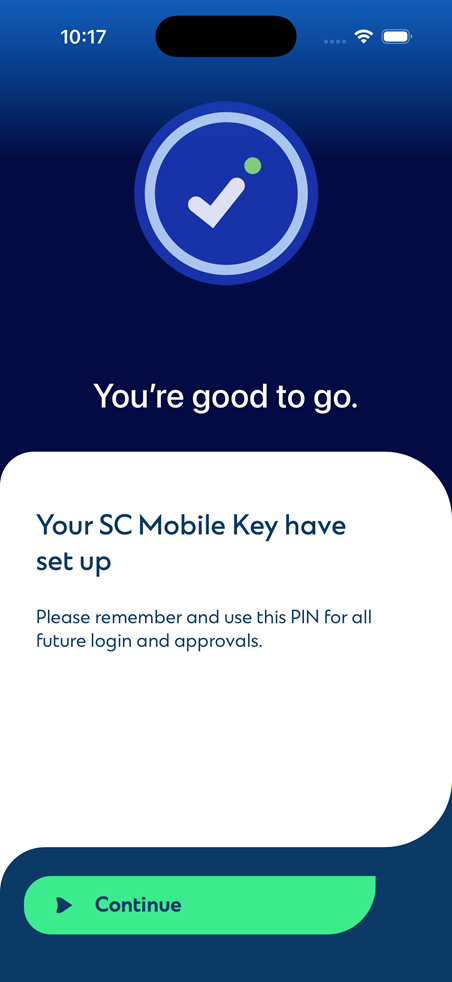
Your SC Mobile Key is now activated. To continue using SC Mobile App, please log in again

Enhanced Security

Fast and Convenient

Enhanced Security

  • SC Mobile Key provides added security against online fraud and threats.

    Enhanced Security
    • The SC Mobile Key is designed to provide the highest level of security for your account. Utilising advanced encryption and multi-factor authentication, this feature ensures that only you can access your account. By leveraging these technologies, we significantly reduce the risk of unauthorized access to your account, offering you a safer and more reliable authentication process.

    • You can continue to use your existing credentials, biometric login, or Face ID without any worry. SC Mobile Key binds to the SC Mobile app of your mobile phone.

Fast and Convenient

  • A virtual security token embedded in your mobile banking app.

    Fast and Convenient
    • SC Mobile Key feature not only enhances security but also offers a faster and more seamless login experience. Our innovative login feature with SC Mobile Key simplifies your login experience.

Je sc mobile jersey qr code bg

SC Mobile Jersey

Download the SC Mobile Jersey App today

  • SC Mobile Key is an enhancement to your SC Mobile App that enables you to authenticate your online and mobile banking logins.

  • You can change your PIN by logging in to the SC Mobile app.

    1. Go to ‘Settings’ and select ‘Login methods’.
    2. Click on ‘Manage Soft Token Key’.
    3. Click on ‘Change Pin’.
    4. Follow the on-screen instructions to change your Pin.

    Your PIN change is immediate.

  • You can reset your PIN by logging in to the SC Mobile app.

    1. Go to ‘Settings’ and select ‘Login methods’.
    2. Click on ‘Manage Soft Token Key’.
    3. Click on ‘Change Pin’.
    4. Click on  ‘Forgot the Pin’ and follow on-screen instructions.

    Your PIN reset is immediate.

  • Please download the Standard Chartered Mobile app on your new device and re-register for the Standard Chartered Mobile Key. This will immediately disable the Standard Chartered Mobile Key from the previous device that you have lost. For immediate assistance, please call our 24/7 Client Care Centre on +44(0)1534704335.

  • Download the latest SC Mobile App from your respective app stores. Login with your online banking username and password or Touch Login / Face Login, and you will be prompted to register for the SC Mobile Key. Please follow the steps to complete the registration.

  • The SC Mobile Key provides an additional layer of security when you login to your mobile or online banking platform. In the near future you will also be able to use your SC Mobile Key to perform transactions such as add payee, update personal information, limit maintenance, pin change, etc without any OTP hassle.

    • Yes, you will be required to register for the Standard Chartered Mobile Key when you upgrade or download the new SC Mobile App. The SC Mobile Key will be required for your online or mobile banking activities that require login authentication.
    • ​Note: We will never send you an email asking you to complete your SC Mobile Key registration via a link. We will also never send you an email that your account is on temporary hold until you register for SC Mobile Key.
  • Yes, you will receive both SMS and email alerts after registration.

  • For your security, you are only allowed to set up Standard Chartered Mobile Key on one mobile device. When you register for Standard Chartered Mobile Key on a new mobile device, this will automatically disable Standard Chartered Mobile Key on the previous device.

  • This shows that the device already has a soft token registered on it, which may or may not be registered by you. You just need to un-install and re-install the SC Mobile application before proceeding to register for SC Mobile key.

  • Registering for the SC mobile key will ensure the security of your login for online and mobile banking. In order to continue using your SC Mobile App without any hassle, it is mandatory to complete your SC Mobile Key registration.

  • Standard Chartered Mobile Key can still work even when you do not have data or mobile network connectivity. You can generate an offline PIN to authenticate your logins and transactions on Online Banking.

    While logging in/performing a transaction – when prompted to authenticate using Standard Chartered Mobile Key, on the Online Banking screen, click “Generate an Offline PIN” located at the bottom of the screen.

    Open the Standard Chartered Mobile app on your device that is registered for the Standard Chartered Mobile Key. From the Welcome screen, click on the menu icon located on the top left of the screen – You do not need to log in, just select ‘Generate Offline PIN’. You are required to key in your 6-digit PIN to retrieve the offline PIN for authentication.

  • The SC Mobile Key adds an extra layer of protection to your Banking Experience.

BACK TO TOP