Sc ae mobile key desk
  1. Digital Banking | Online Banking
  2. Mobile Banking

Standard Chartered Mobile Key

Switch from OTPs to SC Mobile Key to authorise your digital transactions, login and online card purchases

Benefits of SC Mobile Key
  • Authorise your transactions
    safely

    and securely

  • Set your own
    6-digit

    mobile key

  • Receive
    instant

    alerts for approval

Features of SC Mobile Key

Enhanced security

SC Mobile Key provides you with added security against online fraud and threats

Instant login

Banking online is now quicker and more convenient. The SC Mobile Key also becomes your PIN to login to your bank account and you won’t have to wait for the OTP to arrive

Independent of internet access

SC Mobile Key works even when you do not have data or mobile network connectivity (This feature is only applicable for Online Banking login or SC Mobile app login using a second device.)

Faster Checkout

No more waiting for the traditional SMS One-Time-Password (OTP) codes. Approve transactions instantly within the App.
  • Sc ae ttep one key
  • Sc ae ttep two key
  • Sc ae ttep three key
  • Sc ae ttep four key

How to activate this on your SC Mobile app

STEP 1

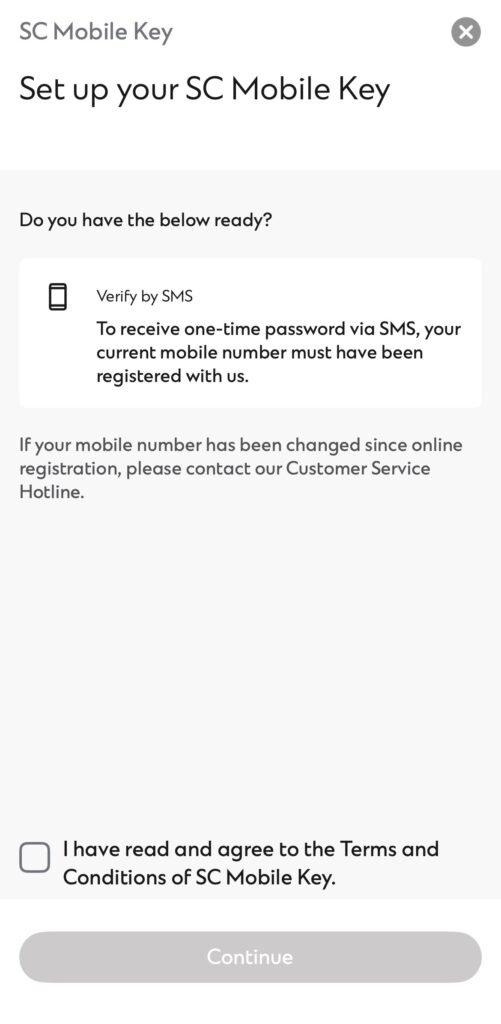
Login to the SC Mobile app. When you are prompted to register for SC Mobile Key, read and agree to the terms and conditions. Click ‘Continue’ to proceed.

STEP 2

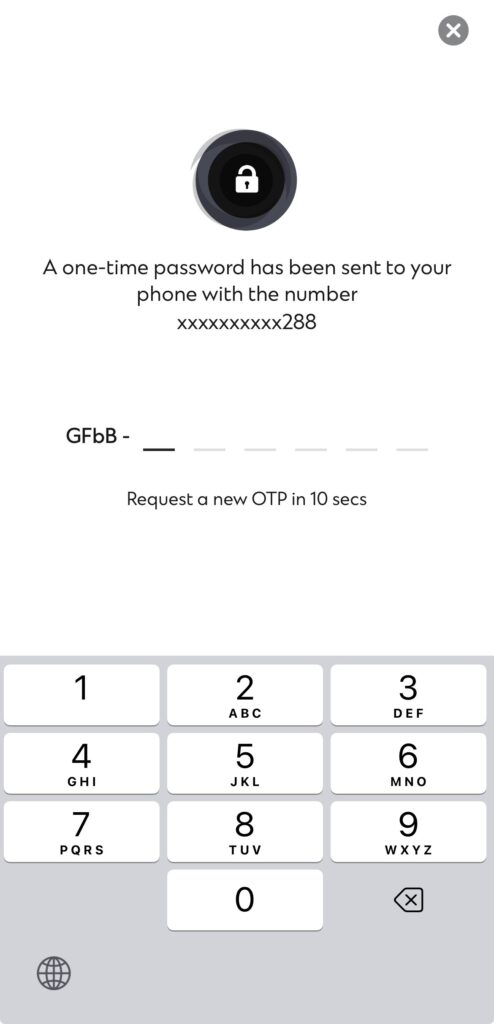
When activating it, you will receive an OTP via SMS. Enter it on your screen

STEP 3

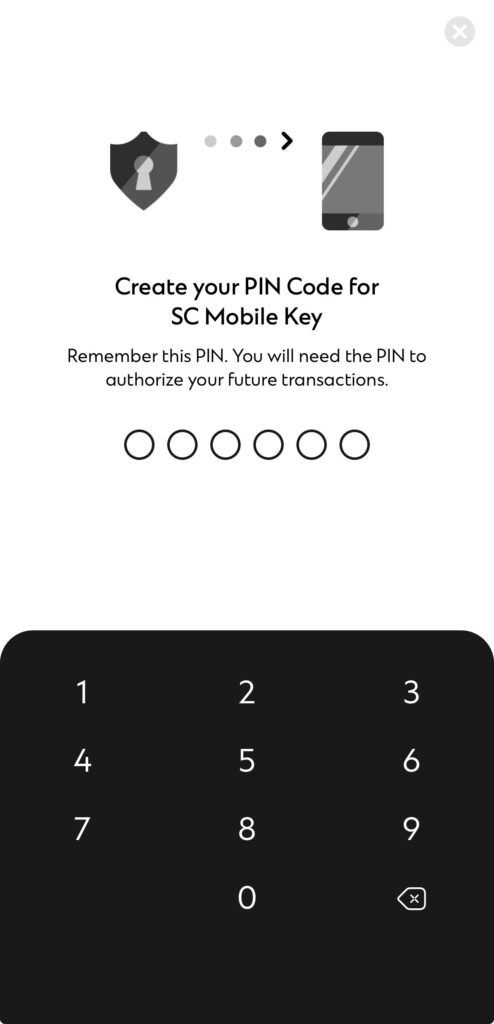
Set a 6-digit PIN for your SC Mobile Key. You will need this PIN while authorising future logins if you do not have access to the internet or if you need to make a change to your SC Mobile Key setup

STEP 4

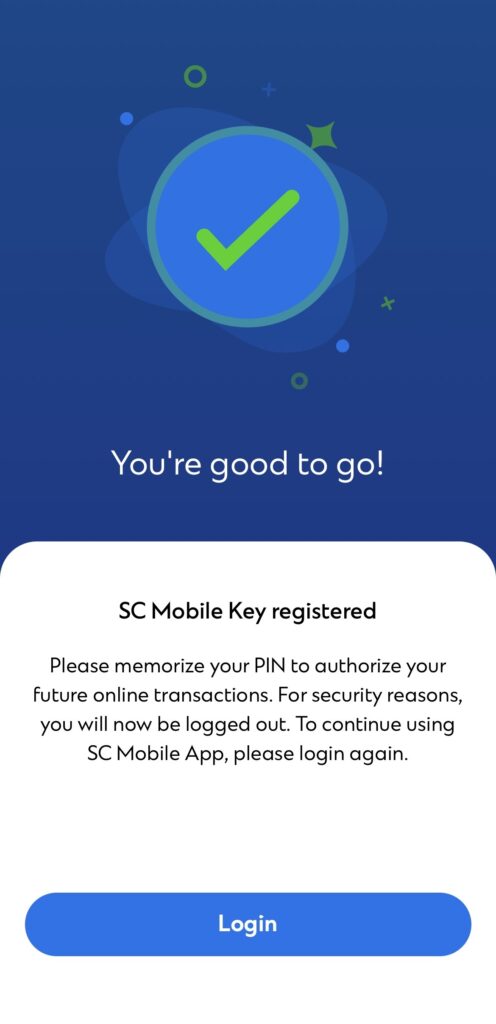
You will see a confirmation message after which you’re all set

Yes. We are introducing a secure and seamless authentication process for e-commerce transactions via the SC Mobile app. Instead of a SMS OTP, you will now receive an SC Mobile Key authentication on your SC Mobile app to approve your credit or debit card transaction.

For enhanced protection against online fraud, you will receive a push notification through the SC Mobile App for certain online purchases you make with your Standard Chartered card. The purpose is to validate that it is our genuine client making the purchase. Tap the push notification or open the SC Mobile App and select “Approve” to proceed with the transaction.

A push notification (pop up notification) will appear on your SC Mobile app and you will be required to select “Approve” on the authentication request to proceed with the transaction attempt made.

Whether or not you get an SC Mobile Key authentication request is at the discretion of the merchant and Standard Chartered Bank, Certain transactions might be processed without the need of an SC Mobile Key authentication. Taking into consideration your shopping behaviour, the merchant’s profile and other factors, we’ll prompt you for an authentication request If an additional layer of security is required.

Yes, it is compulsory to register for SC Mobile Key. Starting from 31 January 2026, for e-commerce transactions SMS OTP will no longer be available when you are performing a debit or credit card online purchase.

If you did not receive an SC Mobile Key authentication request, please ensure the below:

  • You have registered for SC Mobile Key.
  • Your internet connection is active.
  • Your SC Mobile app is updated, and notifications are enabled.

No, you must have an internet connection (Wi-Fi or data) to receive SC Mobile Key authentication request on time. We are not responsible for any delays in your access to the authentication notification in the SC Mobile app if you are not connected to the internet.

No, it is compulsory to register for SC Mobile Key for all primary credit cardholders and debit cardholders (for supplementary cardholder’s online credit card transactions, we will send it through SMS OTP).

If the SC Mobile App is temporarily unavailable due to maintenance or any downtime, you will not be able to approve any e-commerce transactions for debit or credit cards. Please wait until the downtime is over before completing any online transactions. We will notify you of any planned/unplanned downtimes, and you can click here for details on upcoming system maintenance activities.

The authentication request is valid for 100 seconds. If you do not approve the authentication request within 100 seconds, the request will expire and will need to be resent.

The supplementary credit card holder receives an SMS OTP because they do not have access to our digital banking services, and therefore, they cannot utilize SC Mobile Key authentication and will continue to rely on SMS OTPs for authentication.

SMS OTPs for online credit card transactions will remain unchanged for supplementary cardholders with a registered mobile number.

Please ensure that you are using the latest version of the SC Mobile App and have registered for the SC Mobile Key. If the issue persists, please contact customer service on (+971) 600 5222 88 to raise your concern.

No. This service is free.

The SC Mobile Key is a virtual security token embedded in your Standard Chartered Mobile app which will enable you to authenticate your mobile or online banking login through your registered device. What’s more is that it protects you from unauthorized use via non registered devices so that your digital logins are safe at all times.

Seamless: You will no longer need to key in SMS OTPs to login to your account or to authenticate your log in. Your registered device becomes your dynamic token which works in the back ground to safeguard your Online and SC Mobile login attempts.

Secure: When you perform sensitive activities such as logging in to Online and SC Mobile Banking, SC Mobile Key, digitally authenticates your log in session adding a layer of security on top of the login attempt. If you are logging in from a non registered device you will receive an authorization request to grant access to the secondary device.

Anywhere: SC Mobile Key works even when you do not have data or mobile network connectivity.

The SC Mobile Key comes with enhanced encryption capabilities which improves the overall security of your mobile app. It will also help you to securely authenticate your logins on both Online Banking and the Standard Chartered Mobile app through the use of dynamic digital tokens via your registered device

Yes. It is compulsory to register for SC Mobile Key. From 14 December 2022 , SMS OTP will no longer be available when logging in. Please register for SC Mobile Key in order to securely authenticate your login to online or SC Mobile Banking

Without the SC Mobile Key, you will not be able to authenticate yourself when logging in

SMS OTP for Login events will no longer be sent from 14 December 2022, hence you will be required to register for the SC Mobile Key in order to continue with your Online or Mobile banking activities.

The Bank will be phasing out SMS OTP for login authentication and the use of SMS OTP will cease by 14 December 2022. You will be required to authenticate your login using SC Mobile key in order to navigate from the accounts overview page.

There are 2 ways to register.

SC Mobile Key Introduction Screen

  • Log in to the Standard Chartered Mobile app
  • You should see an introduction screen for SC Mobile Key
  • Click on ‘Register Now’ and follow the on-screen instructions to complete registration
  • Post-login menu
  • Log in to the Standard Chartered Mobile app
  • Click on the menu icon located on the top left of the screen
  • Click on ‘Settings’
  • Click on ‘SC Mobile Key’
  • Click on ‘Register Now’ and follow the on-screen instructions to complete registration.

This shows that the device already has a soft token registered on it, which may or may not be registered by you. You just need to un-install and re-install the SC Mobile application before proceeding to register for SC Mobile key

Yes, you will receive both SMS and email alerts after registration.

The PIN provides an additional layer of security in authenticating sensitive functions such as adding or registering a new device via online or mobile banking or Logging in to access your digital services

You can change your PIN by logging in to the SC Mobile app.

  • Go to ‘Settings’ and select ‘SC Mobile Key’.
  • Click on ‘Change PIN for SC Mobile Key’.
  • Follow the on-screen instructions to change your PIN.
  • Your PIN change is immediate.

You can change your PIN by logging in to the Standard Chartered Mobile app.

  • Go to ‘Settings’ and select ‘SC Mobile Key’
  • Click on ‘Change PIN for SC Mobile Key’
  • Select ‘Forgot PIN’ and follow the on-screen instructions to reset your PIN
  • Your PIN change is immediate.

When you log in to the Standard Chartered Mobile app, you will be prompted to re-register for SC Mobile Key. Follow the on-screen instructions to complete registration for SC Mobile Key and resume using Online Banking and/or the Standard Chartered Mobile app.

SC Mobile app is only supported on Apple devices with iOS 14 or higher and smart phones with Android 10 or higher.

OTP will no longer be sent from 14 December 2022 , hence you will be required to register for the SC Mobile Key through the SC Mobile app that is running on a smart phone with a compatible Operating System, in order to continue with your Online Banking activities.

SC Mobile app is only supported on Apple devices with iOS 14 or higher and smart phones with Android 10 or higher.

For your security, you are only allowed to set up SC Mobile Key on one mobile device.

When you register for SC Mobile Key on a new mobile device, this will automatically disable SC Mobile Key on the previous device.

Yes, you may log in using a second device without registering for SC Mobile Key on the second device. You can authenticate your login/transaction by approving the Push Notification sent to the primary mobile device that is registered for SC Mobile Key.

Please download the Standard Chartered Mobile app on your new device and re-register for the SC Mobile Key. This will immediately disable the SC Mobile Key from the previous device that you have lost.

SC Mobile Key can still work even when you do not have data or mobile network connectivity. You can generate an offline PIN to authenticate your logins on Online Banking.

While logging in/performing a transaction – when prompted to authenticate using SC Mobile Key,

On the Online Banking screen, click “Generate an Offline PIN” located at the bottom of the screen

Open the Standard Chartered Mobile app on your device that is registered for the SC Mobile Key

From the Welcome screen, click on the menu icon located on the top left of the screen – (You do not need to log in)

Select ‘Offline PIN’

Depending on your transaction type, select either ‘Generate Offline PIN for Login’ or ‘Generate Offline PIN.

You are required to key in your 6-digit PIN to retrieve the offline PIN for authentication

You will need to authorise every time you login on Online Banking and it is not a one-time authorisation. This is also applicable to logins made on other non-SC Mobile Key registered SC Mobile App.

A push notification (pop up notification) will appear on your SC Mobile Key enabled primary device and you will be required to approve or reject the login attempt made.

No, this is a one-time mandatory set up that you need to do on your primary SC Mobile App.

BACK TO TOP