
 Straight2Bank
Online Banking FAQs – System Requirement
Microsoft Edge
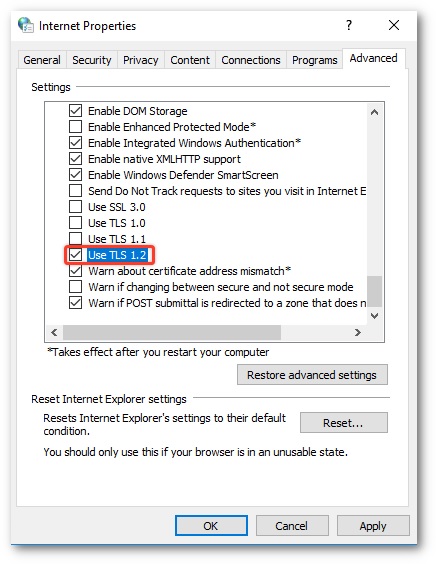
- Click the search icon (magnifying glass) In the Windows taskbar and type “internet options” in search box.
- Under Best match, click Internet Options.
- In the Internet Properties window, on the Advanced tab, scroll down to the Security section.
- Check the User TLS 1.2 checkbox.
- Click OK.
- Close your browser and restart Microsoft Edge browser.
Google Chrome
- Open Google Chrome
- Click Alt F and select Settings
- Scroll down and select Advanced
- Scroll down to the System section and click on Open proxy settings
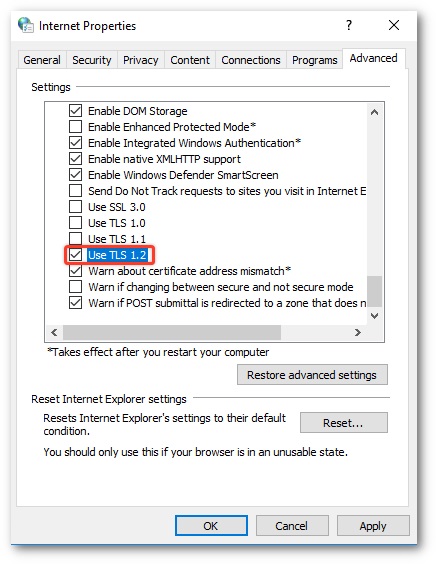
- Select the Advanced tab
- Scroll down to the Security category, locate and check the option box Use TLS 1.2
- Click OK
- Close your browser and restart Google Chrome
Mozilla Firefox
- Open Firefox
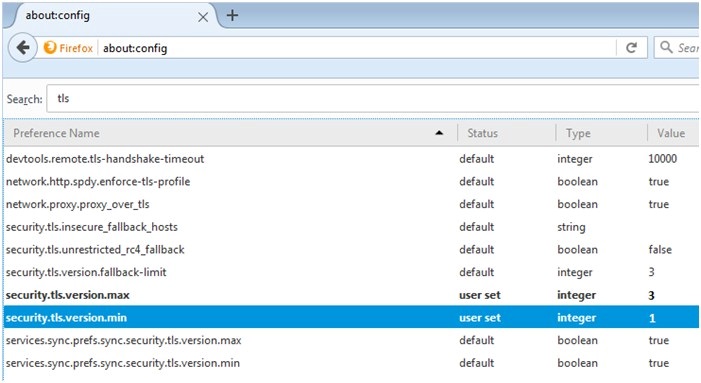
- In the address bar, type about:config and press Enter
- In the Search field, enter tls. Find and double-click the entry for security.tls.version.max
- Set the integer value to 3 to force protocol of TLS 1.2 to be the default.
- Click OK
- Close your browser and restart Mozilla Firefox
Apple Safari
There are no options for enabling SSL protocols. If you are using Safari version 7 or greater, TLS 1.1 and TLS 1.2 are automatically enabled.