
Use your mobile phone as your token? Of course you can.
Standard Chartered Mobile Key is a virtual security token which securely authenticates your login and transactions.
Register your Standard Chartered Mobile Key
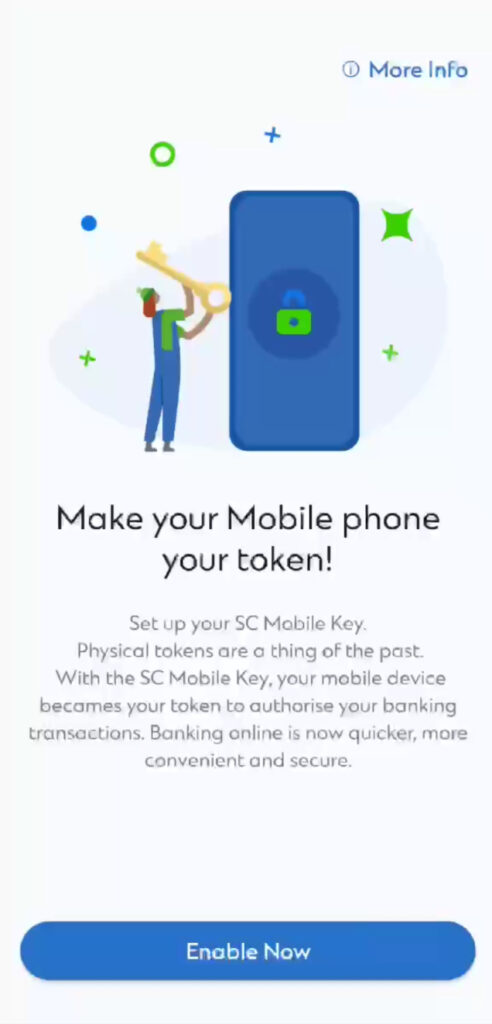
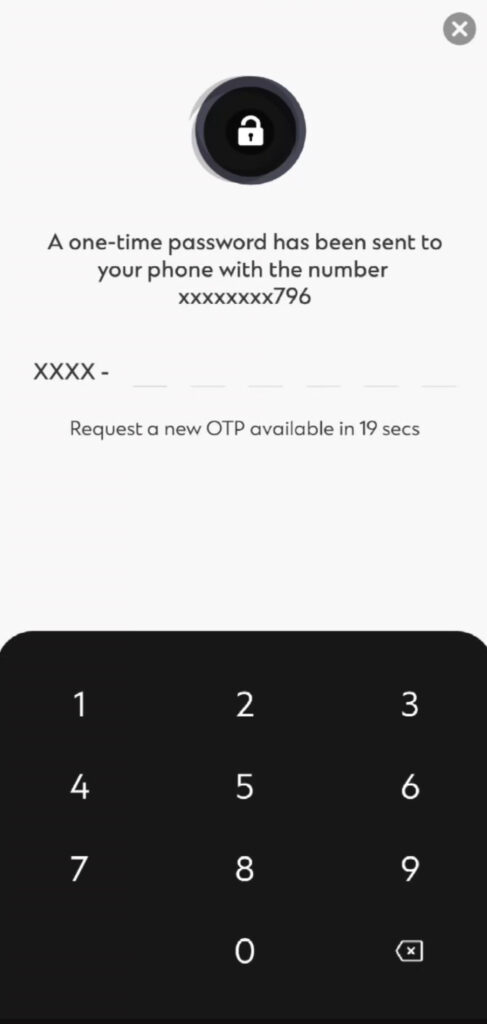
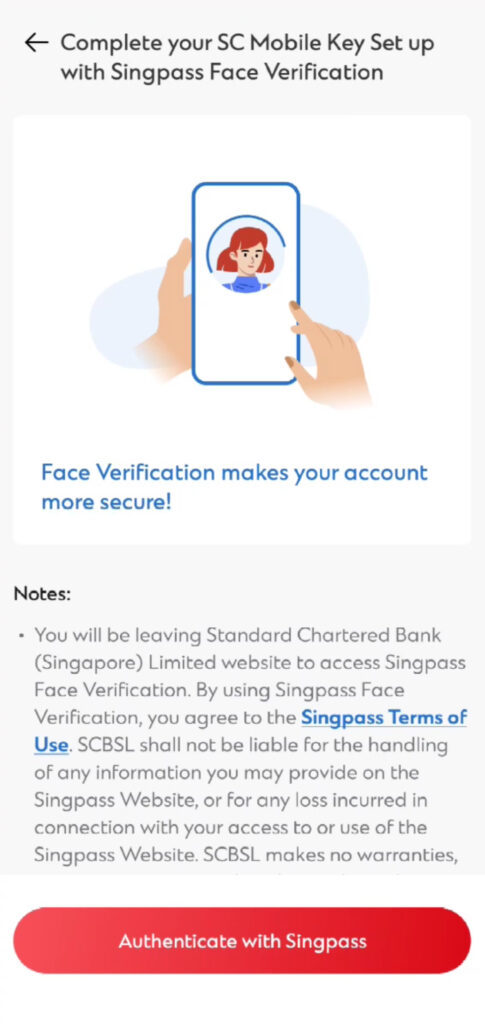
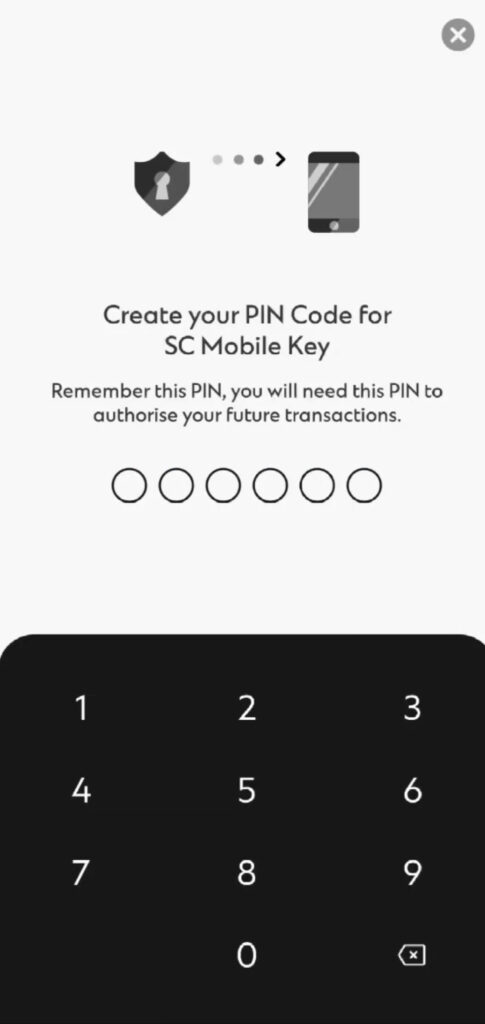
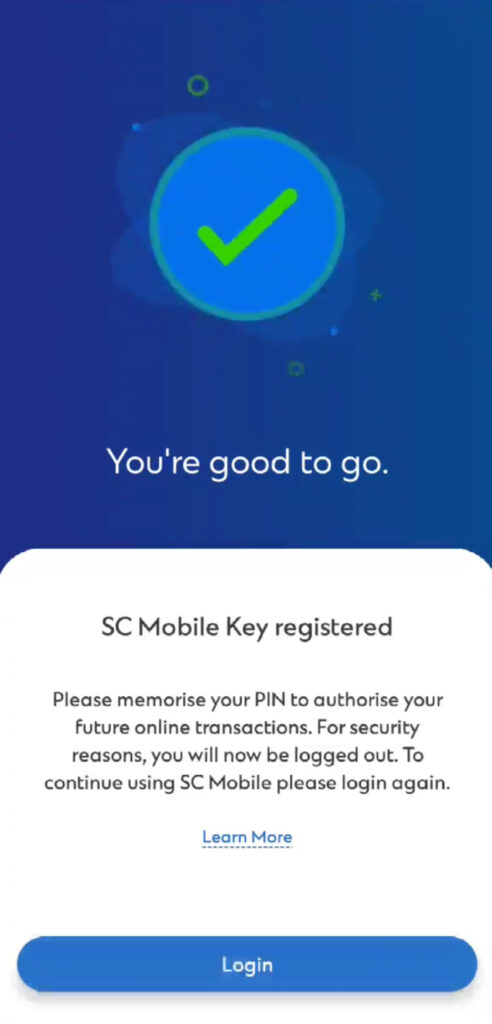
Register your Standard Chartered Mobile Key
Meet your better app
Experience the new standard of digital banking with SC Mobile

Scan QR code to download SC Mobile App now



FAQs - Standard Chartered Mobile Key
The Standard Chartered Mobile Key is a virtual security token embedded in your Standard Chartered Mobile app which will enable you to authenticate your mobile or online banking login and transactions through your mobile device.
Seamless: You will no longer need to key in SMS OTPs or use a physical card token security device to login to your account or to authenticate your banking transactions.
Secure: When you perform sensitive activities such as adding a new payee, Standard Chartered Mobile Key digitally signs these transactions, adding a layer of security on top of the transaction.
Anywhere: Standard Chartered Mobile Key works even when you do not have data or mobile network connectivity. You can still generate your OTP and do transaction signing in offline mode.
The Standard Chartered Mobile Key comes with enhanced encryption capabilities which improves the overall security of your mobile app. It will also help you to securely authenticate your logins and transactions on both Online Banking and the Standard Chartered Mobile app.
Yes. It is compulsory to register for SC Mobile Key. All physical security token cards and SMS OTP have ceased to function after 30 September 2018 and 30 August 2020 respectively. Please register for Standard Chartered Mobile Key in order to authenticate your login and perform sensitive online or mobile banking activities that require transaction signing. These transactions include:
- Adding a new payee;
- Transferring funds or making payments above a defined threshold or increasing your daily transfer limits; and
- Updating personal details, such as mailing address, contact number and email address.
Without the SC Mobile Key, you will not be able to authenticate yourself when logging in or perform any high risk or sensitive activities.
SMS OTP will no longer be sent from 30 August 2020, hence you will be required to register for the SC Mobile Key in order to continue with your Online or Mobile banking activities
The Bank will be phasing out SMS OTP for login authentication and the use of SMS OTP will cease by 30 August 2020. You will be required to authenticate your login using SC Mobile key in order to navigate from the accounts overview page.
- Log in to the Standard Chartered Mobile app
- You should see an introduction screen for Standard Chartered Mobile Key
- Tap on ‘Enable Now’ and follow the on-screen instructions to complete the registration
This shows that the device already has a soft token registered on it, which may or may not be registered by you. You just need to un-install and re-install the SC Mobile application before proceeding to register for SC Mobile key
Yes, you will receive push notification and email notification after you have registered successfully.
After 30 September 2018, the token function of the card has ceased to function.
This will not affect the credit/debit/ATM function of the card which can still be used until the card expires.
The PIN provides an additional layer of security in authenticating sensitive transactions such as adding a new payee and updating personal particulars via online or mobile banking.
Step 1: Log in to SC Mobile
Step 2: Select ‘Services’
Step 3: Select ‘Password and Security Settings’
Step 4: Select ‘SC Mobile Key’
Step 5: Select ‘Change PIN’
Step 1: Log in to SC Mobile
Step 2: Select ‘Services’
Step 3: Select ‘Password and Security Settings’
Step 4: Select ‘SC Mobile Key’
Step 5: Select ‘Change PIN’
Step 6: Select ‘Forgot the PIN?’
When you log in to the Standard Chartered Mobile app, you will be prompted to re-register for Standard Chartered Mobile Key. Follow the on-screen instructions to complete registration for Standard Chartered Mobile Key and resume using Online Banking and/or the Standard Chartered Mobile app.
The Standard Chartered Mobile app is supported on Apple iPhones 6 and above, with iOS 14 and above, and smartphones with Android 9.0 and above.
SMS OTP will no longer be sent from 30 August 2020, hence you will be required to register for the SC Mobile Key through the SC Mobile app that is running on a smart phone with compatible OS, in order to continue with your Online Banking activities.
SC Mobile app is supported on Apple iPhones 6 and above and with iOS 14 and above, and smartphones with Android 9.0 and above.
For your security, you are only allowed to set up Standard Chartered Mobile Key on one mobile device.
When you register for Standard Chartered Mobile Key on a new mobile device, this will automatically disable Standard Chartered Mobile Key on the previous device.
No. Starting from July 2025, and with SC Mobile app version (9.14.9) or later, you will only be able to log in to SC Mobile using a single mobile device (such as mobile phone, tablet) that has a registered SC Mobile Key. If you have more than one mobile device, please ensure that the SC Mobile Key is registered on a secure and reliable mobile device. When you switch to another mobile device, you will be required to transfer and re-register SC Mobile Key with a 6-digit pin and SC Mobile Key on the old device will be deactivated immediately.
Please download the Standard Chartered Mobile app on your new device and re-register for the Standard Chartered Mobile Key. This will immediately disable the Standard Chartered Mobile Key from the previous device that you have lost.
For immediate assistance, please call our 24-hour Client Contact Centre at +65 6747 7000 or alternatively, visit any Standard Chartered branch.
Standard Chartered Mobile Key can still work even when you do not have data or mobile network connectivity. You can generate an offline PIN to authenticate your logins and transactions on Online Banking.
While logging in/performing a transaction – when prompted to authenticate using Standard Chartered Mobile Key,
- On the Online Banking screen, click “Generate an Offline PIN” located at the bottom of the screen
- Open the Standard Chartered Mobile app on your device that is registered for the Standard Chartered Mobile Key
- From the Welcome screen, click on the menu icon located on the top left of the screen – You do not need to log in
- Select ‘Offline PIN’
- Depending on your transaction type, select either ‘Generate Offline PIN for Login’ or ‘Generate Offline PIN for Transactions’.
- You are required to key in your 6-digit PIN to retrieve the offline PIN for authentication
All token cards have been phased out since 30 September 2018. Kindly ensure that you are registered for Standard Chartered Mobile Key to authenticate your online banking and SC Mobile login and high risk transactions.
If you are registering for online banking for the first time, or have registered for SC Mobile Key on a new device, there will be a 12-hour waiting period before you can log in to activate and use your SC Mobile Key.
If you are registering for online banking for the first time, or have registered for SC Mobile Key on a new device, there will be a 12-hour waiting period before you can log in to activate and use your SC Mobile Key.
You may set up biometrics after successful activation of SC Mobile Key.
FAQ Singpass Face Verification
Singpass Face Verification is a method of verifying your identity using a face scan compared against the government’s records. It is used to complement existing authentication methods for digital token set up i.e. SC Mobile Key registration.
Singpass Face Verification is not available on SC website for Online Banking. It is only available on SC Mobile app.
If you are unable to successfully complete the facial verification after 5 attempts, please wait for 30 minutes before trying again.
Individuals who no longer resemble their NRIC or passport photograph can apply for a replacement of their NRIC or passport with the Immigration & Checkpoints Authority (ICA). This ensures that the Government’s biometric database of facial images remains up-to-date.
There may be several possible reasons for this. For ways to improve the success of Face Verification, you should ensure that
• Your face is not covered
• You keep still while scanning is in progress
• There is no strong lighting in the background
• Your environment is not too dark
• You use a minimum resolution of 2 megapixels for the camera
• Your NRIC/ passport photo image is up-to-date
For banks enrolled in the use of Singpass Face Verification, you may be required to perform the authentication as an additional means to guard against unauthorised set-up of your digital token.
We are unable to perform manual opt in.
It is not necessary for Singpass app and SC Mobile app to be on the same device. User may perform following steps when prompted for Singpass Face Verification
- SC Mobile app and Singpass app are on the same device: Tap on the Singpass QR code when prompted and follow the screen prompt to complete the journey
- SC Mobile app and Singpass app are on different devices: Scan the Singpass QR code when prompted to log into Singpass and complete remaining journey using the device with SC Mobile app
Standard Chartered do not collect or store the biometric data during the use of Singpass Face Verification.
There are stringent security measures in place to protect users’ personal information.
For more information on Singpass Face Verification, please visit: https://ask.gov.sg/singpass. If you need further assistance regarding your Singpass account, please get in touch with Singpass at https://go.gov.sg/singpass-feedback-issue