
Viewing your Balances and Transactions just got easier
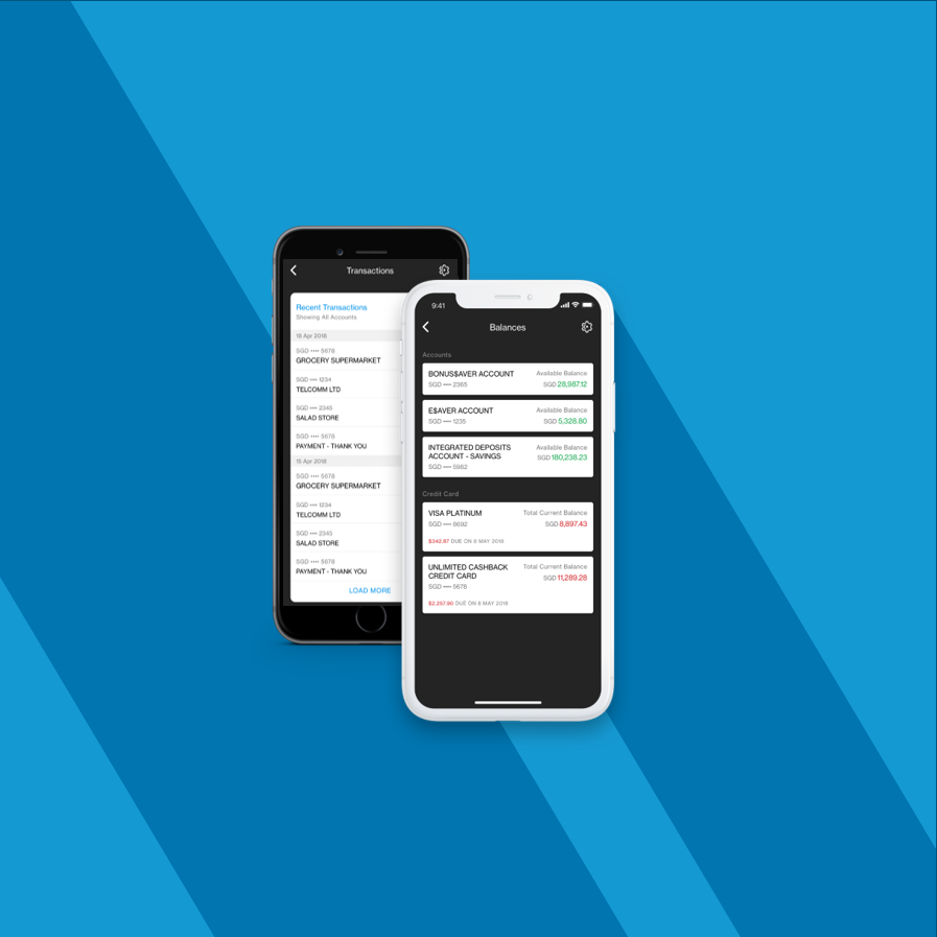
Authorize to view your balances and transactions on your Welcome Screen with just one tap. No login required.
Watch the "How-To" video here:
How-To: view transactions without logging in
Watch the "How-To" video here:
How-To: view transactions without logging in
Register to view your balances and transactions easily
Register to view your balances and transactions easily
CONVENIENCE
Register to view your Balances and Transactions with just one tap for a hassel-free banking experience No Login Required Get a quick overview of your Balances and Transactions without logging in. Simply launch your mobile banking app and use the Balances and Transactions shortcut from the Welcome Screen.
FAQs
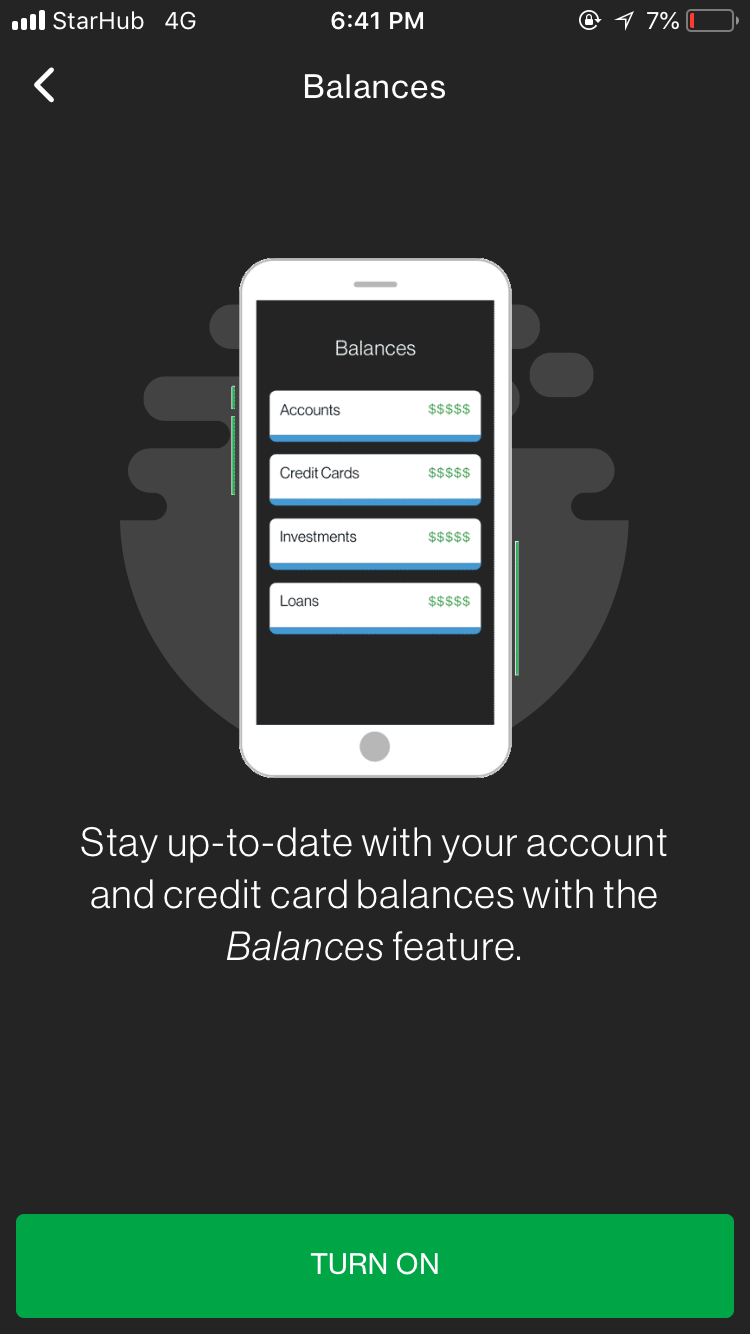
Registering for the Welcome Screen Balances feature allows you to view your balances on the go with just one tap. This feature also display the due date and amount due for your credit card and loan accounts.
Registering for the Transactions feature allows you to view your recent transactions on the go with just one tap. You can select up to five accounts for display . You may also filter these accounts easily within the feature.
No login is required for both features.
No, it is not compulsory. You may also de-register from these two features easily if you decide not to use it after registration.
There are three ways to register.
From the welcome screen
Tap on the Balances/ Transactions icon found at the bottom of the welcome screen.
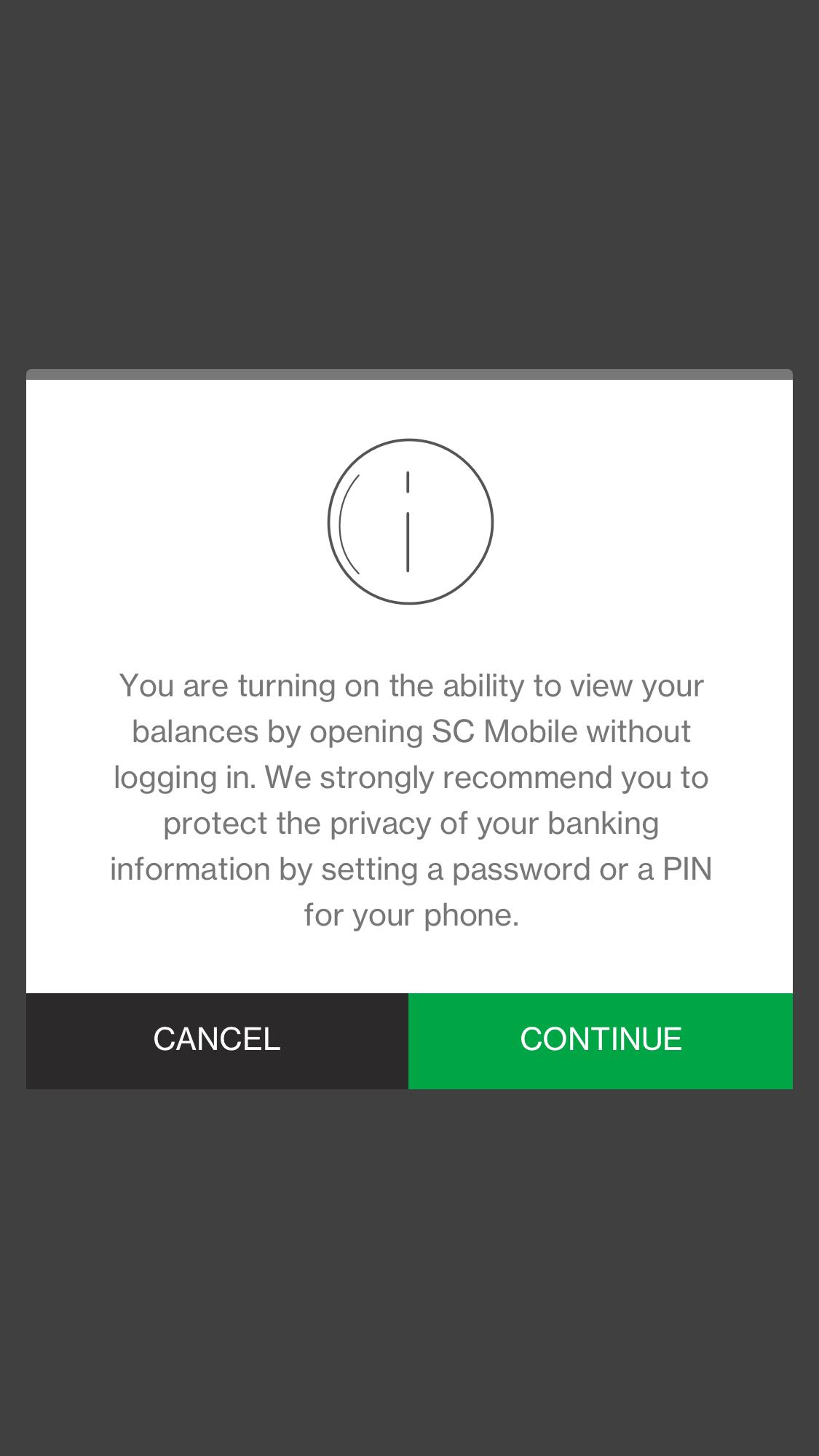
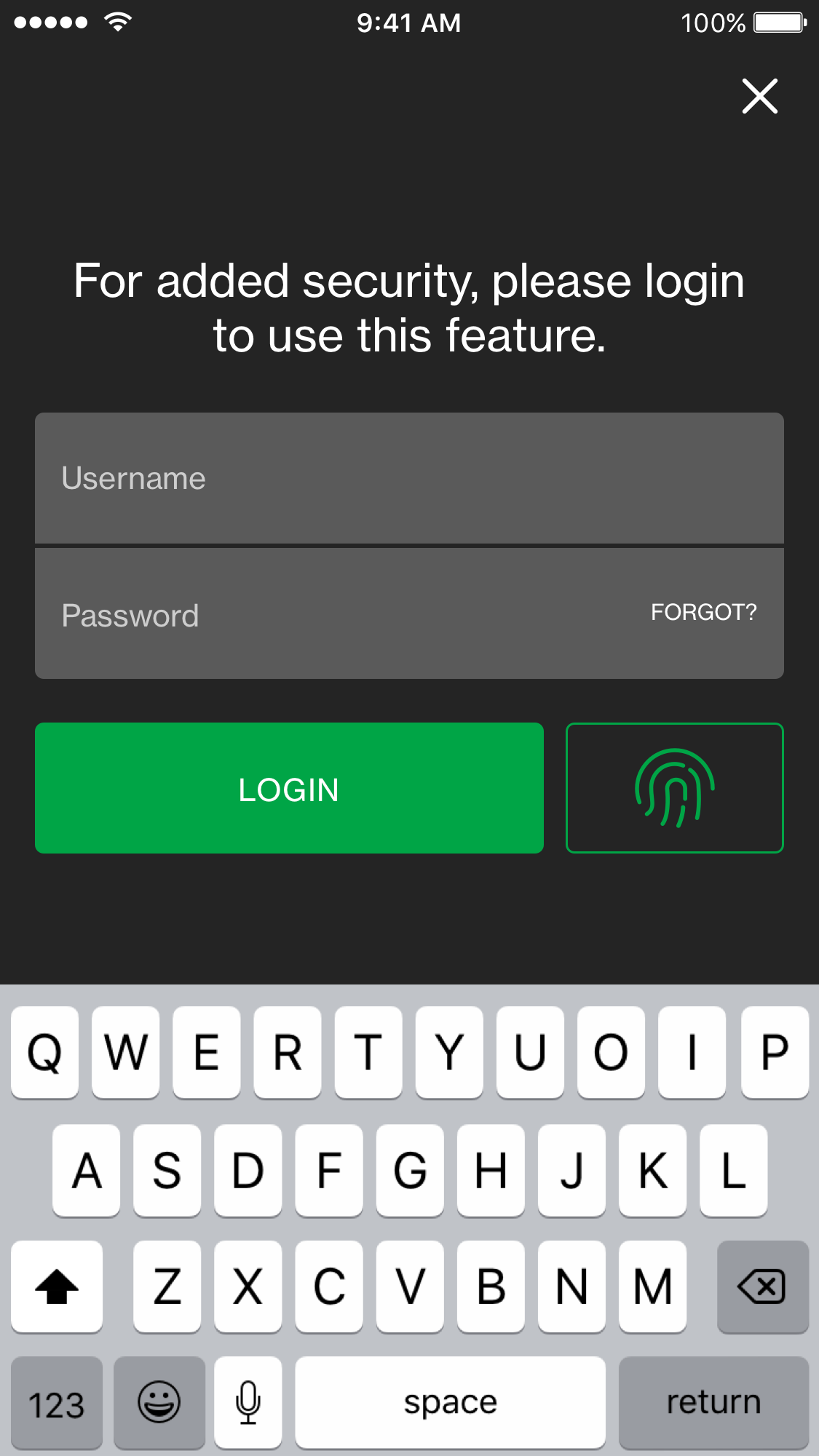
Click on “Turn On”, and you will be prompted to log in to Standard Chartered Mobile App (?)
Follow the on-screen instructions to complete your registration.
From the pre-login side menu
From the welcome screen, click on the menu icon located on the top left of the screen
Click on ”Settings”
Select Balances/ Transactions feature, you will be prompted to log in to Standard Chartered Mobile App
Click on “Turn On” and follow the on-screen instructions to complete your registration
From the post-login menu
Login to Standard Chartered Mobile App
Click on the menu icon located on the top left of the screen
Click on ”Settings”
Select Balances/ Transactions
Click on “Turn On” and follow the on-screen instructions to complete your registration
Standard Chartered Mobile App is supported on Apple iPhones with iOS 9 and above and smartphones with Android 5.0 and above.
*From August 2019 onwards, SC Mobile will no longer be supported on iPhone 4 / 4S devices due to a security enhancement. You can continue to use our digital services via Online Banking.
The feature(s) will be enabled immediately after registration.
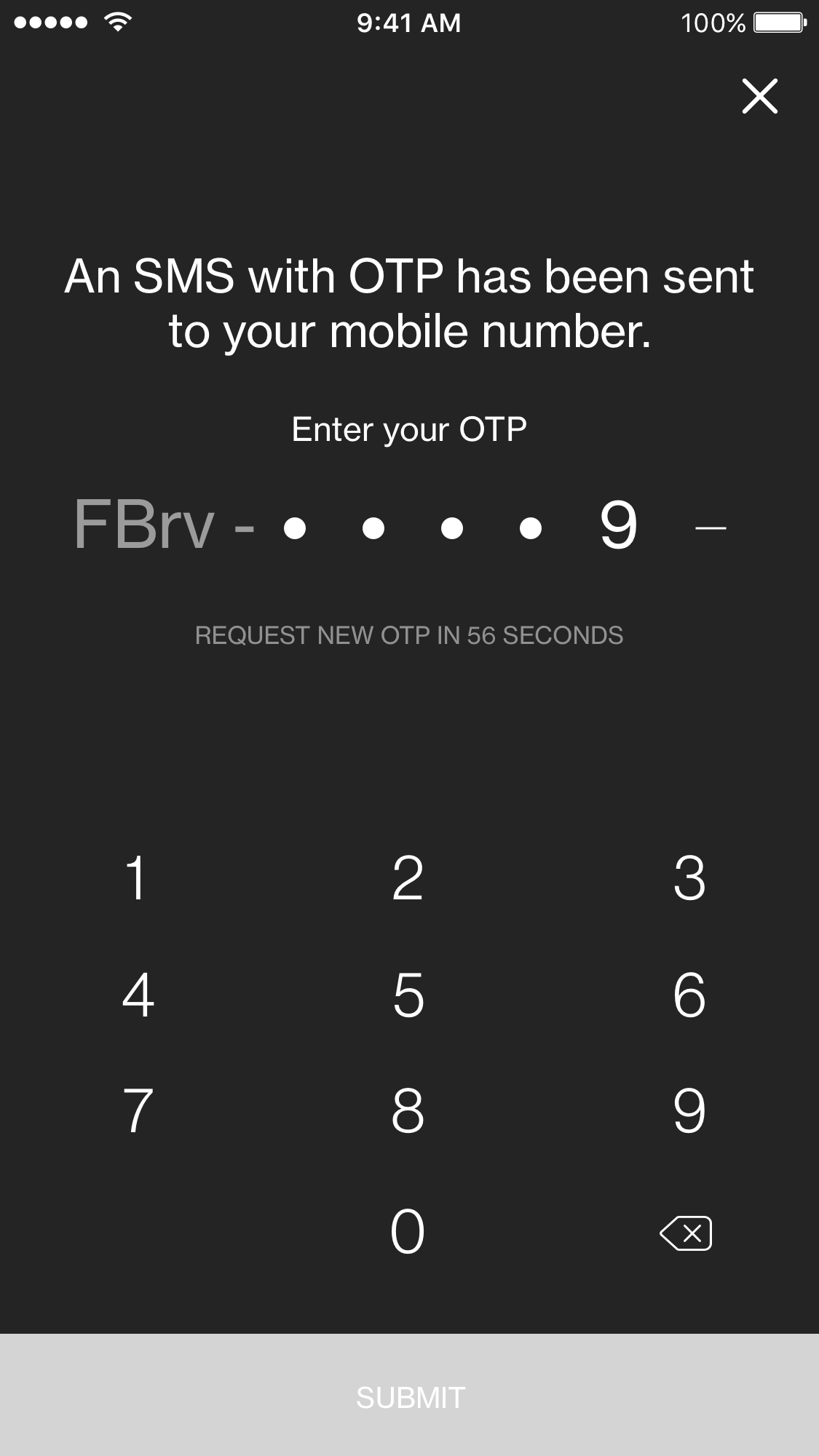
Yes, you will receive an SMS and email alert to confirm your registration.
The due date/s and amount/s shown are simply a display of information, which will be refreshed every month according to your billing cycle date.
Green refers to a credit balance while Red refers to a debit balance.
Your credit card may not be activated. Activate your credit card via the Standard Chartered Mobile App under “Help & Services” in order to view this card on the Balances feature.
For security reasons, your mobile device requires a passcode/ biometric login to register for the Transactions feature.
No. For security reasons, you can only register for the Standard Chartered Mobile app and related features on one mobile device.
If you’ve lost your mobile device, simply download the Standard Chartered Mobile App on your new mobile device to register for all these features. This will immediately de-register the Standard Chartered Mobile App from your previous mobile device. Alternatively, you may call our 24-Hour Client Contact Centre at +65 6747 7000 for assistance.
Yes, the second user can log in to Standard Chartered Mobile App on your mobile device. However, the second user will not compromise the security of your phone as they will not be able to register for any features on your mobile device.
You have registered for Standard Chartered Mobile Key on another mobile device. To register for Balances or Transactions feature on your current mobile device, you are required to re-register for Standard Chartered Mobile Key on this mobile device by selecting “Register Now”.
This will immediately de-register the Standard Chartered Mobile Key and all features from your previous mobile device.
Yes, you can. Tap the menu on the top left of the screen, then tap ‘Settings’ and tap ‘Video Background’ to switch the video background off.