
 Straight2Bank

Quick starter guide for Digital Banking
Register to unlock wide range of banking services
Don’t know where to start? We are here to help you.
For SC Mobile or Online Banking Registration, you must download SC Mobile App first.
Scan the QR code below to download our SC Mobile App.

Can't see your operating system here? click here
Register your account using SC Mobile App
-
Step 1
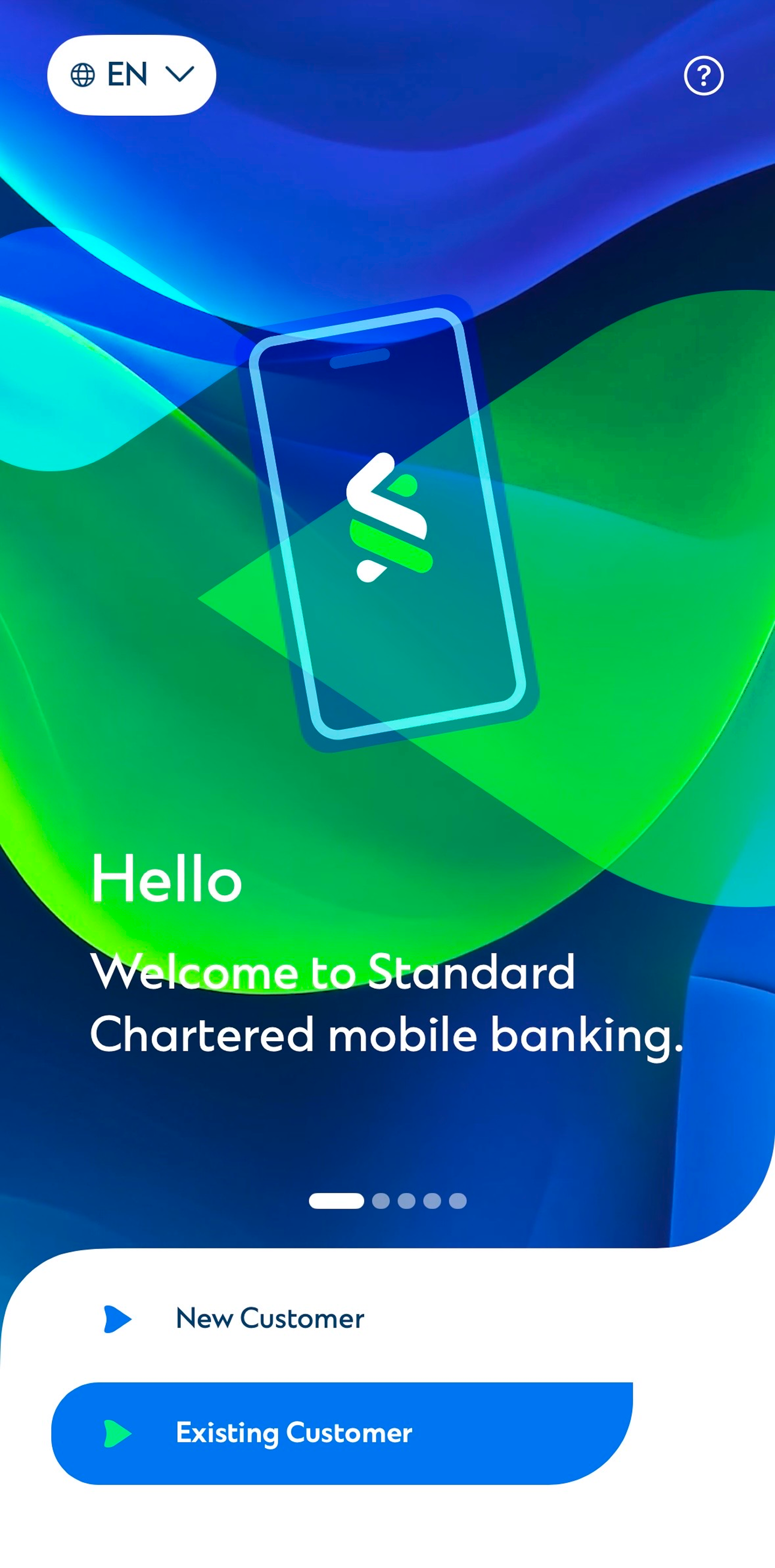
Tap ‘New Customer’ on welcome screen.
-
Step 2
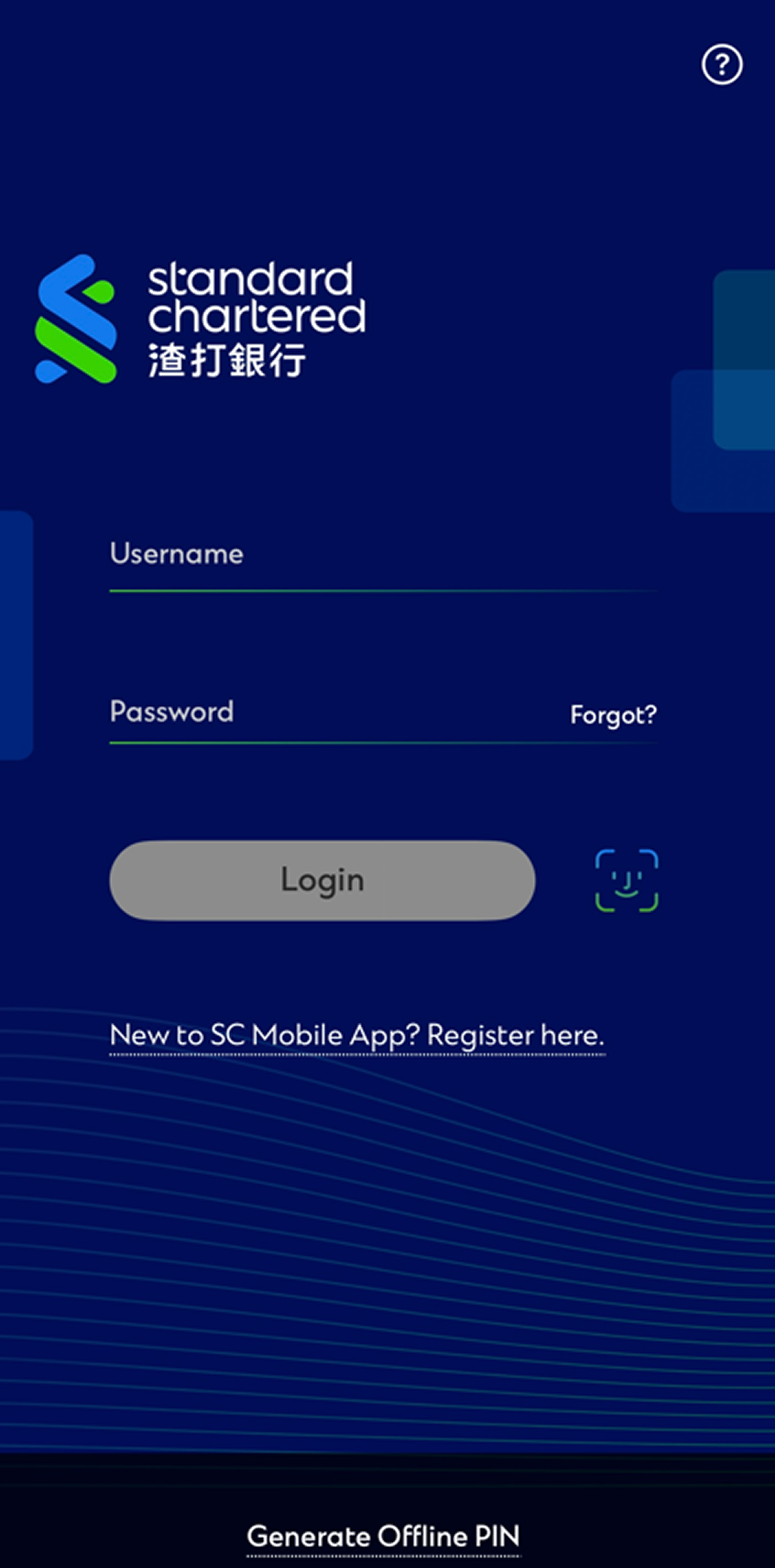
Tap ‘New to SC Mobile App? Register here’.
-
Step 3
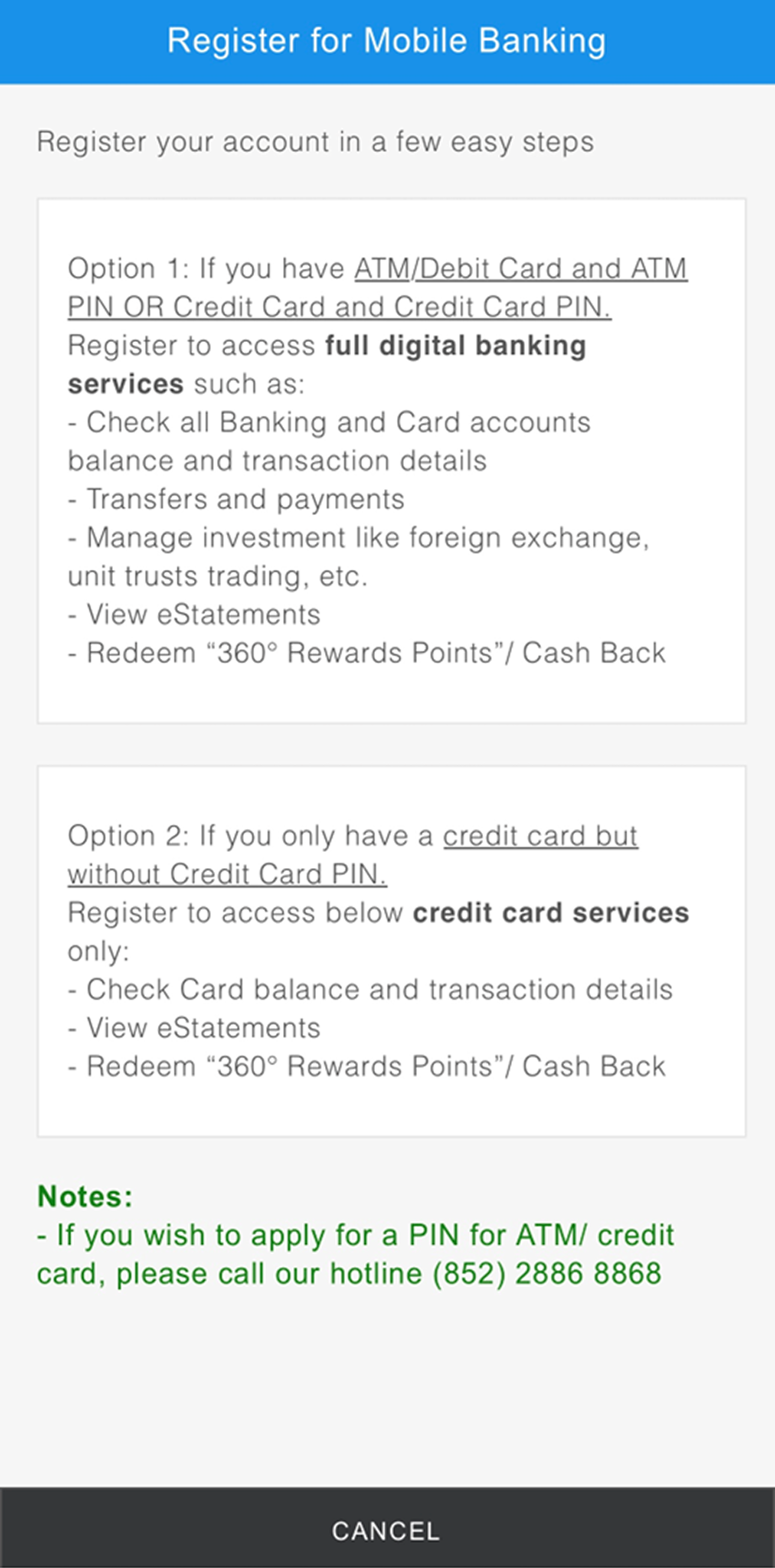
Select one of the options for registration.
-
Step 4
Option 1 (Full Digital Banking)
Register with ATM Card
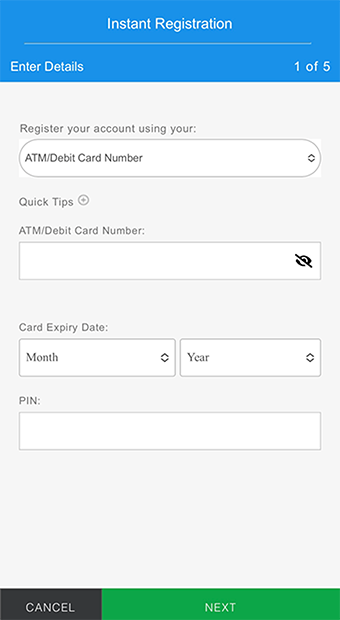
Enter ATM/Debit Card Number, Card Expiry Date and Personal Identification Number (PIN).
-
Step 5
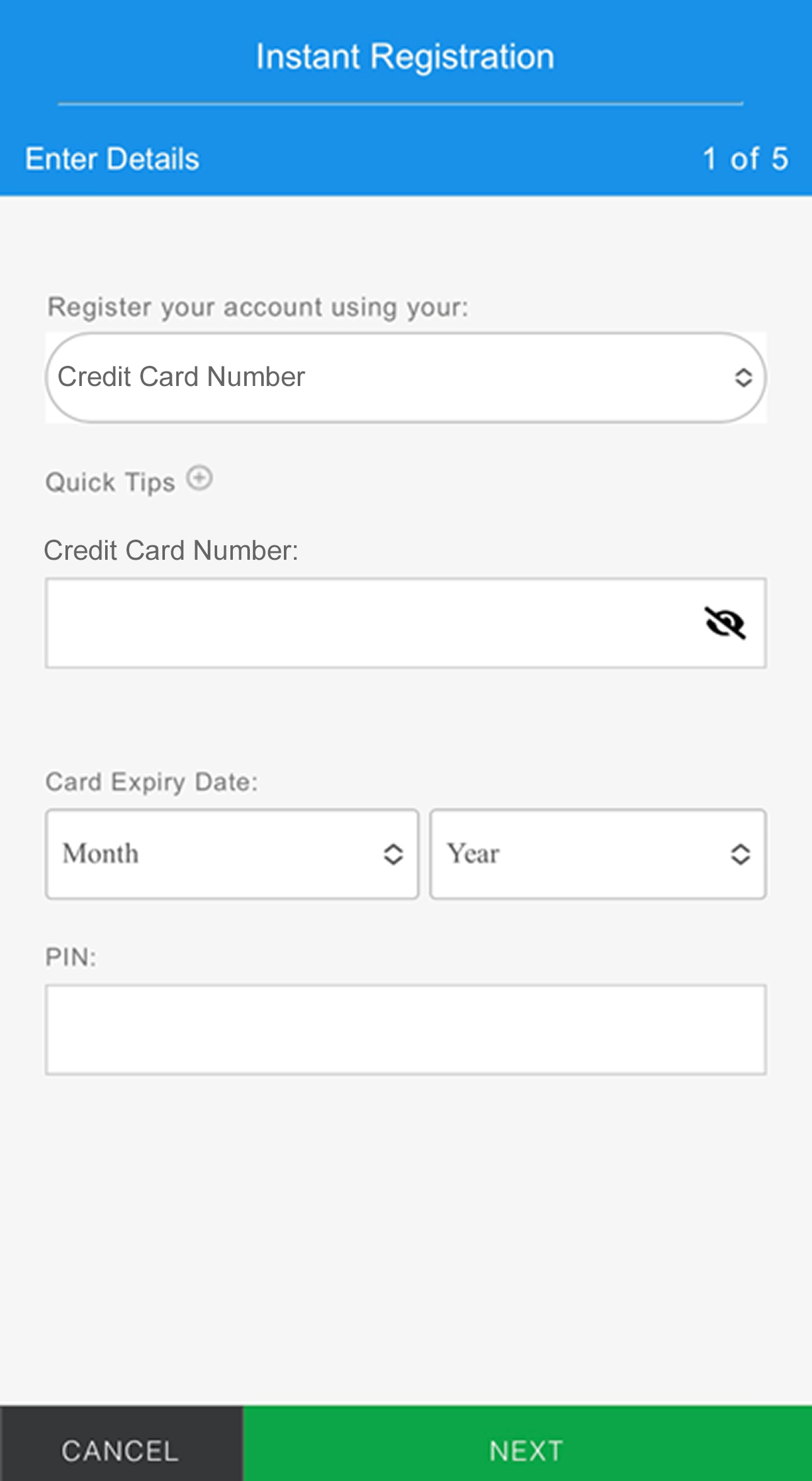
Register with Credit Card
Enter Credit Card Number, Card Expiry Date, and Personal Identification Number (PIN).
-
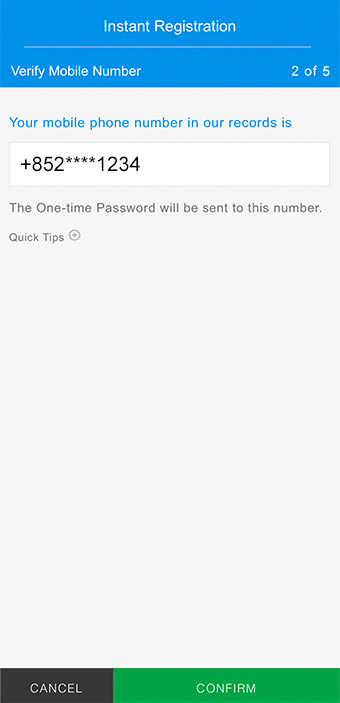
Step 6
Confirm your registered mobile number in our bank record for receiving One-time Password (OTP) via SMS.
-
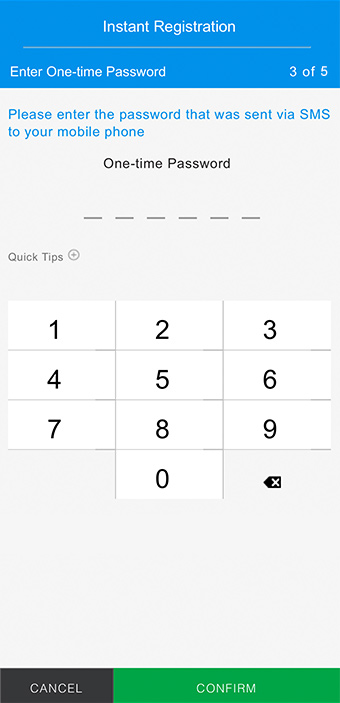
Step 7
Enter One-time Password (OTP).
-
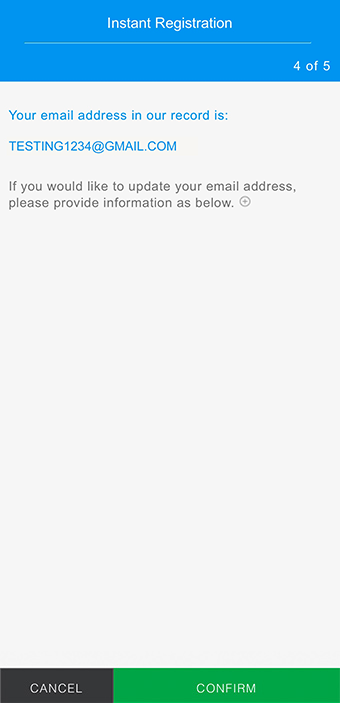
Step 8
Confirm your registered email address in our bank record.
-
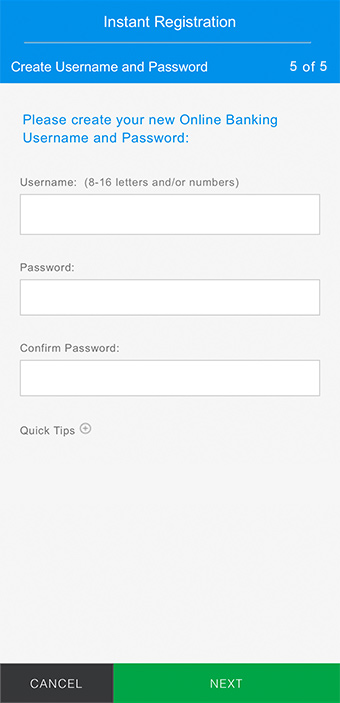
Step 9
Create Username and Password.
-
Step 10
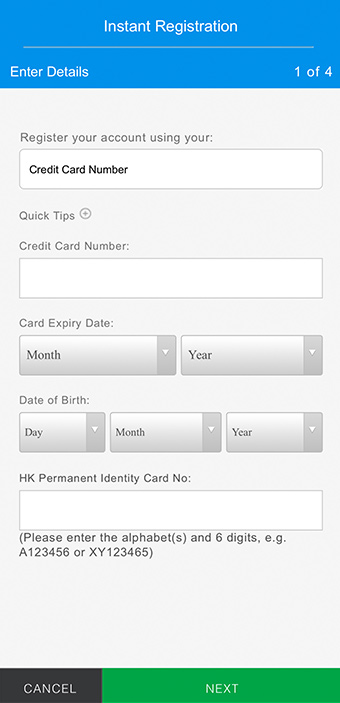
Option 2 (Credit Card Only)
Register with Credit Card
Enter Credit Card Number, Card Expiry Date, Date of Birth and HK Permanent Identity Card Number.
-
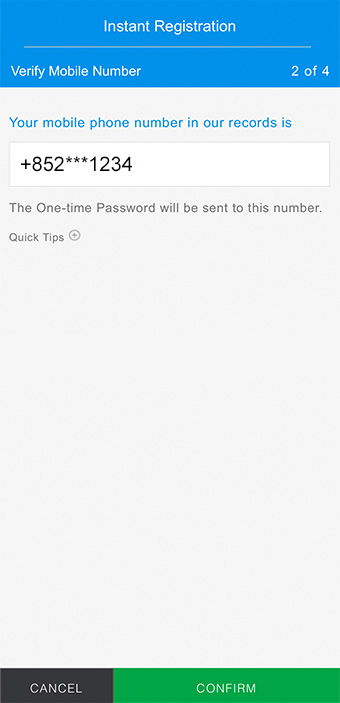
Step 11
Confirm your registered mobile number in our bank record for receiving One-time Password (OTP) via SMS.
-
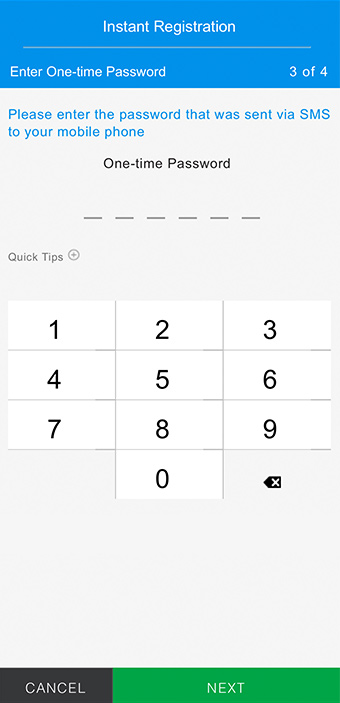
Step 12
Enter One-time Password (OTP).
-
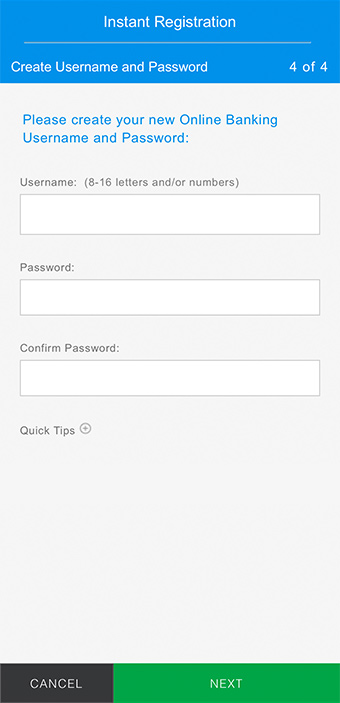
Step 13
Create Username and Password.
Register your account using SC Mobile App
Step 1
Tap ‘New Customer’ on welcome screen.
Step 2
Tap ‘New to SC Mobile App? Register here’.
Step 3
Select one of the options for registration.
Step 4
Option 1 (Full Digital Banking)
Register with ATM Card
Enter ATM/Debit Card Number, Card Expiry Date and Personal Identification Number (PIN).
Step 5
Register with Credit Card
Enter Credit Card Number, Card Expiry Date, and Personal Identification Number (PIN).
Step 6
Confirm your registered mobile number in our bank record for receiving One-time Password (OTP) via SMS.
Step 7
Enter One-time Password (OTP).
Step 8
Confirm your registered email address in our bank record.
Step 9
Create Username and Password.
Step 10
Option 2 (Credit Card Only)
Register with Credit Card
Enter Credit Card Number, Card Expiry Date, Date of Birth and HK Permanent Identity Card Number.
Step 11
Confirm your registered mobile number in our bank record for receiving One-time Password (OTP) via SMS.
Step 12
Enter One-time Password (OTP).
Step 13
Create Username and Password.
SC Mobile Key Registration
Turn your mobile phone into a security device. Generate one-time password when you log in or verify designated transactions.
-
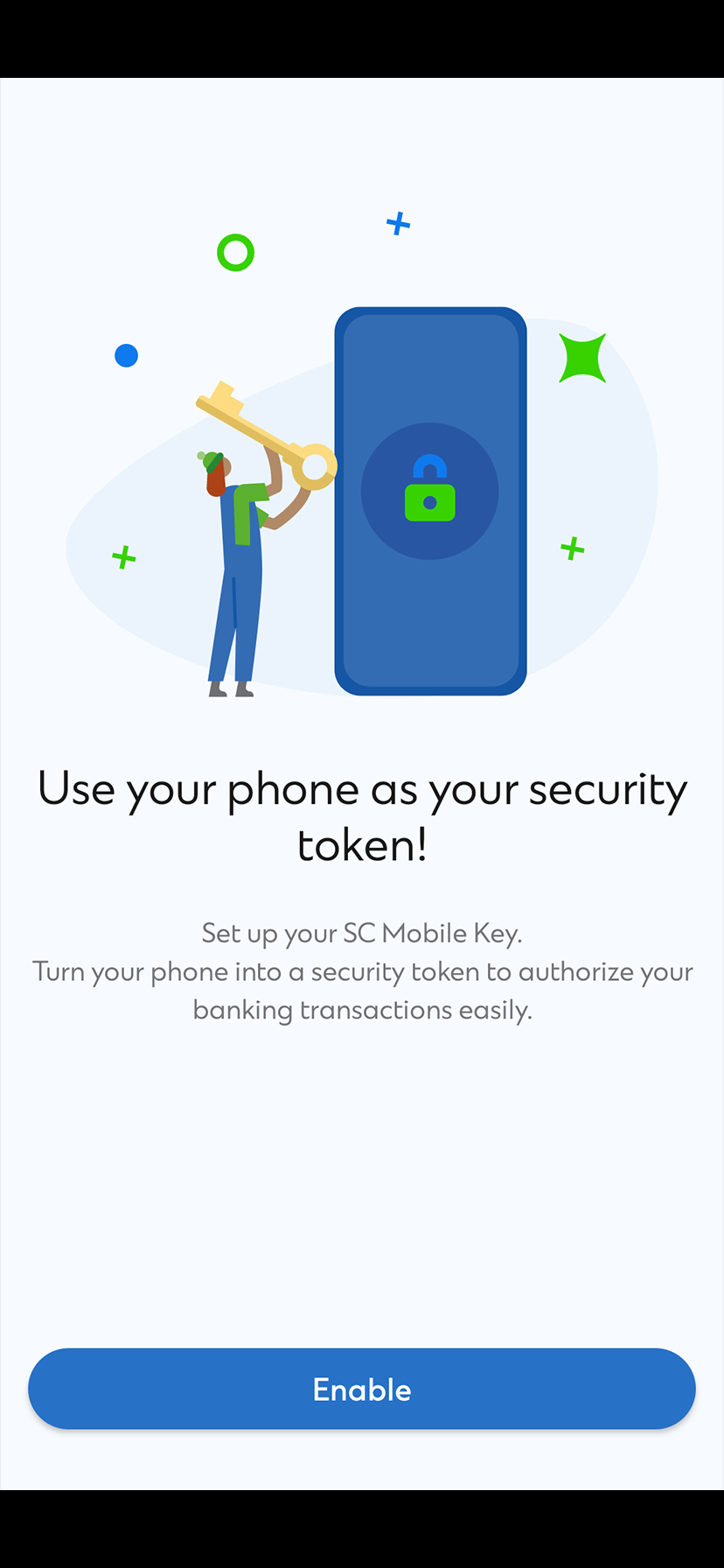
Step 1
Log in to your SC Mobile App and you will be prompted to enable SC Mobile Key.
-
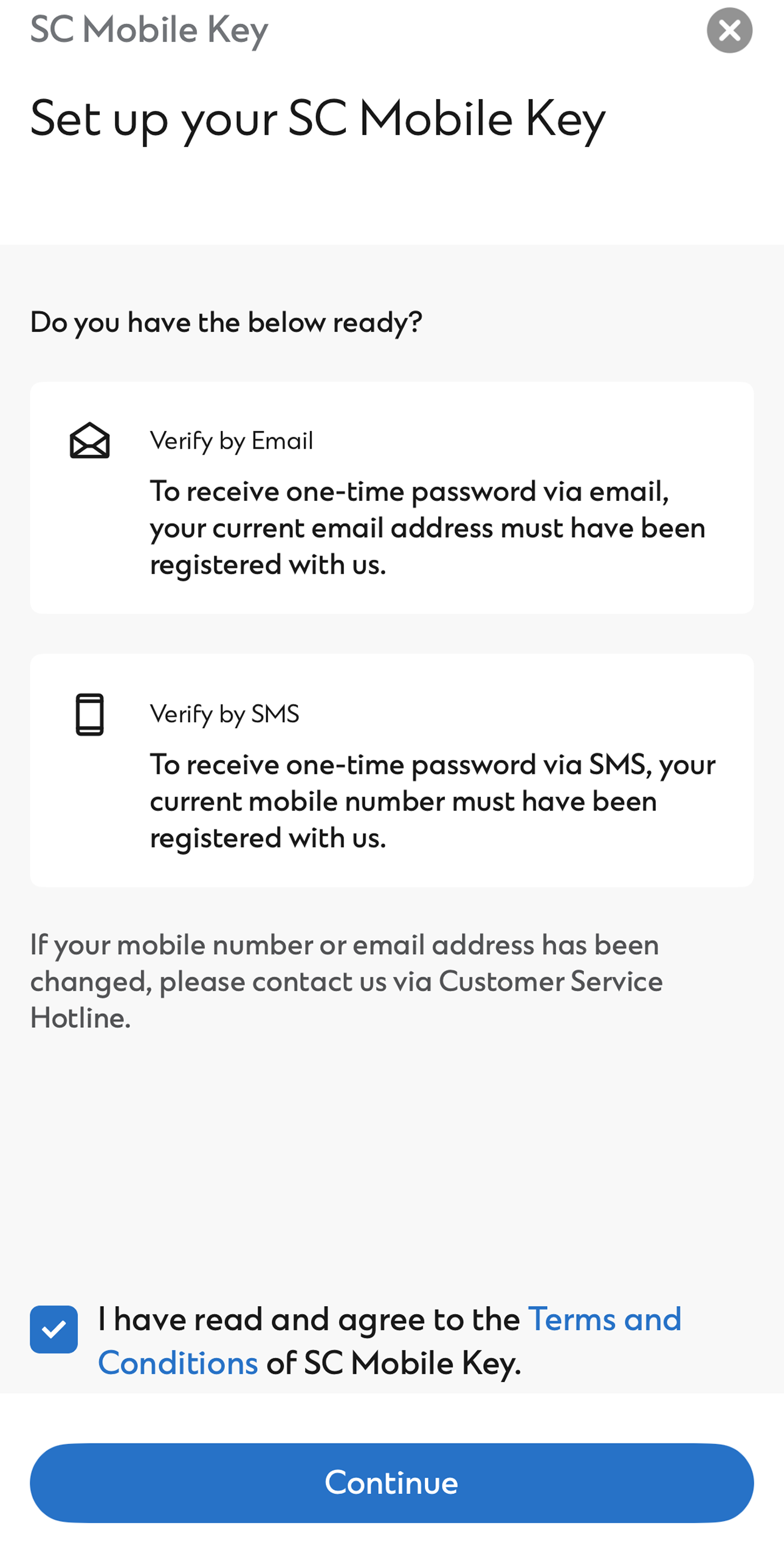
Step 2
Read and accept the Terms and Conditions. Then, tap 'Continue'.
-
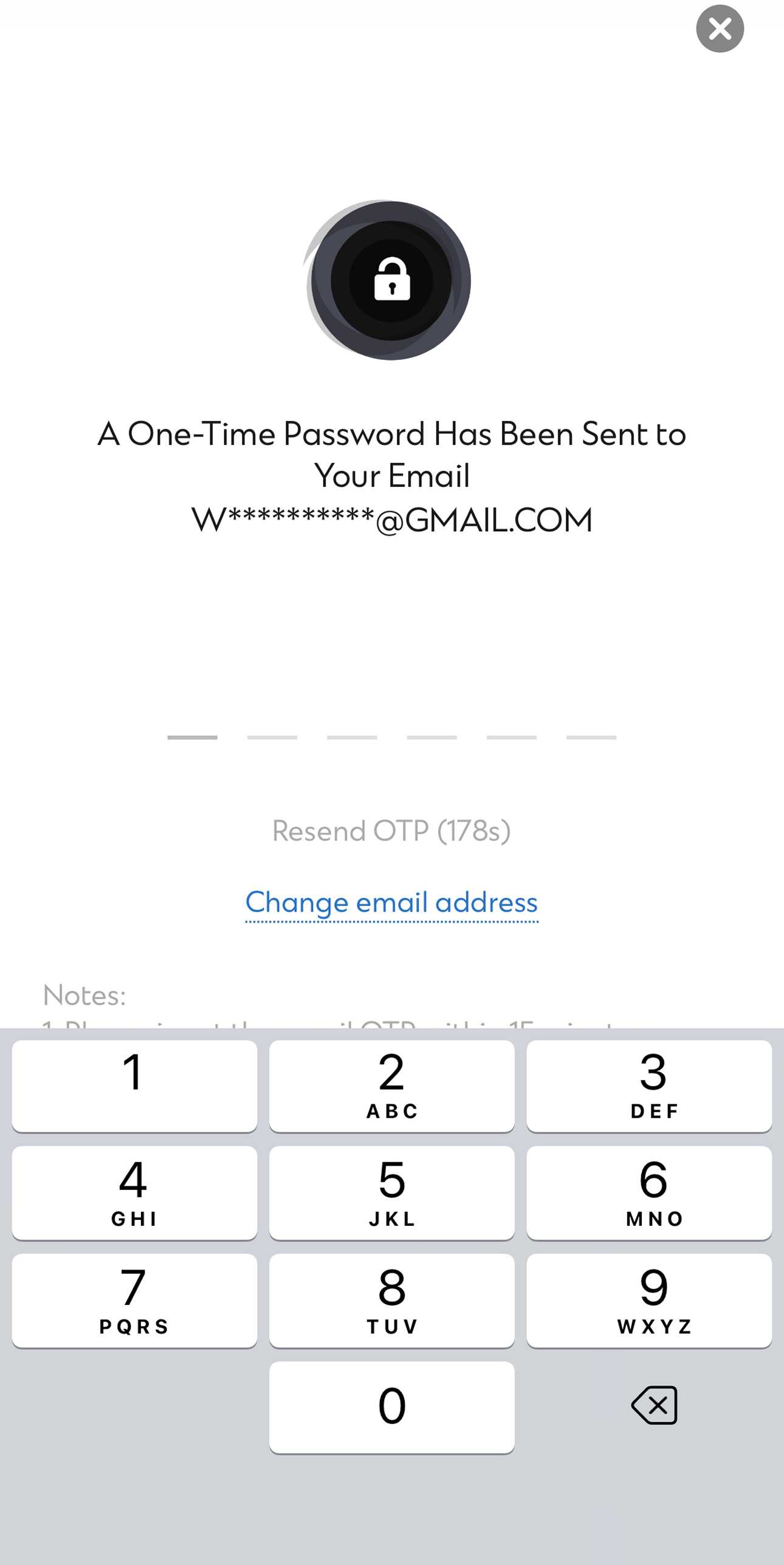
Step 3
Enter the OTP sent to you via email.
-
Step 4
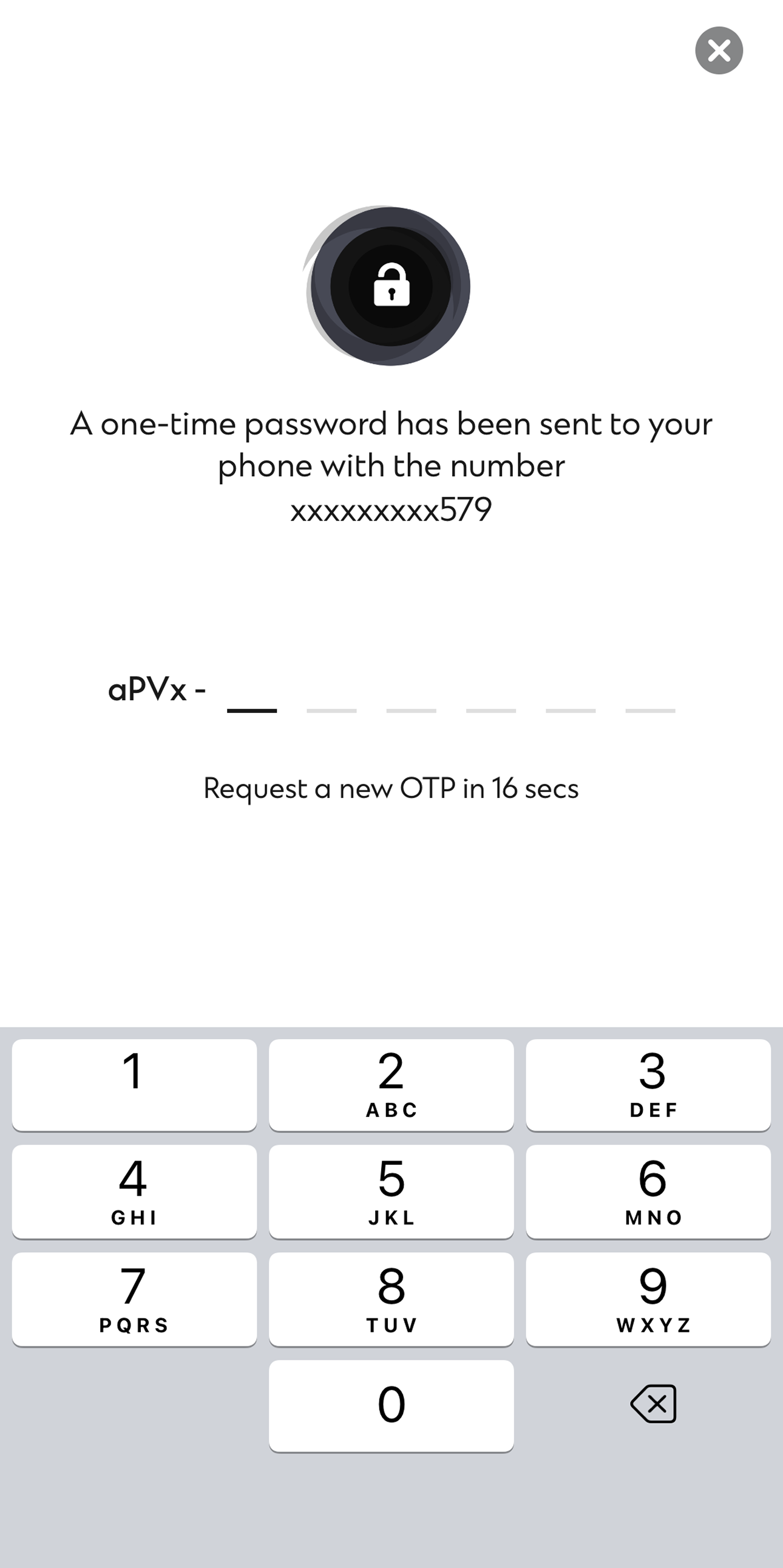
Enter the OTP sent to you via SMS.
-
Step 5
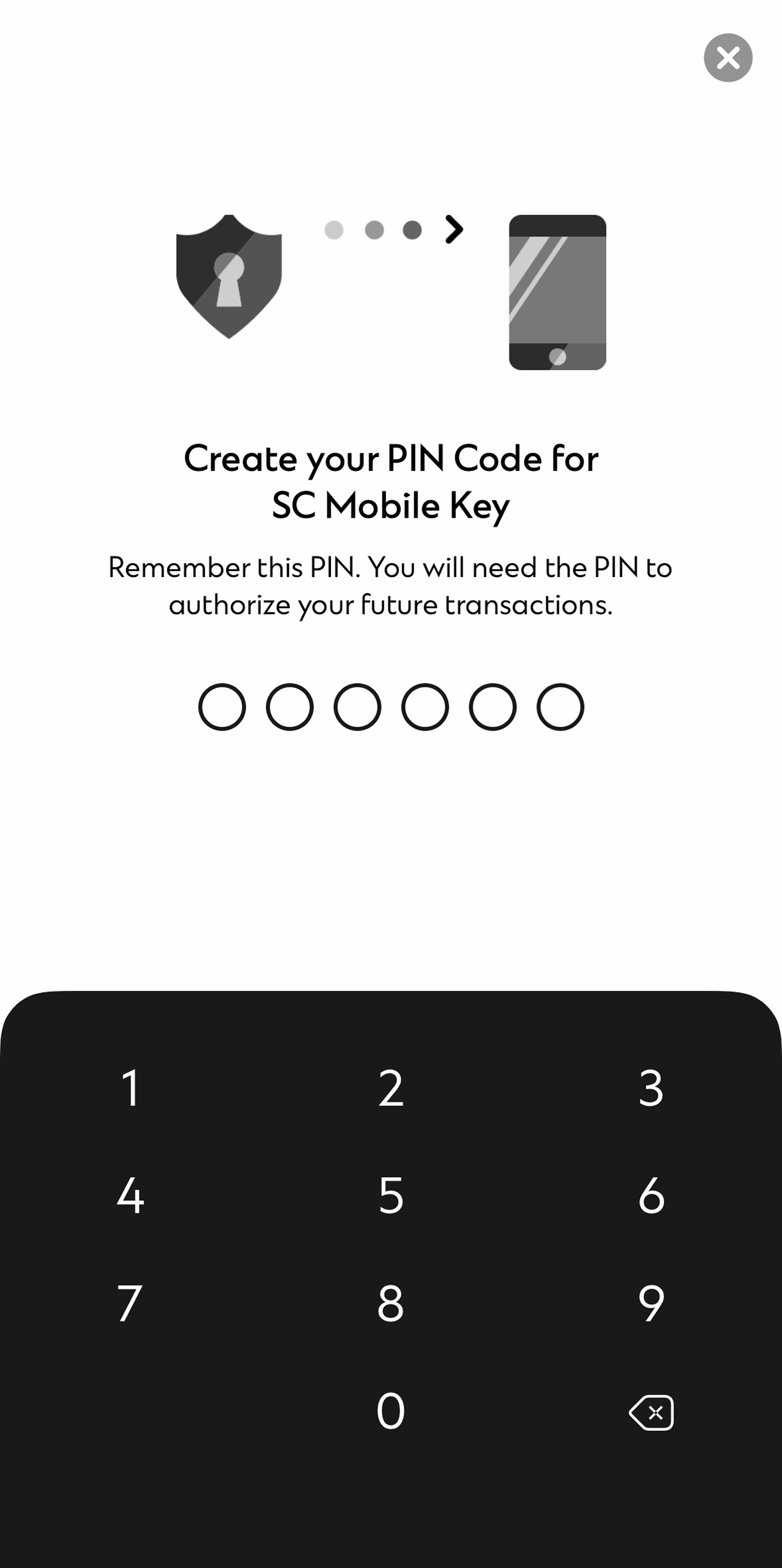
Set up a new 6-digit PIN Code.
-
Step 6
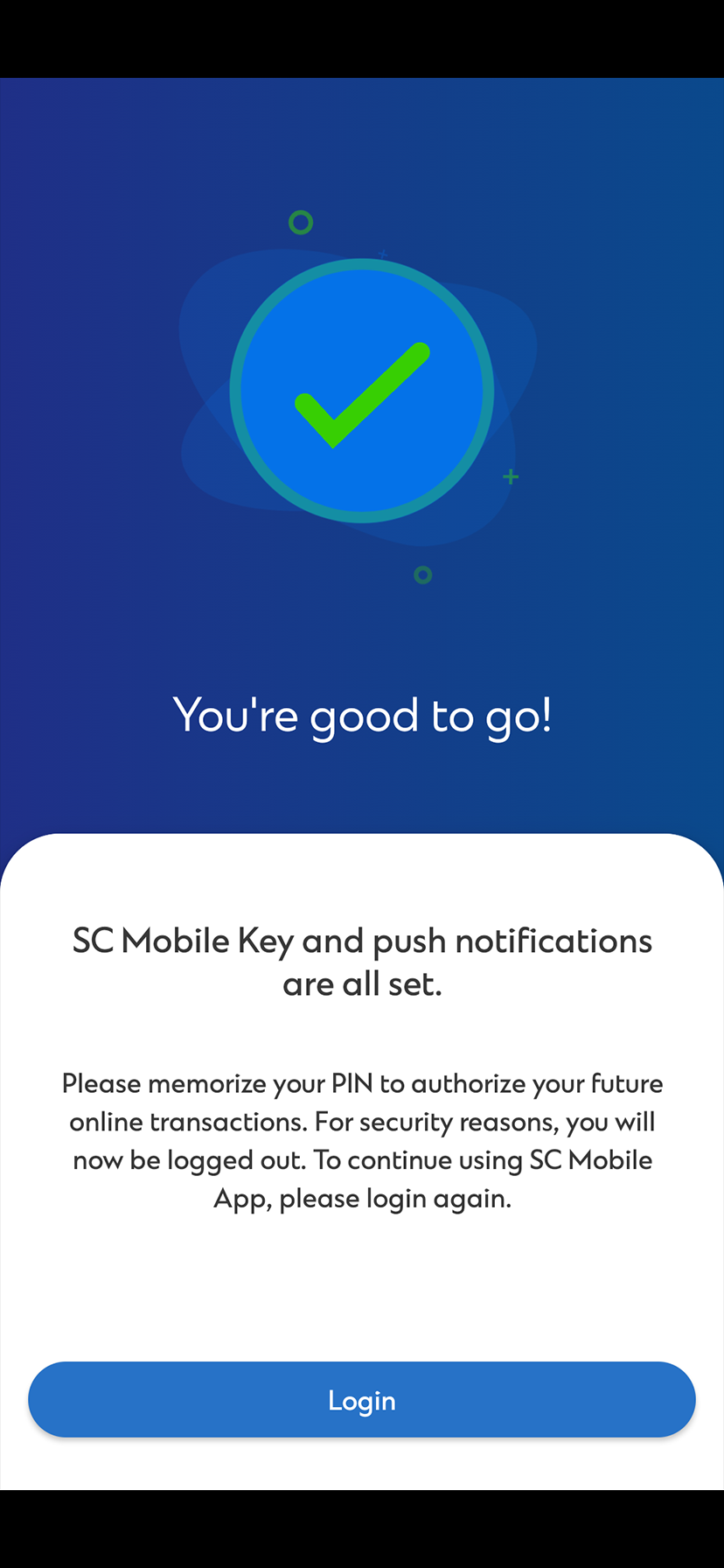
You can now use your 6-digit PIN with your registered mobile phone to approve all future transactions.
SC Mobile Key Registration
Turn your mobile phone into a security device. Generate one-time password when you log in or verify designated transactions.
Step 1
Log in to your SC Mobile App and you will be prompted to enable SC Mobile Key.
Step 2
Read and accept the Terms and Conditions. Then, tap 'Continue'.
Step 3
Enter the OTP sent to you via email.
Step 4
Enter the OTP sent to you via SMS.
Step 5
Set up a new 6-digit PIN Code.
Step 6
You can now use your 6-digit PIN with your registered mobile phone to approve all future transactions.
Reset Login Details
-
Step 1
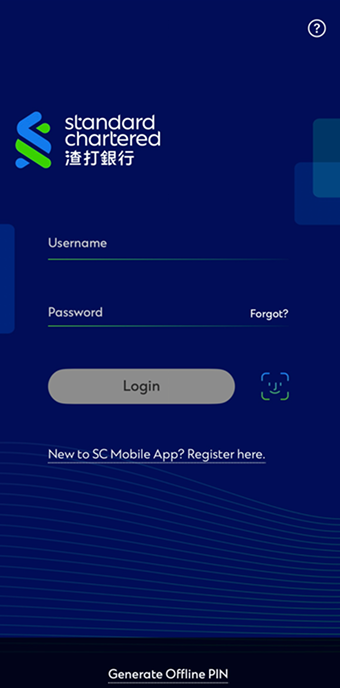
Tap ‘Forgot’.
-
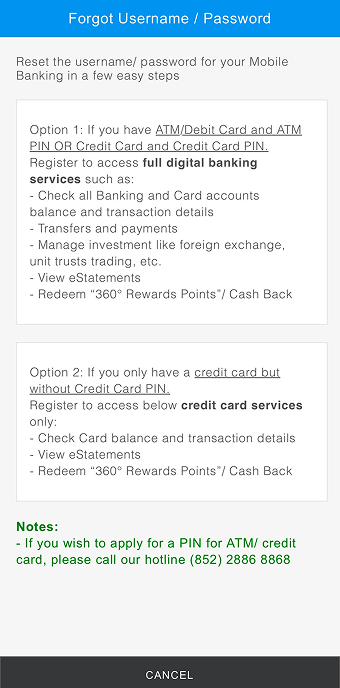
Step 2
Select one of the options for reset.
-
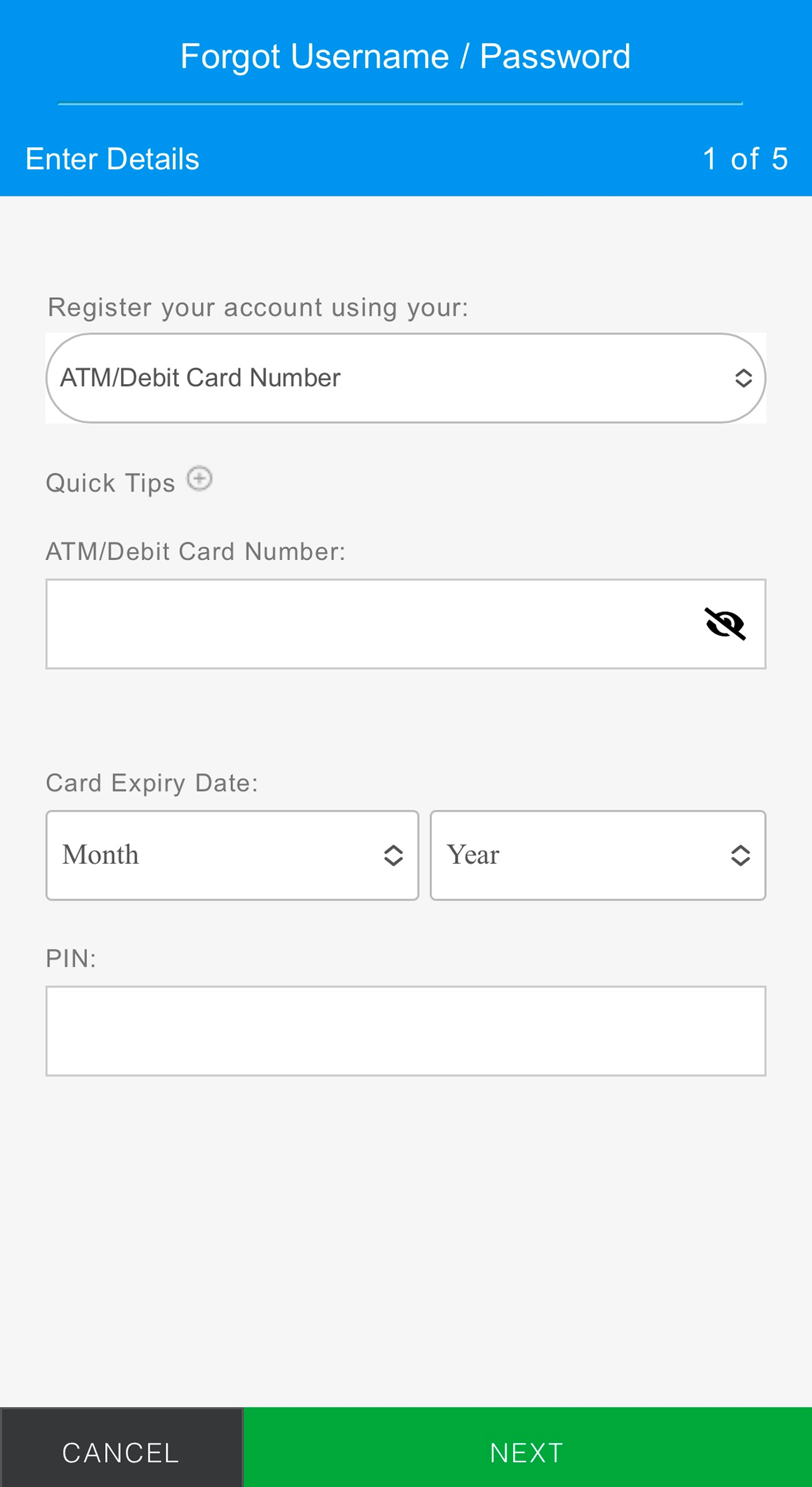
Step 3
Option 1 (Full Digital Banking)
Register with ATM Card
Enter ATM/Debit Card Number, Card Expiry Date and Personal Identification Number (PIN). -
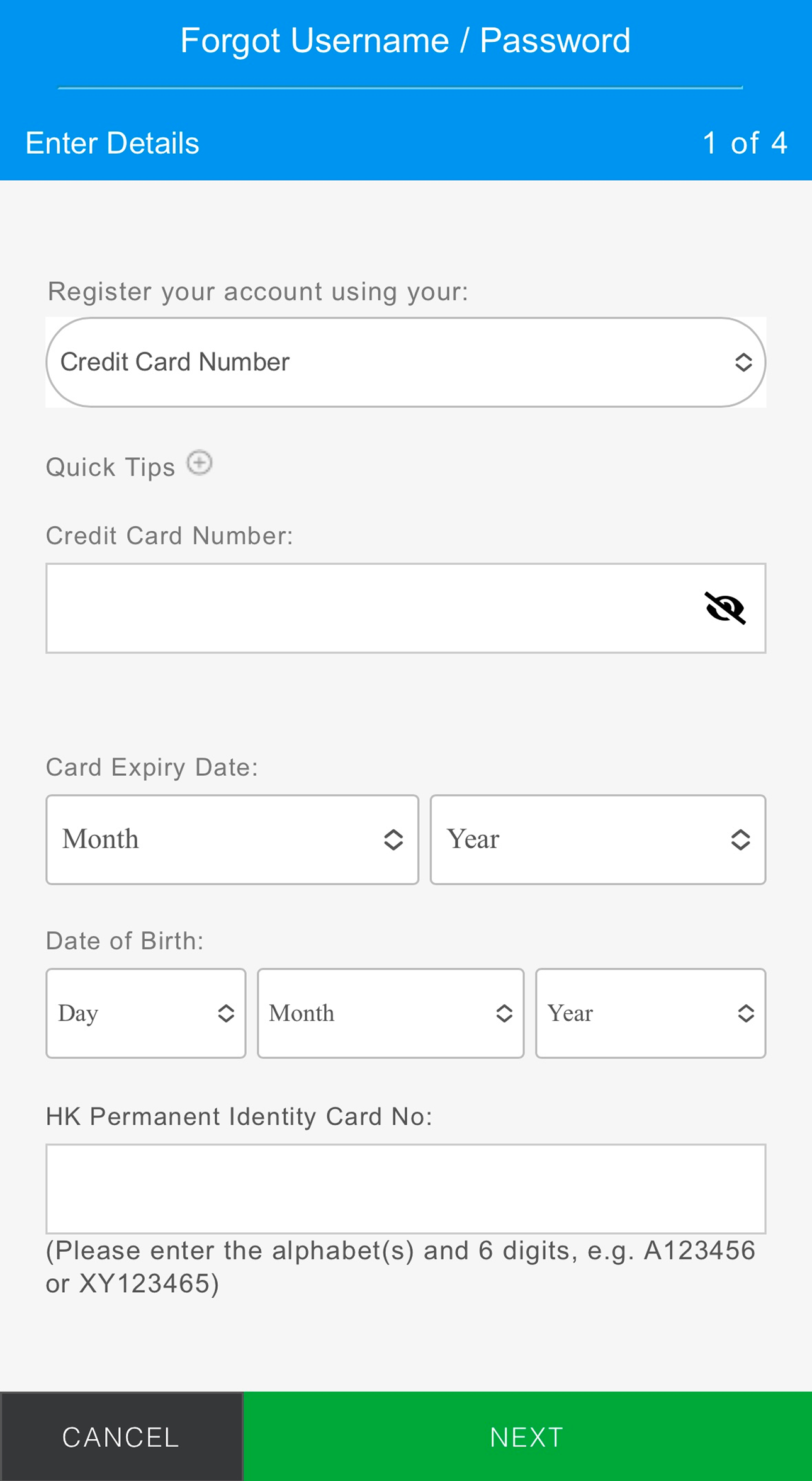
Step 4
Register with Credit Card
Enter Credit Card Number, Card Expiry Date, and Personal Identification Number (PIN).
-
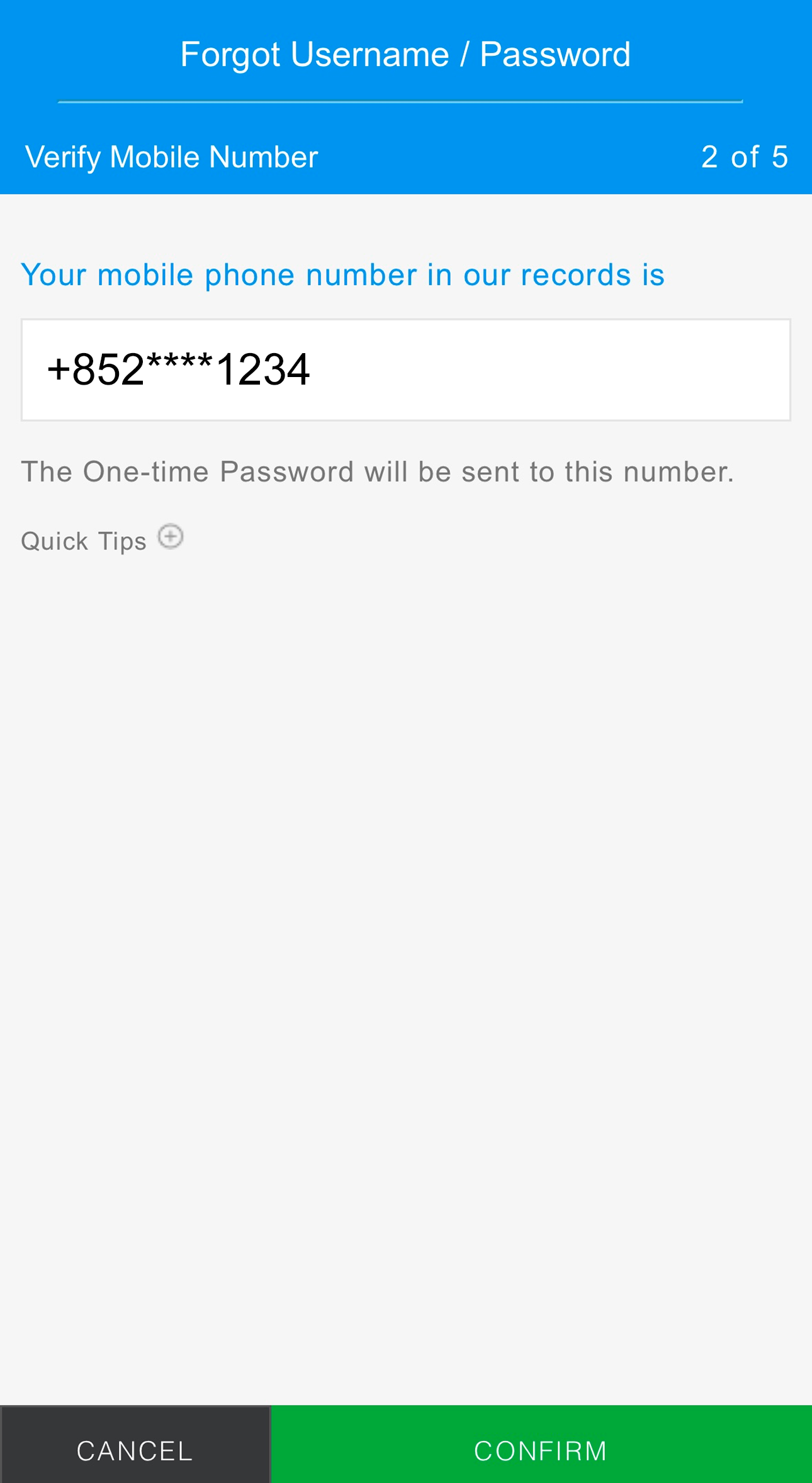
Step 5
Confirm your registered mobile number in our bank record for receiving One-time Password (OTP) via SMS.
-
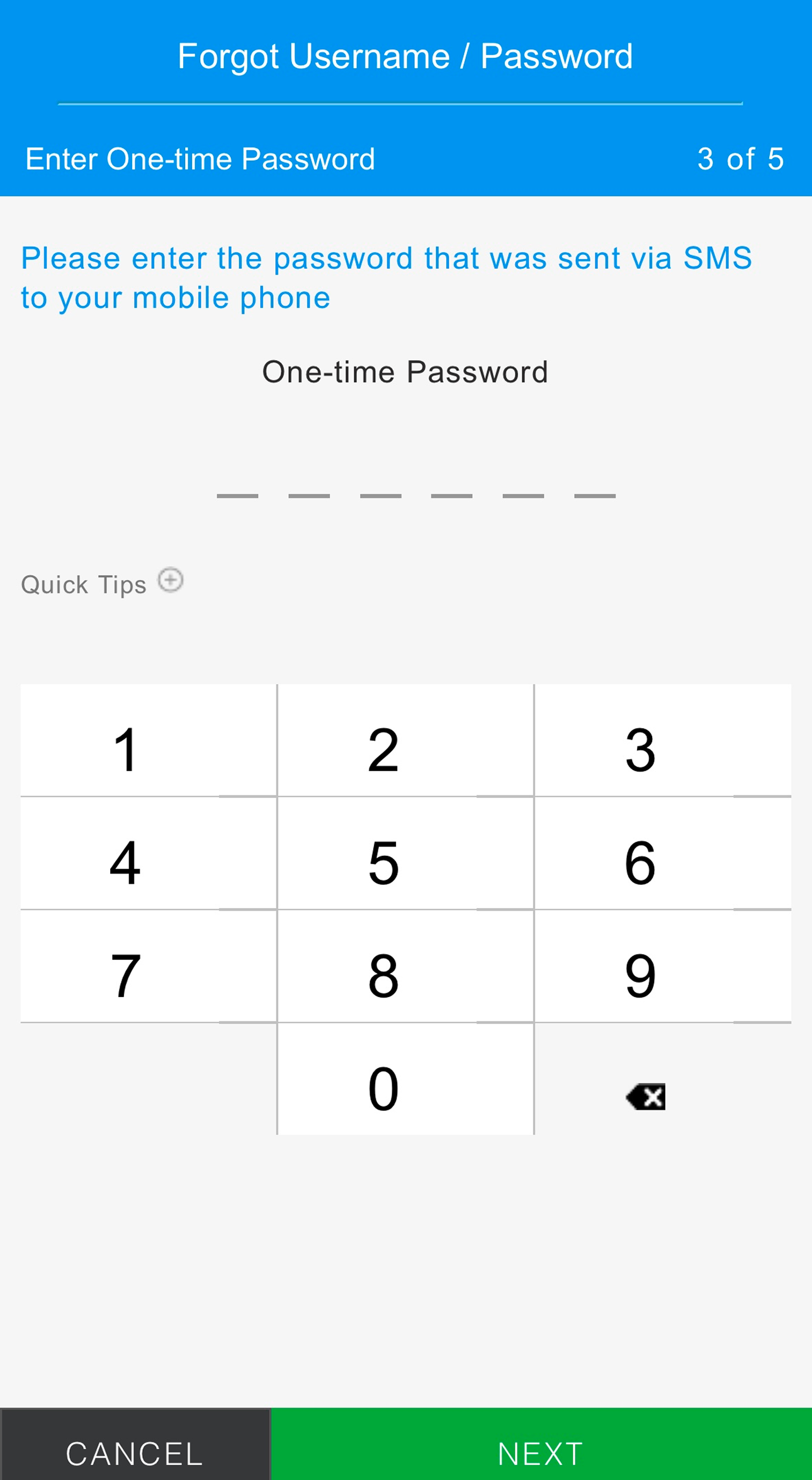
Step 6
Enter One-time Password (OTP).
-
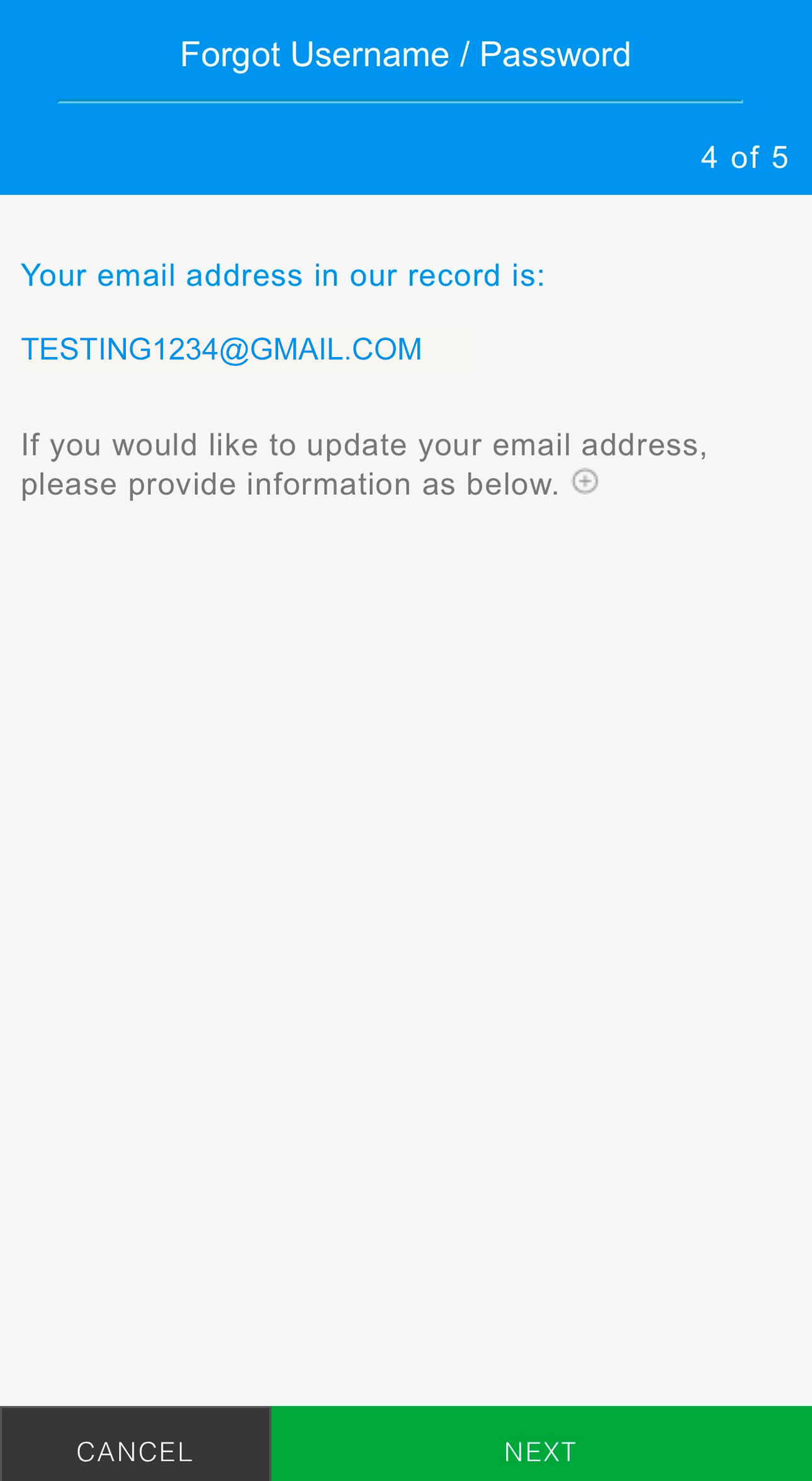
Step 7
Confirm your registered email address in our bank record.
-
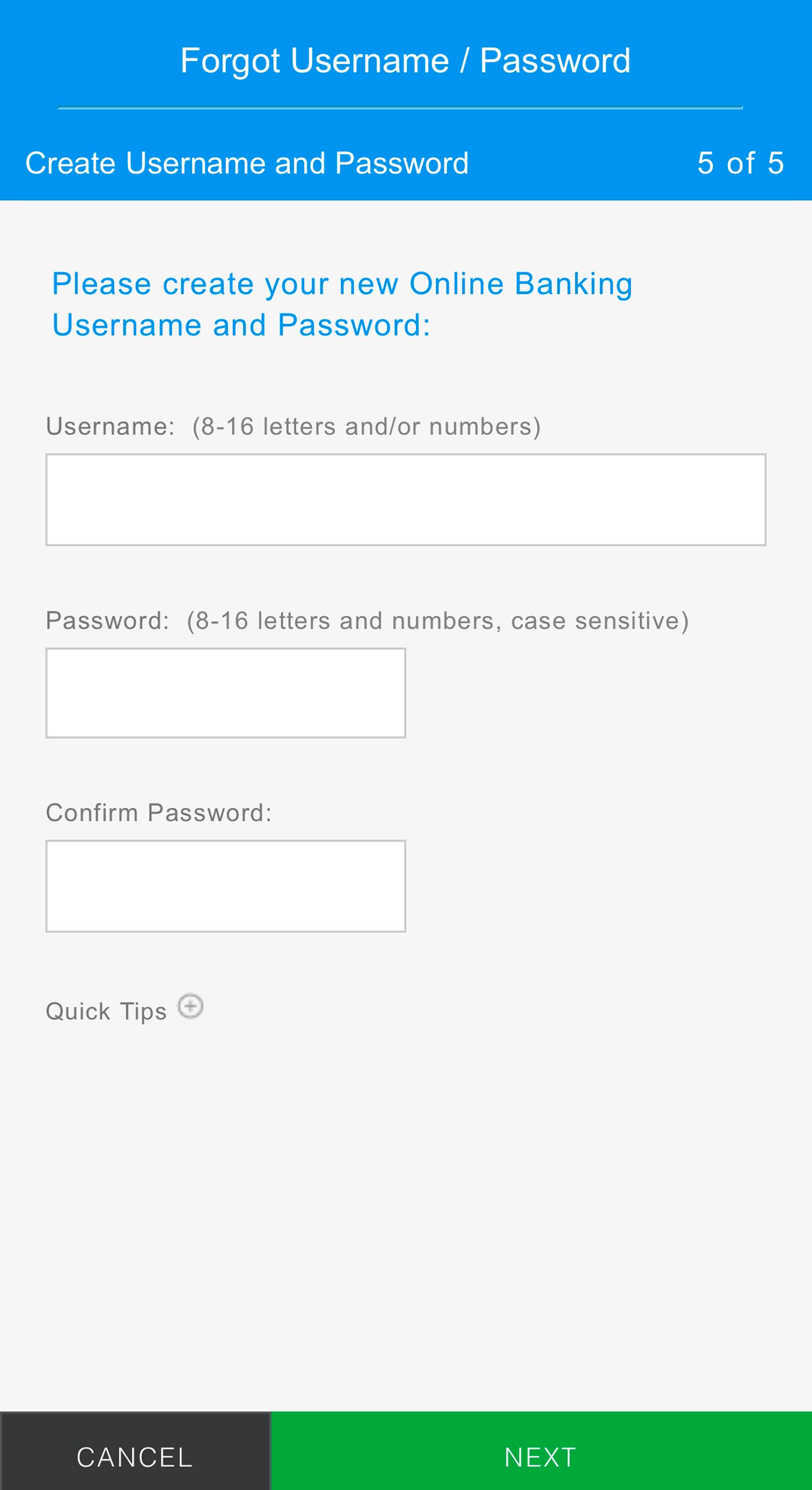
Step 8
Create Username and Password.
-
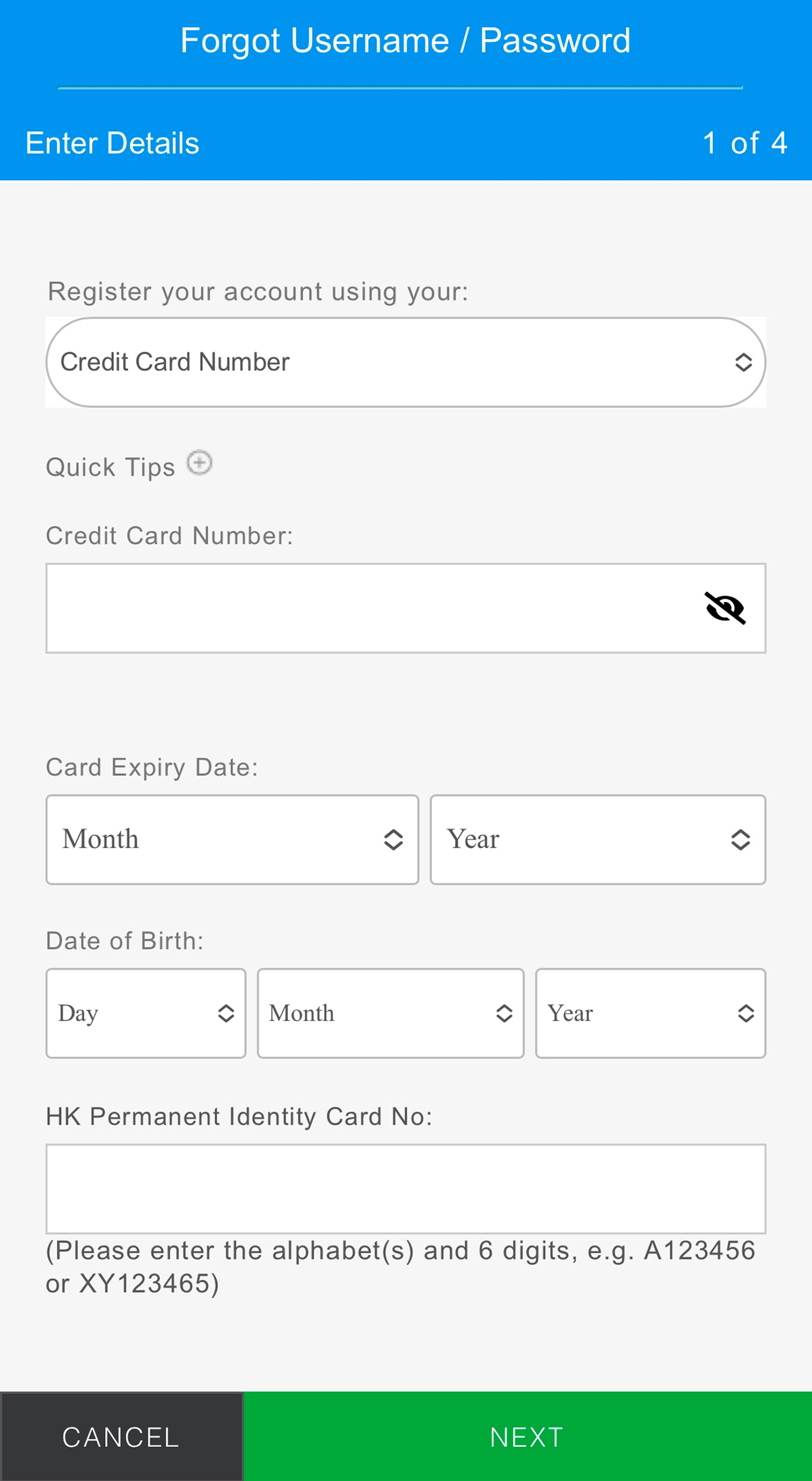
Step 9
Option 2 (Credit Card Only)
Register with Credit Card
Enter Credit Card Number, Card Expiry Date, Date of Birth and Hong Kong Permanent Identity Card Number. -
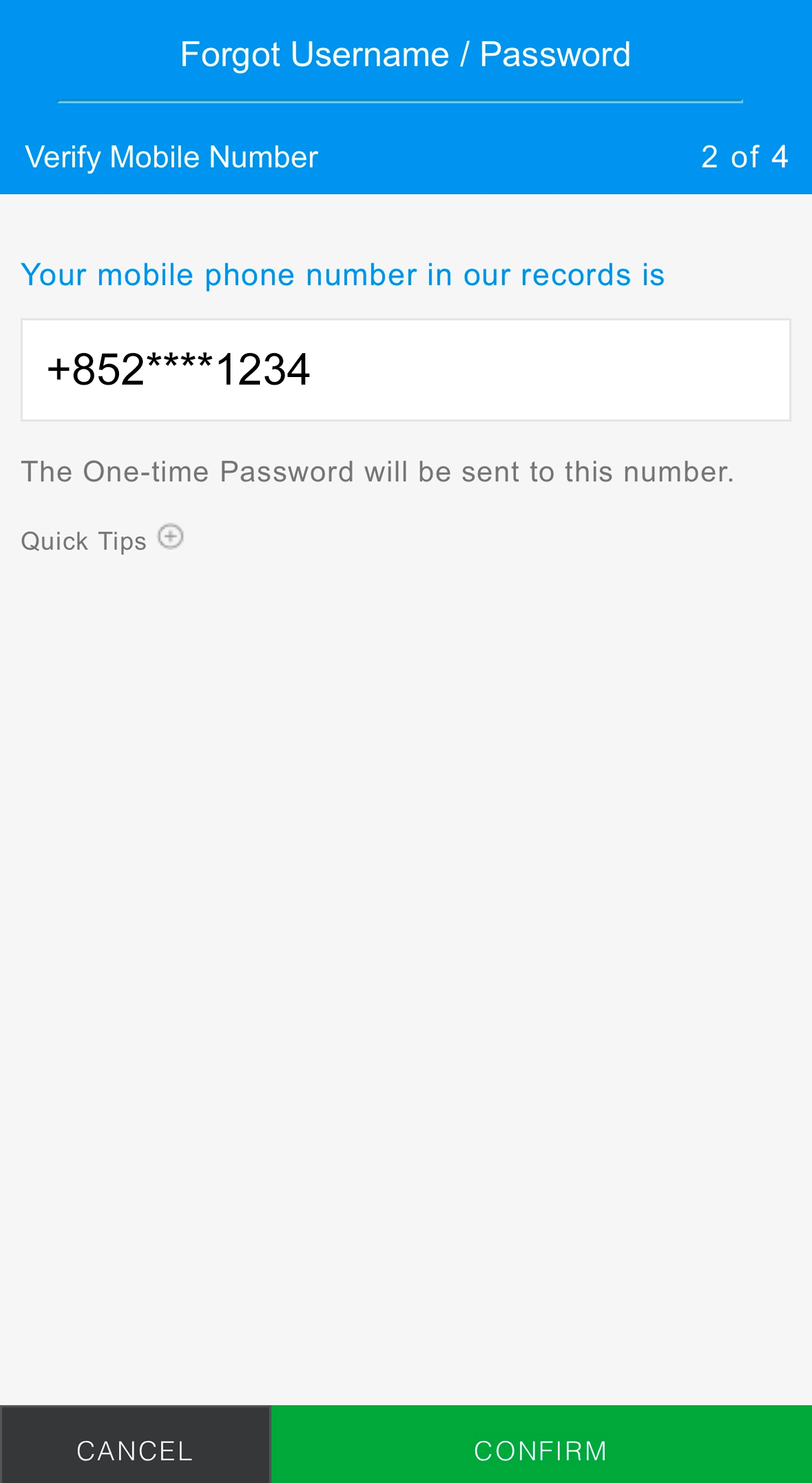
Step 10
Confirm your registered mobile number in our bank record for receiving One-time Password (OTP) via SMS.
-
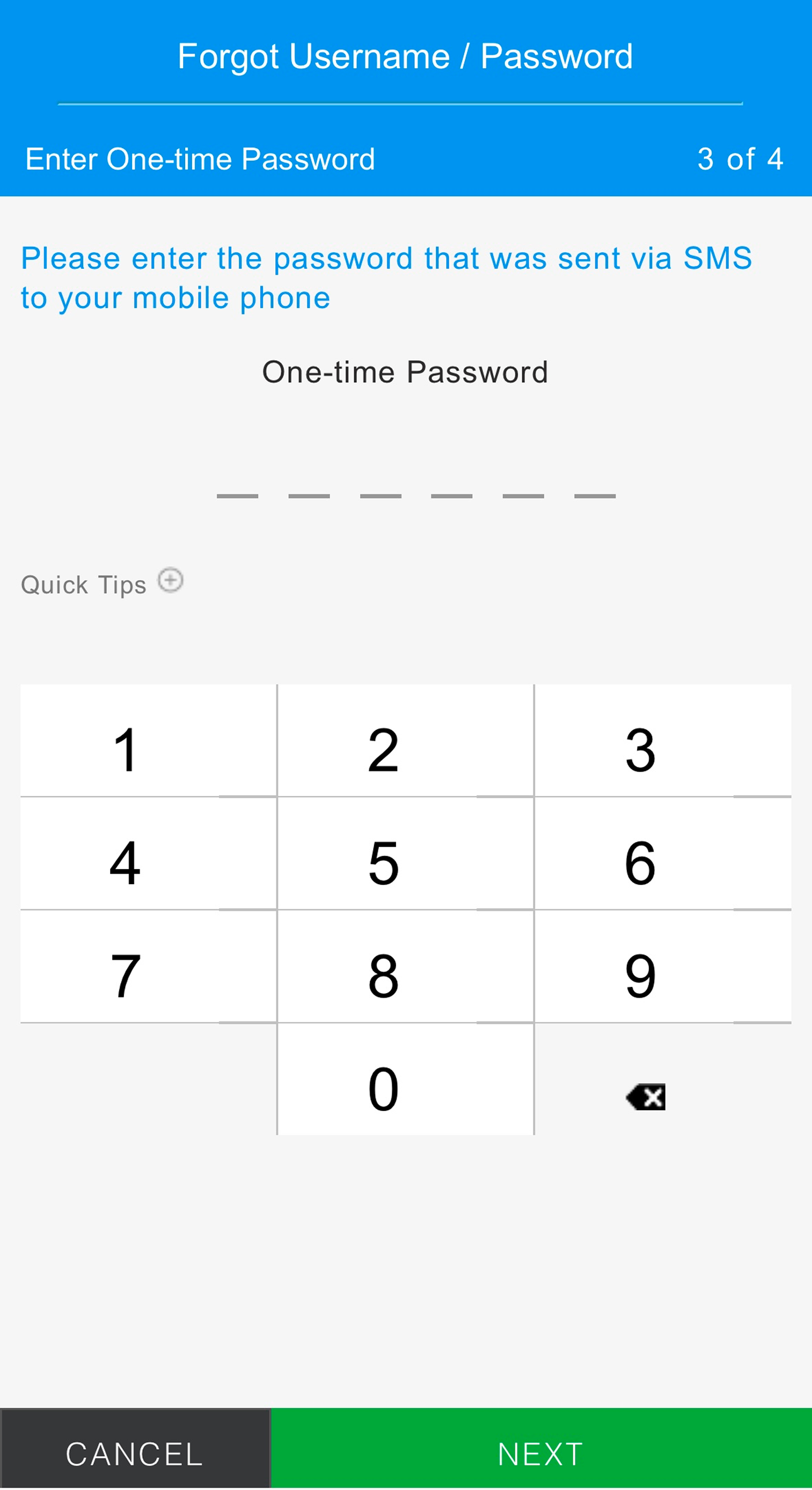
Step 11
Enter One-time Password (OTP).
-
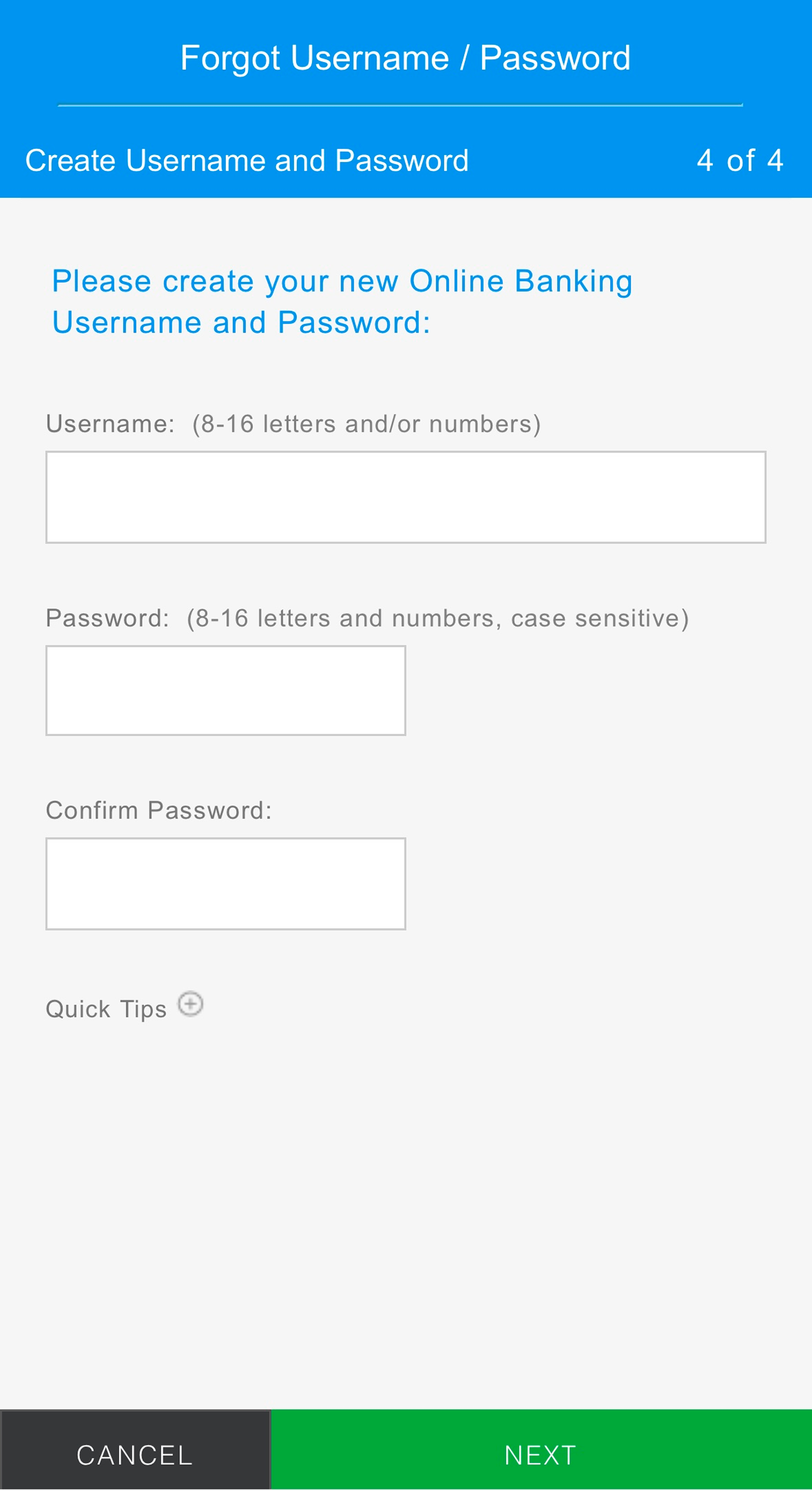
Step 12
Confirm your registered email address in our bank record.
Reset Login Details
Step 1
Tap ‘Forgot’.
Step 2
Select one of the options for reset.
Step 3
Option 1 (Full Digital Banking)
Register with ATM Card
Enter ATM/Debit Card Number, Card Expiry Date and Personal Identification Number (PIN).
Step 4
Register with Credit Card
Enter Credit Card Number, Card Expiry Date, and Personal Identification Number (PIN).
Step 5
Confirm your registered mobile number in our bank record for receiving One-time Password (OTP) via SMS.
Step 6
Enter One-time Password (OTP).
Step 7
Confirm your registered email address in our bank record.
Step 8
Create Username and Password.
Step 9
Option 2 (Credit Card Only)
Register with Credit Card
Enter Credit Card Number, Card Expiry Date, Date of Birth and Hong Kong Permanent Identity Card Number.
Step 10
Confirm your registered mobile number in our bank record for receiving One-time Password (OTP) via SMS.
Step 11
Enter One-time Password (OTP).
Step 12
Confirm your registered email address in our bank record.
- Subscribe on SC Mobile App
- Subscribe on Online Banking
Subscribe eStatement/eAdvice Service on SC Mobile App
Conveniently view your eStatement/eAdvice Service online to save time and space on filing paper statement
-
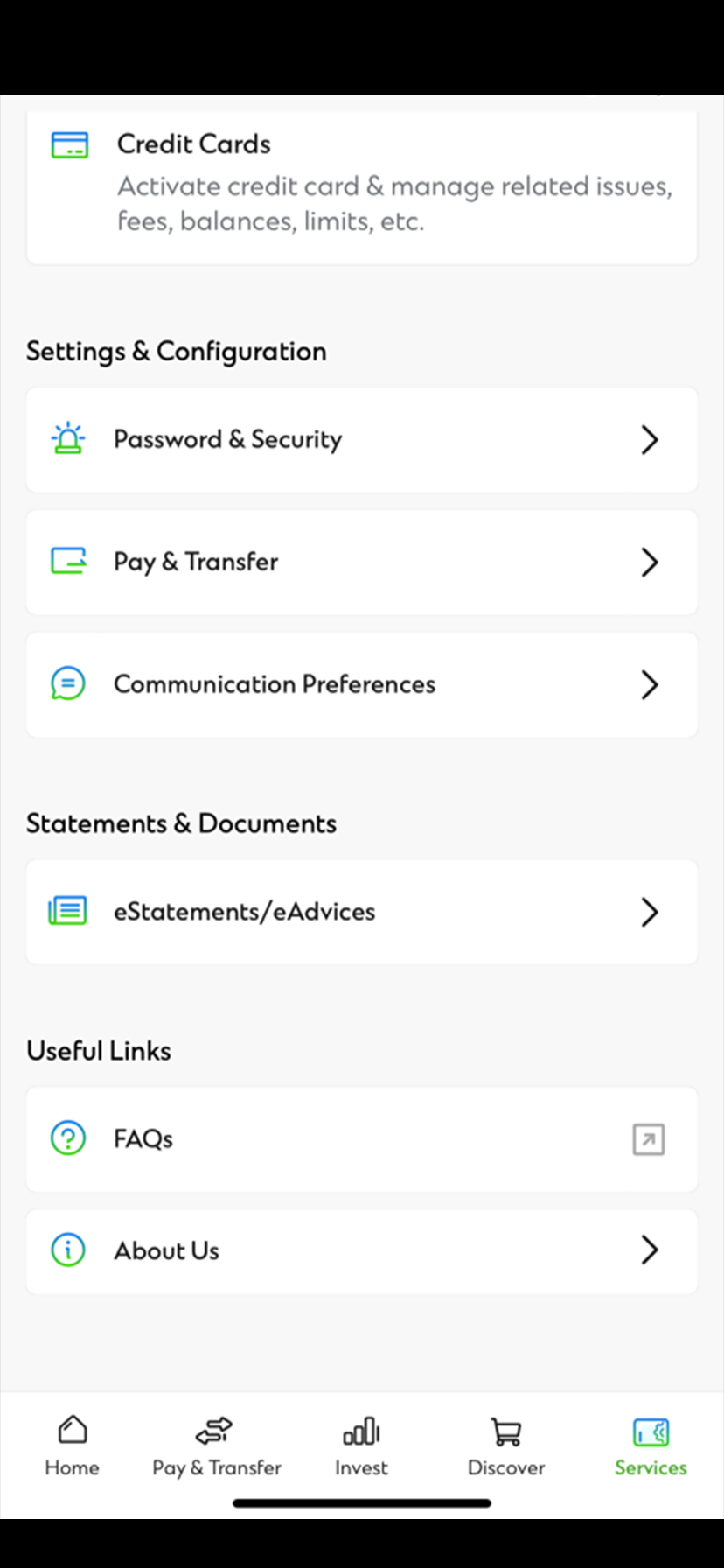
Step 1
After login to SC Mobile, Open ‘Services’ on the bottom right corner. Tap ‘Communication Perferences’.
-
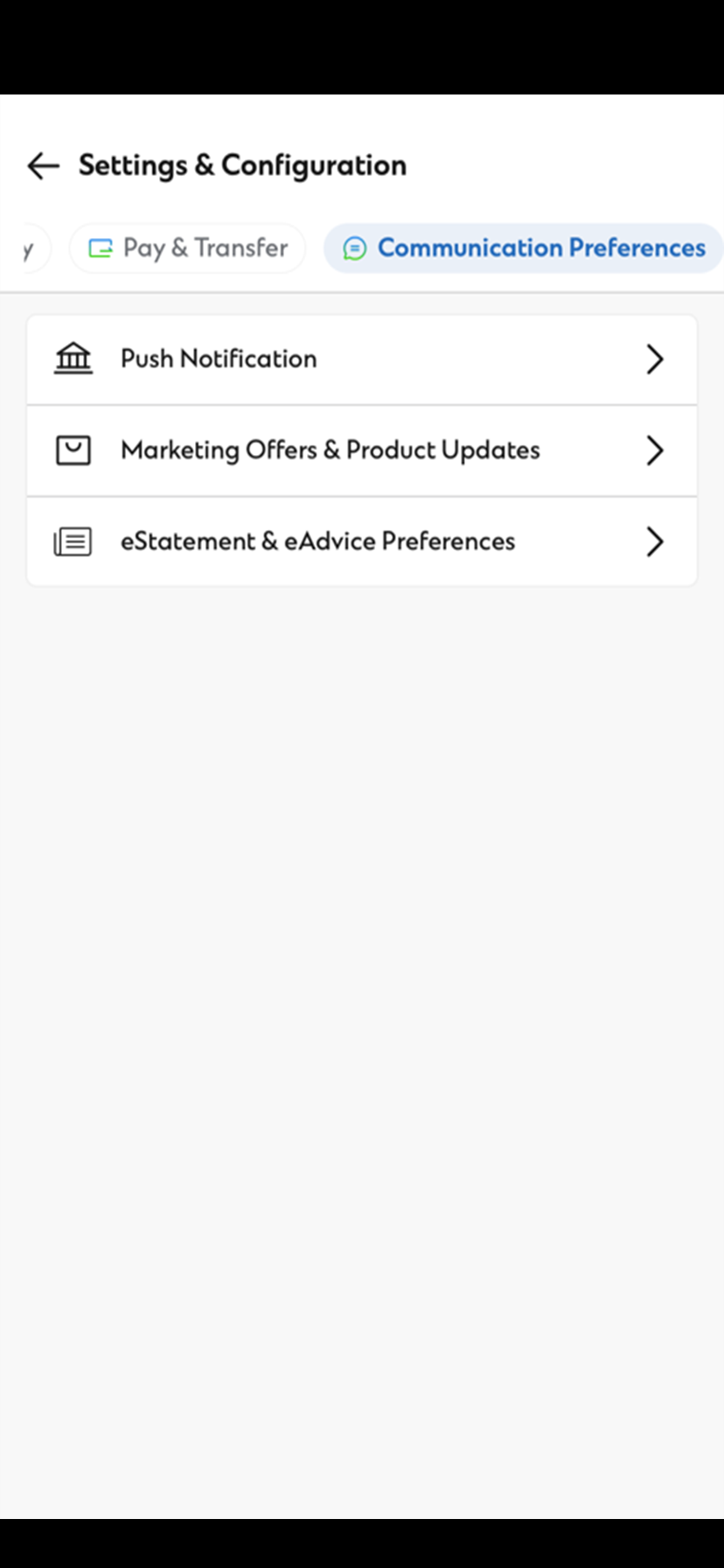
Step 2
Tap 'eStatement/ eAdvice preferences'
-
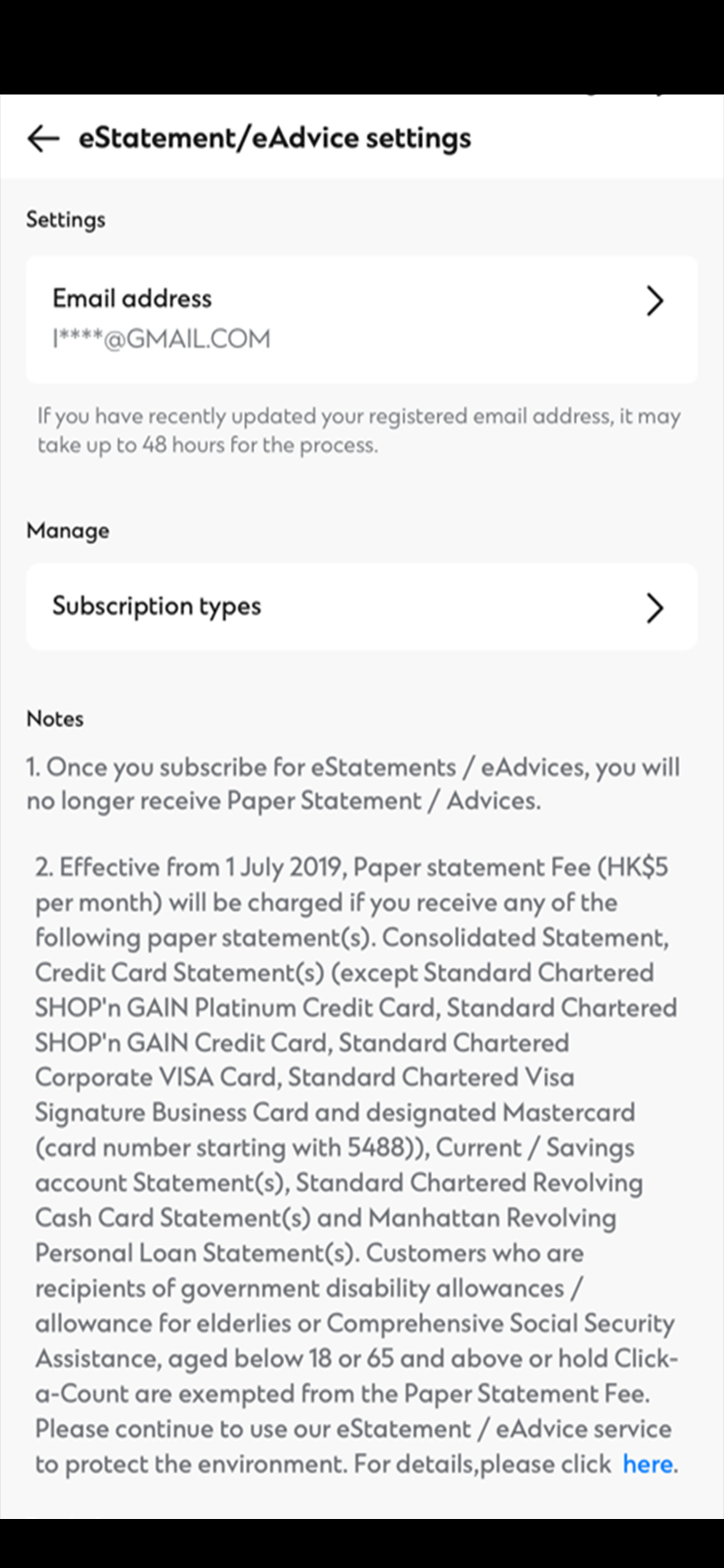
Step 3
Tap 'Subscription types'
-
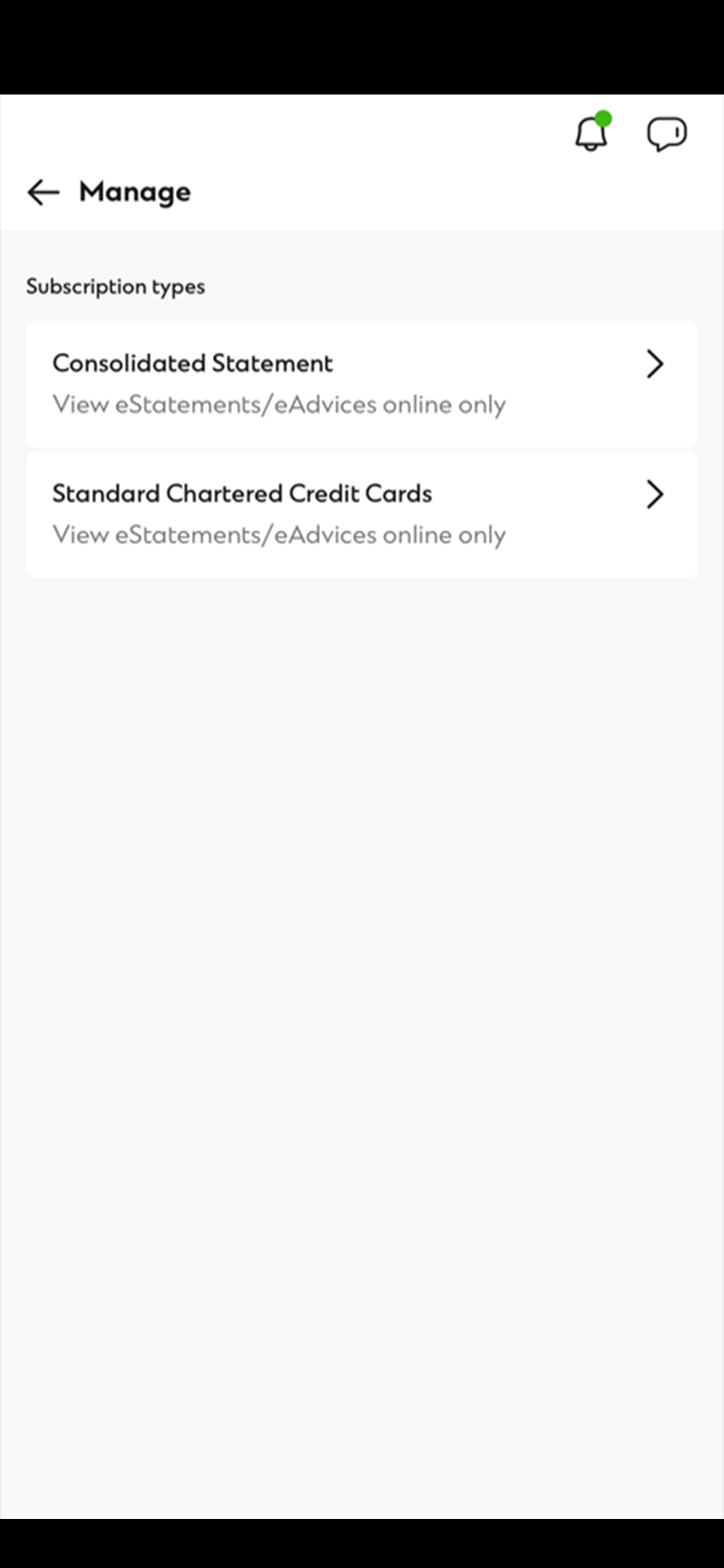
Step 4
Tap your desired statement to subscribe for eStatements.
-
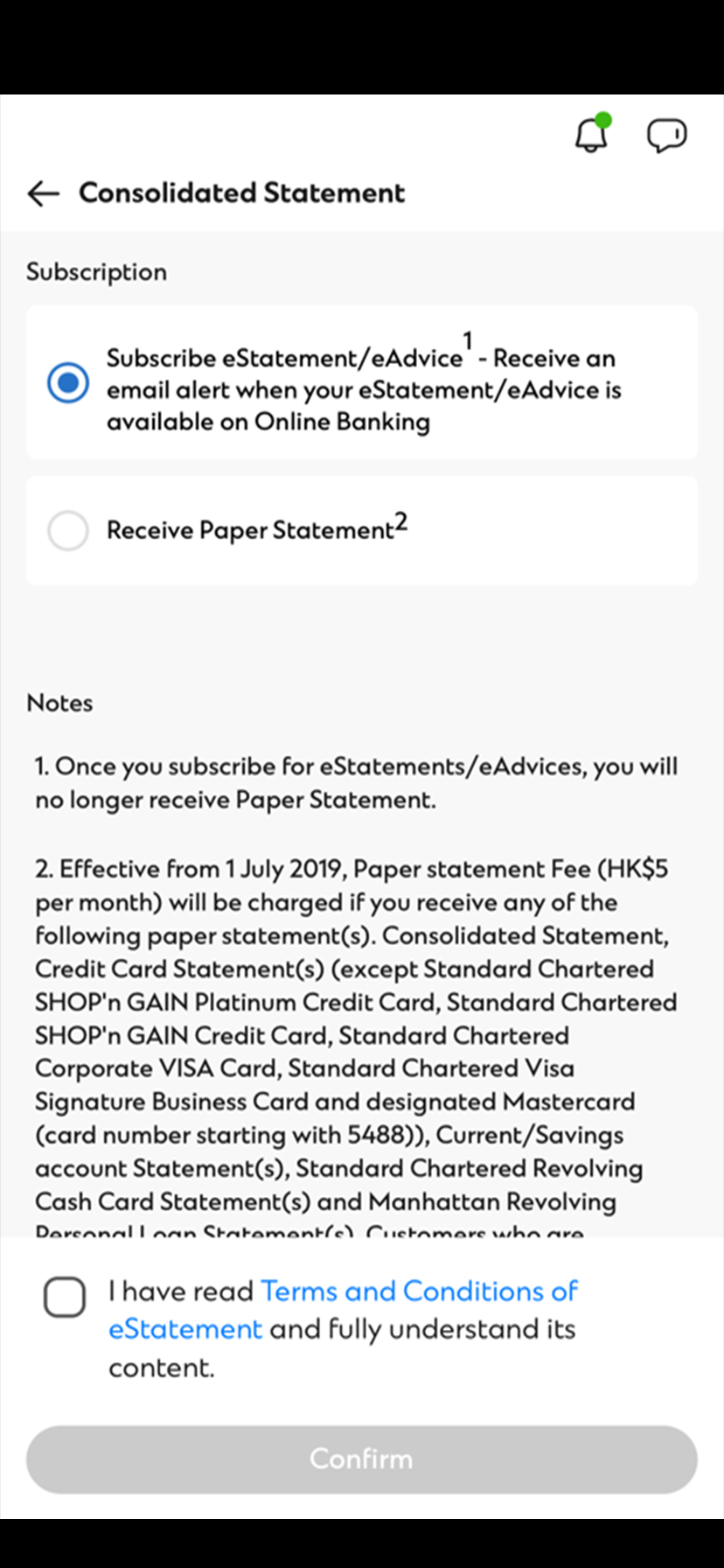
Step 5
Select the method of receival.
-
Step 6
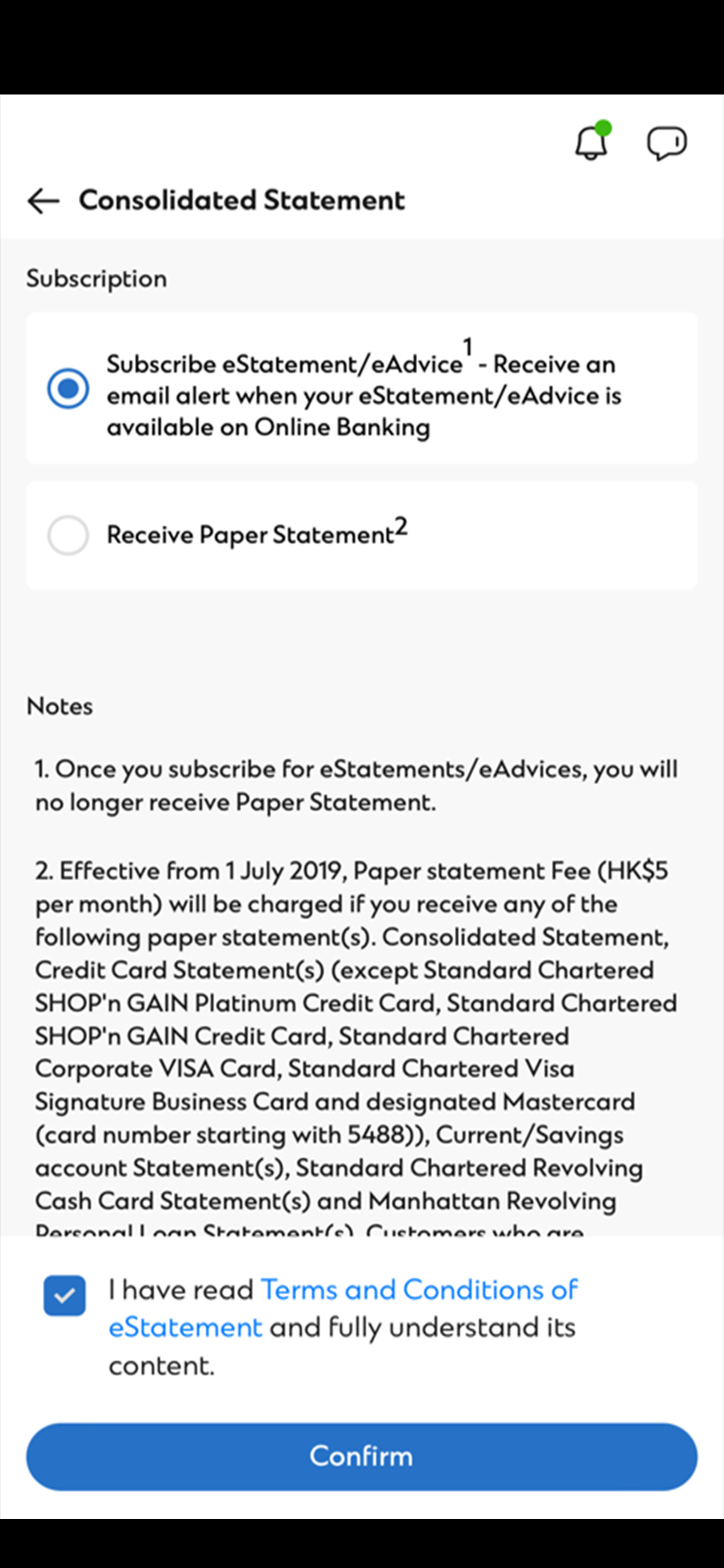
Read and accept the Terms and Conditions. Then, click 'Confirm'.
-
Step 7
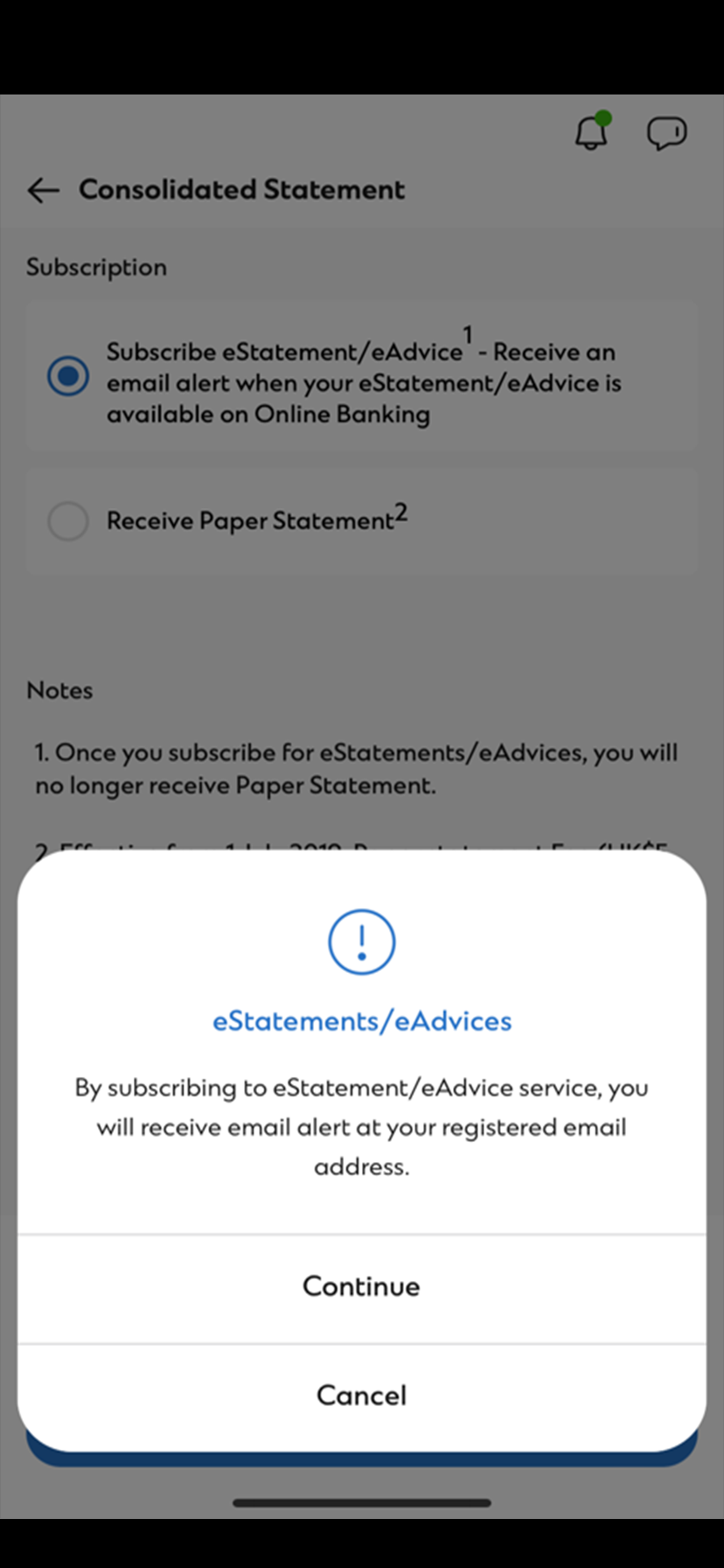
You will receive email alert at your registered email address. Click 'Continue'.
-
Step 8
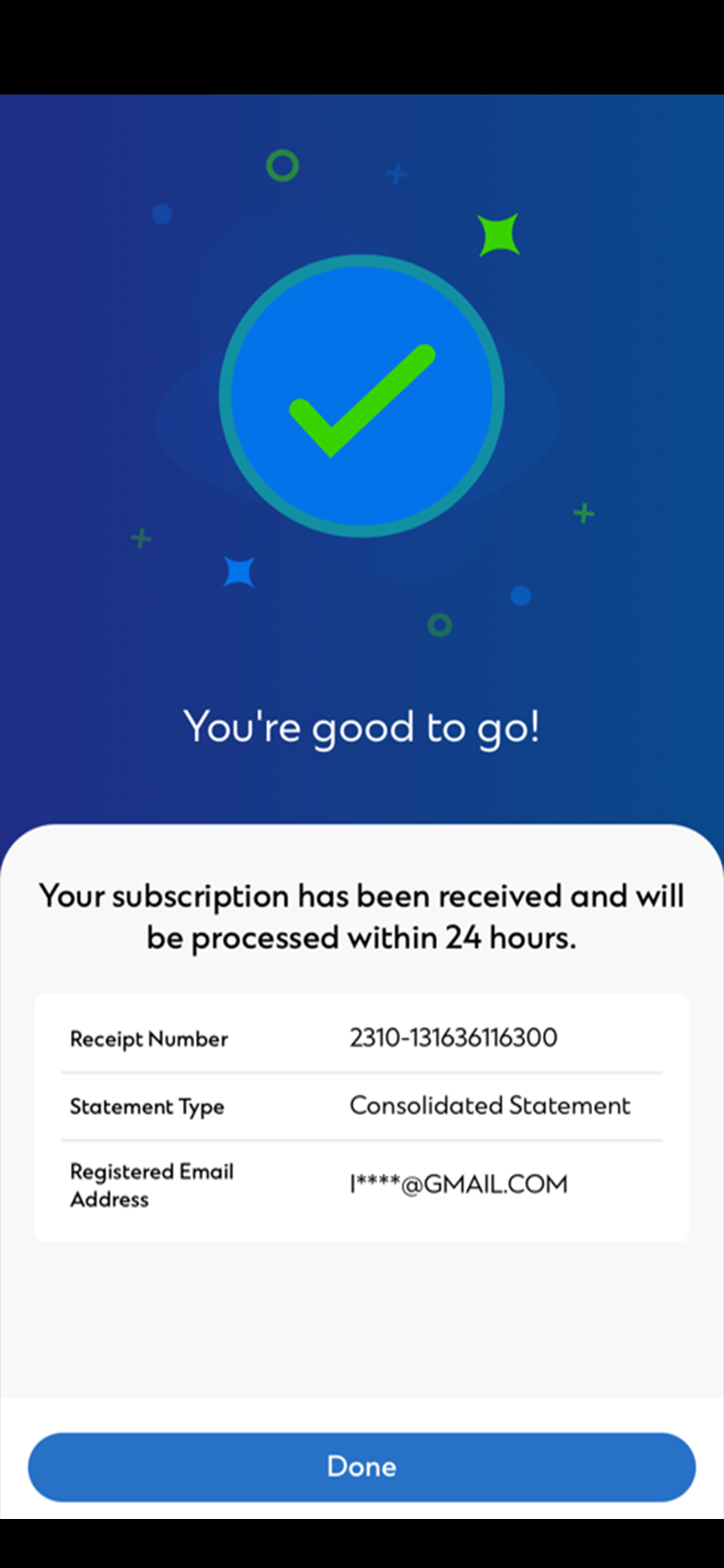
It's done. Your eStatements will be available in the next statement cycle.
Subscribe eStatement/eAdvice Service on SC Mobile App
Conveniently view your eStatement/eAdvice Service online to save time and space on filing paper statement
Step 1
After login to SC Mobile, Open ‘Services’ on the bottom right corner. Tap ‘Communication Perferences’.
Step 2
Tap 'eStatement/ eAdvice preferences'
Step 3
Tap 'Subscription types'
Step 4
Tap your desired statement to subscribe for eStatements.
Step 5
Select the method of receival.
Step 6
Read and accept the Terms and Conditions. Then, click 'Confirm'.
Step 7
You will receive email alert at your registered email address. Click 'Continue'.
Step 8
It's done. Your eStatements will be available in the next statement cycle.
Subscribe eStatement on Online Banking
Conveniently view your eStatements online to save time and space on filing paper statement
-
Step 1
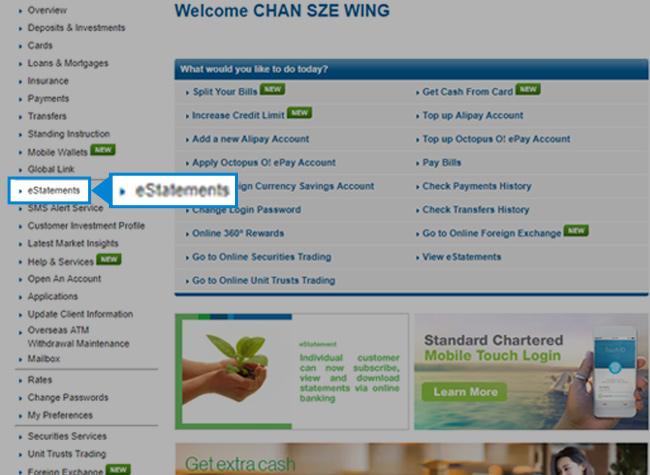
Select ‘eStatements’ after login.
-
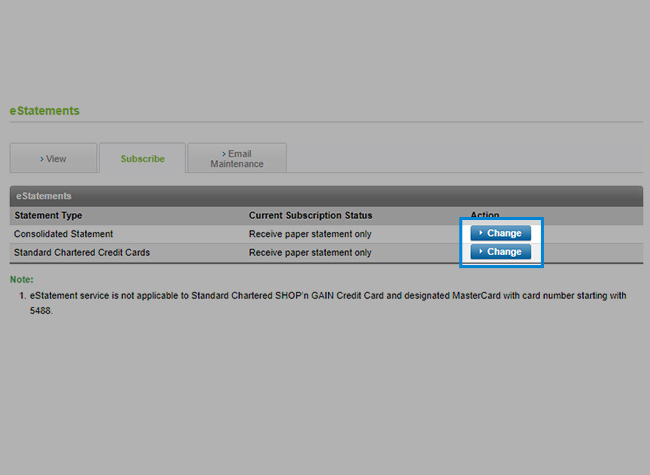
Step 2
Under ‘Subscribe’, click ‘change’ on your desired statement type to subscribe for eStatements.
-
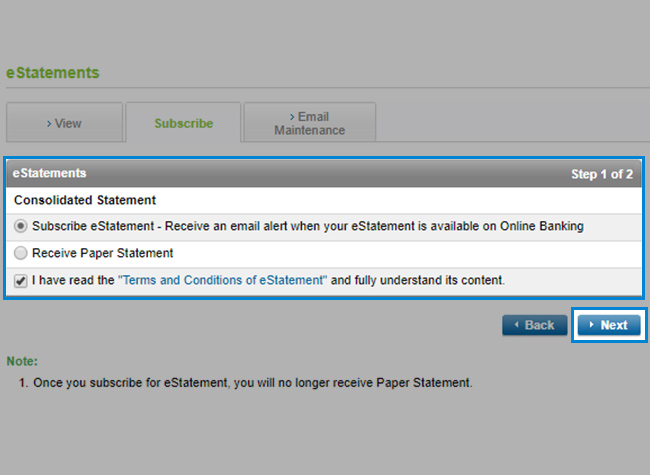
Step 3
Read and accept the Terms and Conditions.
Then, click 'Next'. -
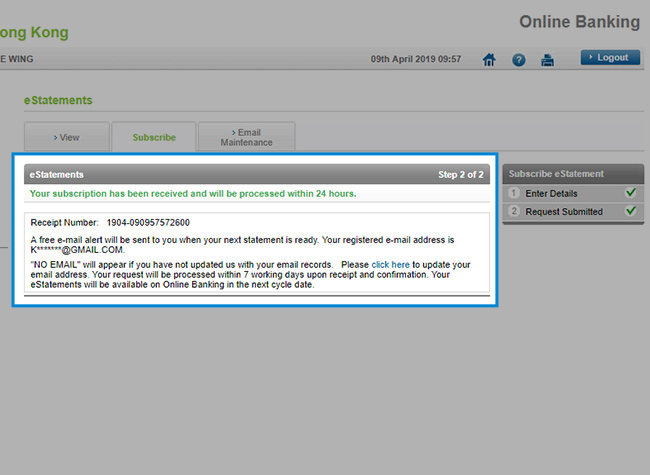
Step 4
It’s done! Your eStatements will be available in the next statement cycle.
-
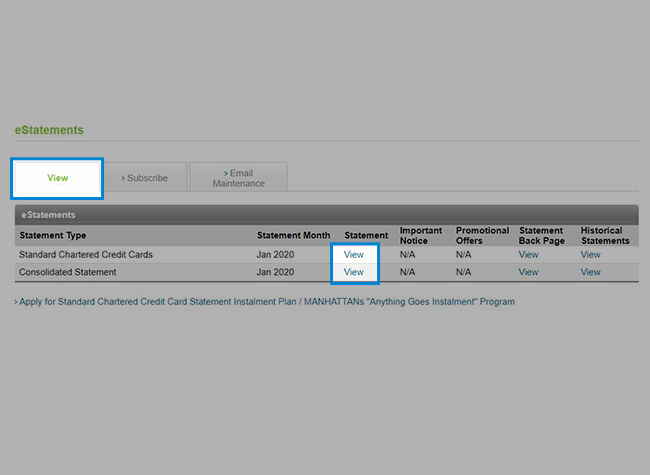
Step 5
You will receive eStatements email alert when your eStatements is ready. Go to ‘eStatements’ and click ‘View’ to view your eStatements.
Subscribe eStatement on Online Banking
Conveniently view your eStatements online to save time and space on filing paper statement
Step 1
Select ‘eStatements’ after login.
Step 2
Under ‘Subscribe’, click ‘change’ on your desired statement type to subscribe for eStatements.
Step 3
Read and accept the Terms and Conditions.
Then, click 'Next'.
Step 4
It’s done! Your eStatements will be available in the next statement cycle.
Step 5
You will receive eStatements email alert when your eStatements is ready. Go to ‘eStatements’ and click ‘View’ to view your eStatements.
SC Pay (FPS) Registration
Transfer money to your friends for free in real-time by using a mobile number or an email address
-
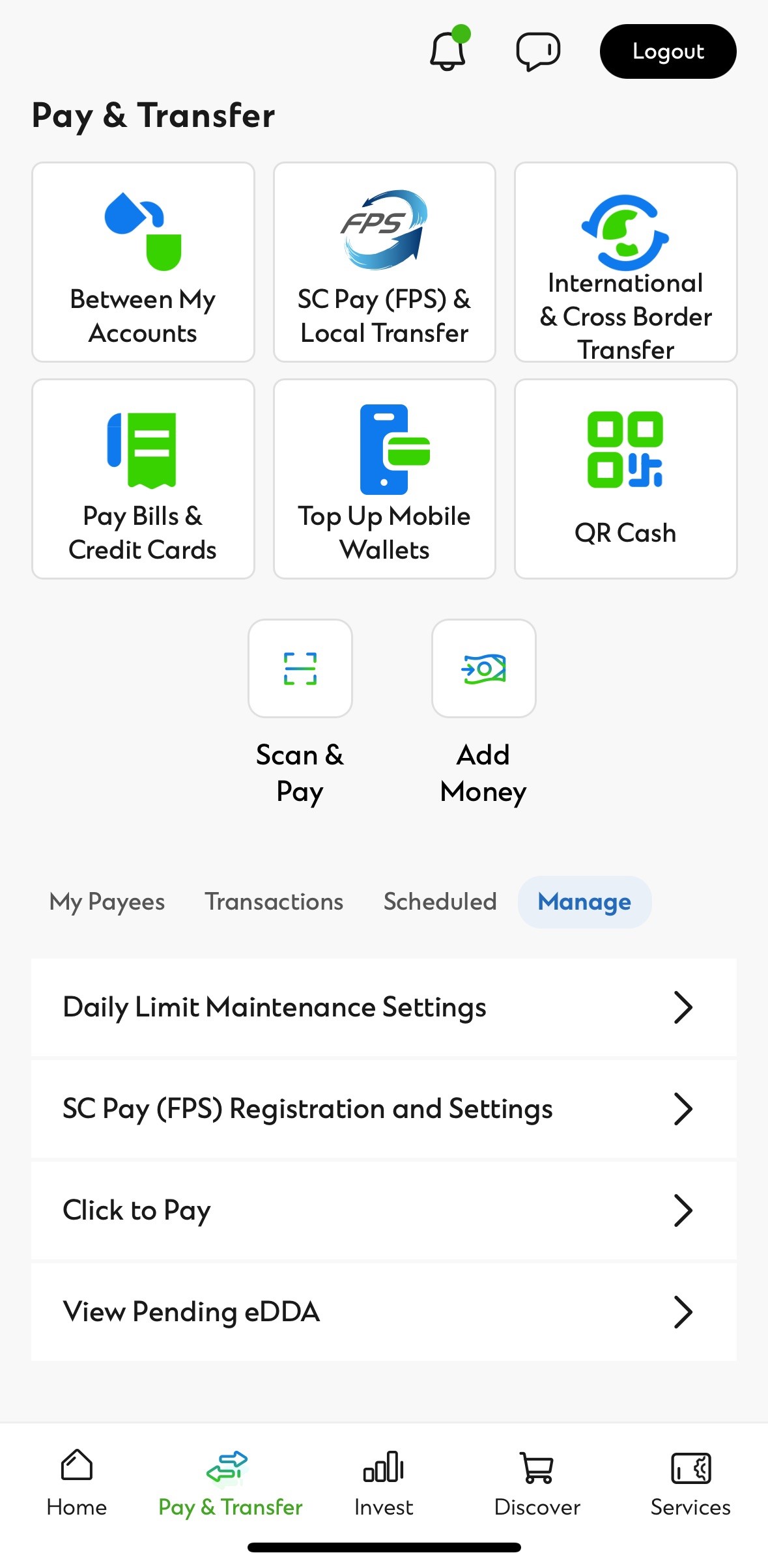
Step 1
After login to SC Mobile App, go to ‘Pay & Transfer’ then select ‘Manage’ and ‘SC Pay (FPS) Registration and Settings’
-
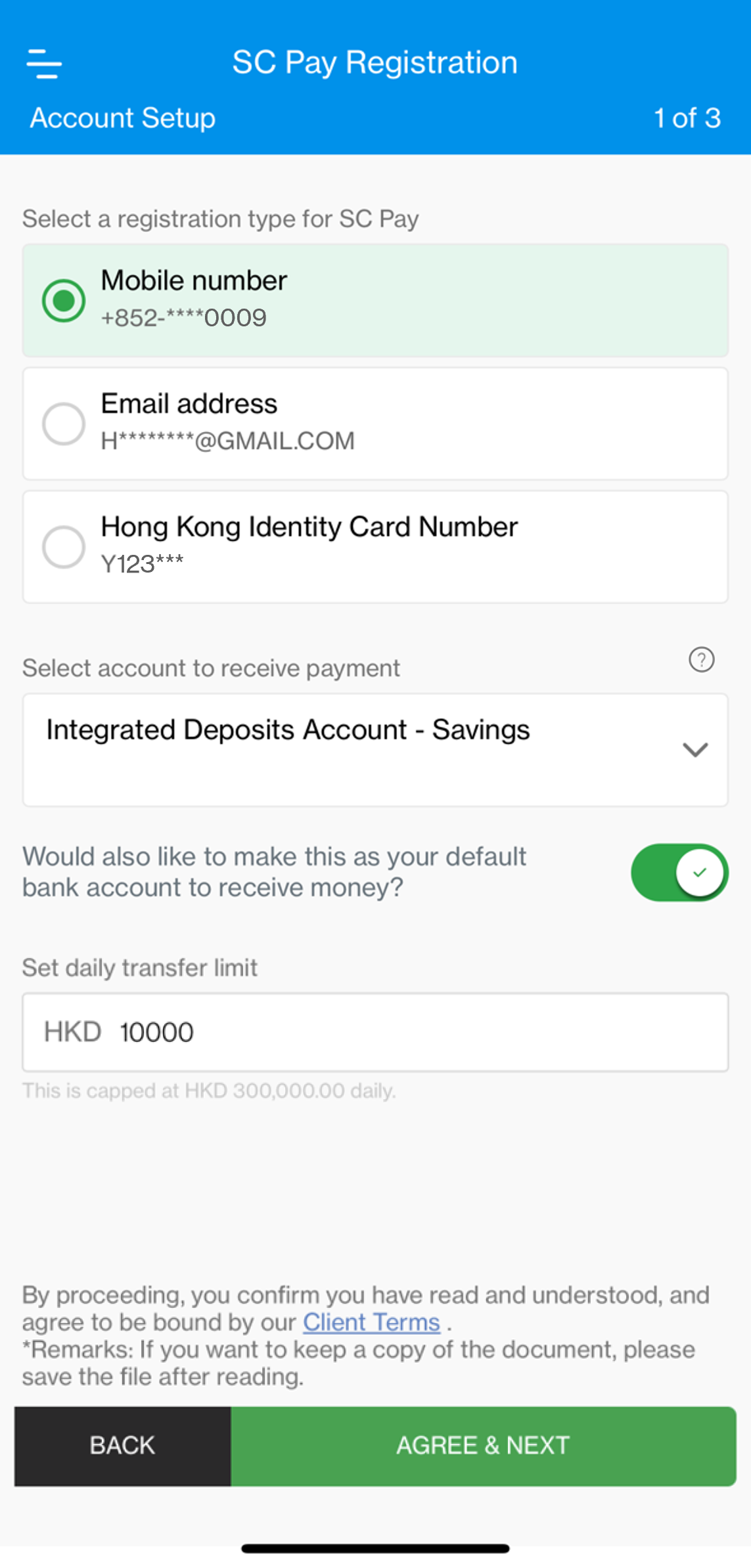
Step 2
Select either your registered mobile number or email address or Hong Kong identity card number with the bank and the source account to send money. Also set your Standard Chartered bank account as default to receive money and the daily transfer limit.
-
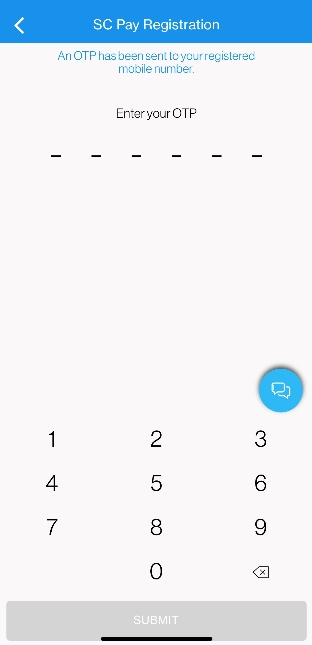
Step 3
Key in SMS or email One-Time Password (OTP) to authenticate the registration.
-
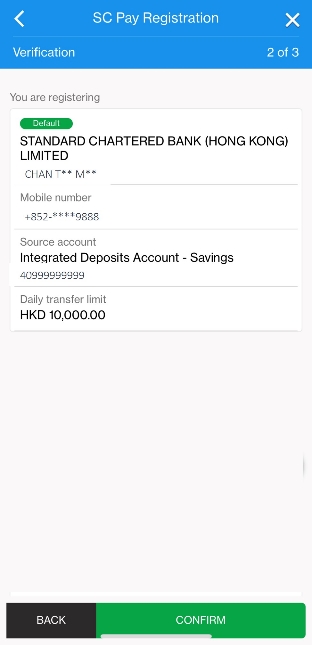
Step 4
Click "Confirm" to complete the registration and start transferring money with SC Pay (FPS).
SC Pay (FPS) Registration
Transfer money to your friends for free in real-time by using a mobile number or an email address
Step 1
After login to SC Mobile App, go to ‘Pay & Transfer’ then select ‘Manage’ and ‘SC Pay (FPS) Registration and Settings’
Step 2
Select either your registered mobile number or email address or Hong Kong identity card number with the bank and the source account to send money. Also set your Standard Chartered bank account as default to receive money and the daily transfer limit.
Step 3
Key in SMS or email One-Time Password (OTP) to authenticate the registration.
Step 4
Click "Confirm" to complete the registration and start transferring money with SC Pay (FPS).
Push Notification
Stay on top of everything securely. Get push notification from SC Mobile app about your banking or credit card account
-
Step 1
After login to SC Mobile, Open ‘Services’ on the bottom right corner. Tap ‘Communication Perferences’.
-
Step 2
Tap 'Push Notification'.
-
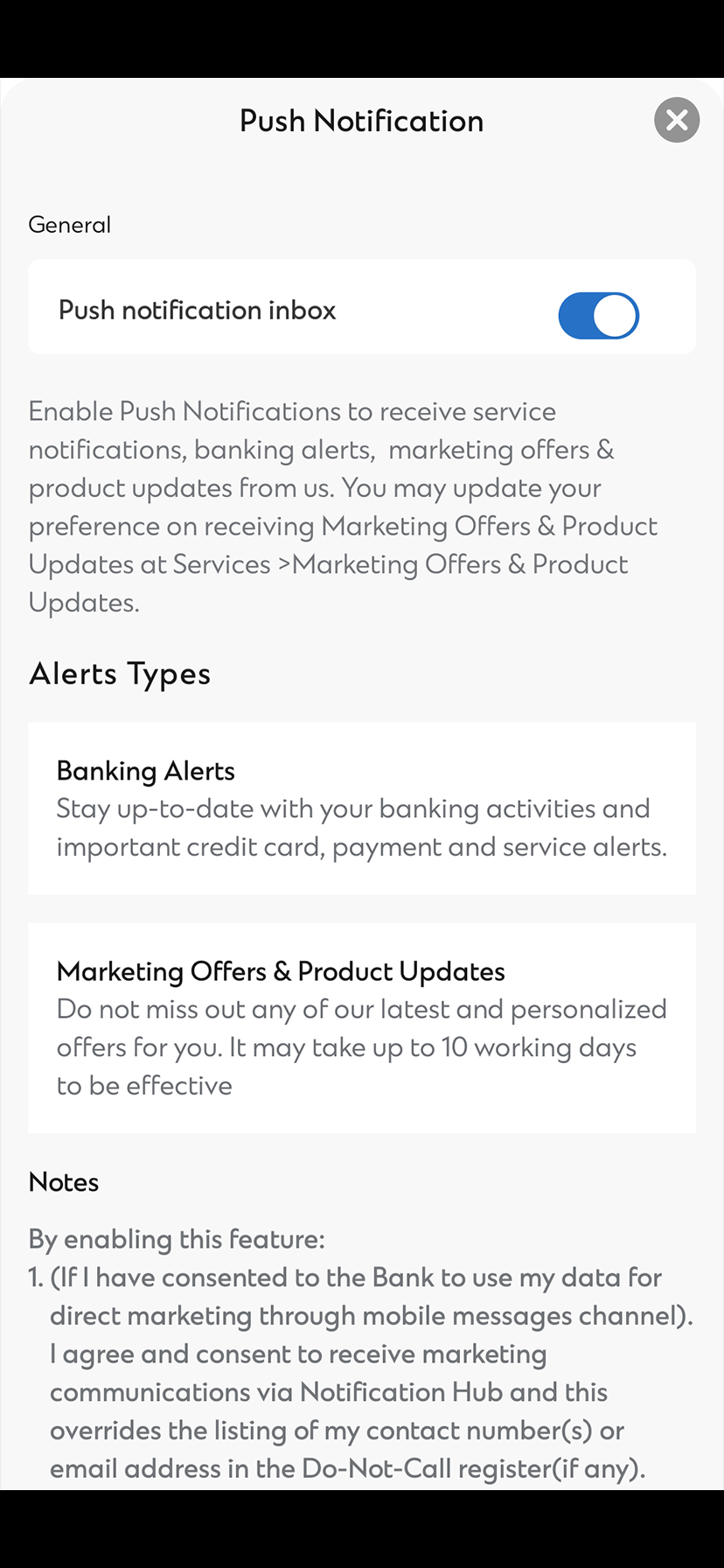
Step 3
Allow Push notification inbox
-
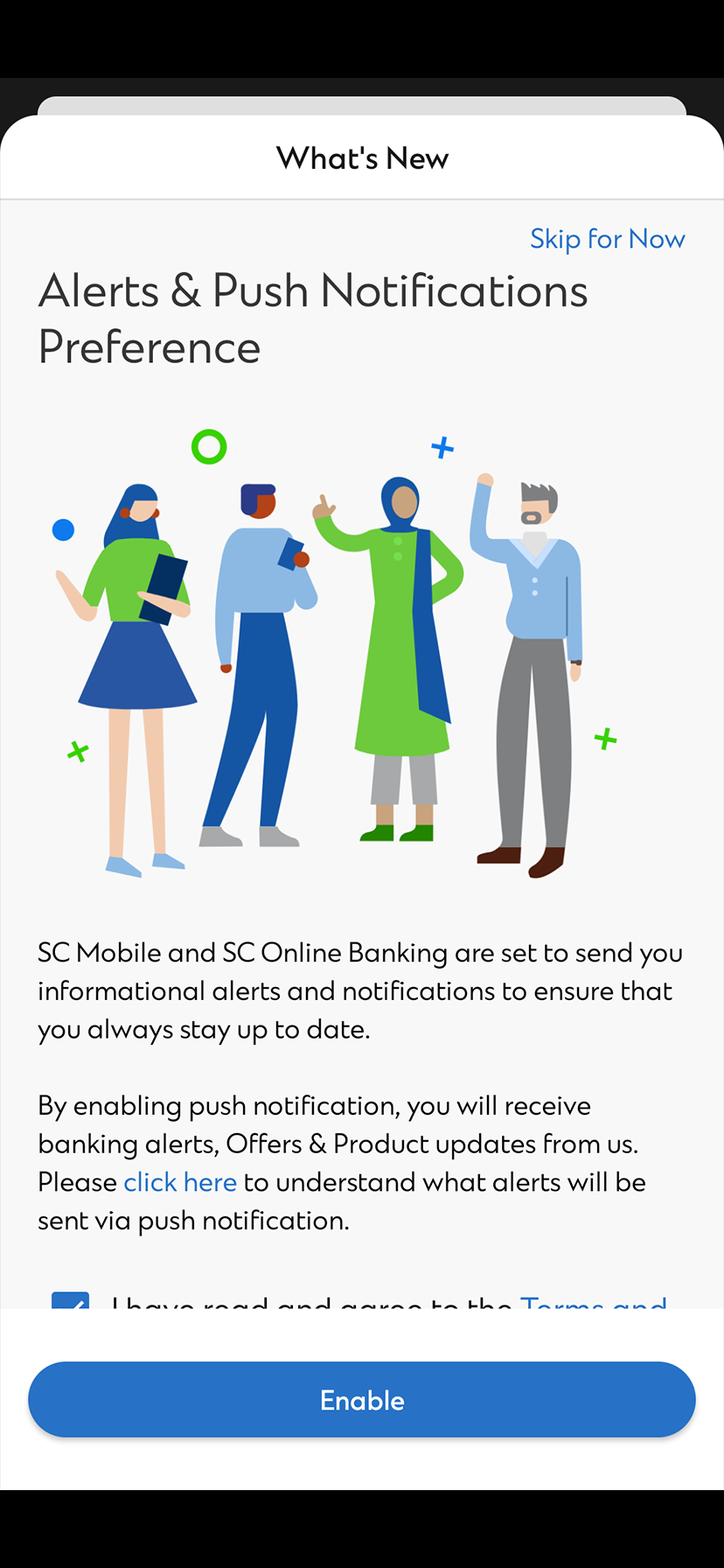
Step 4
Agree the T&C of Alerts & Push Notification Preference
-
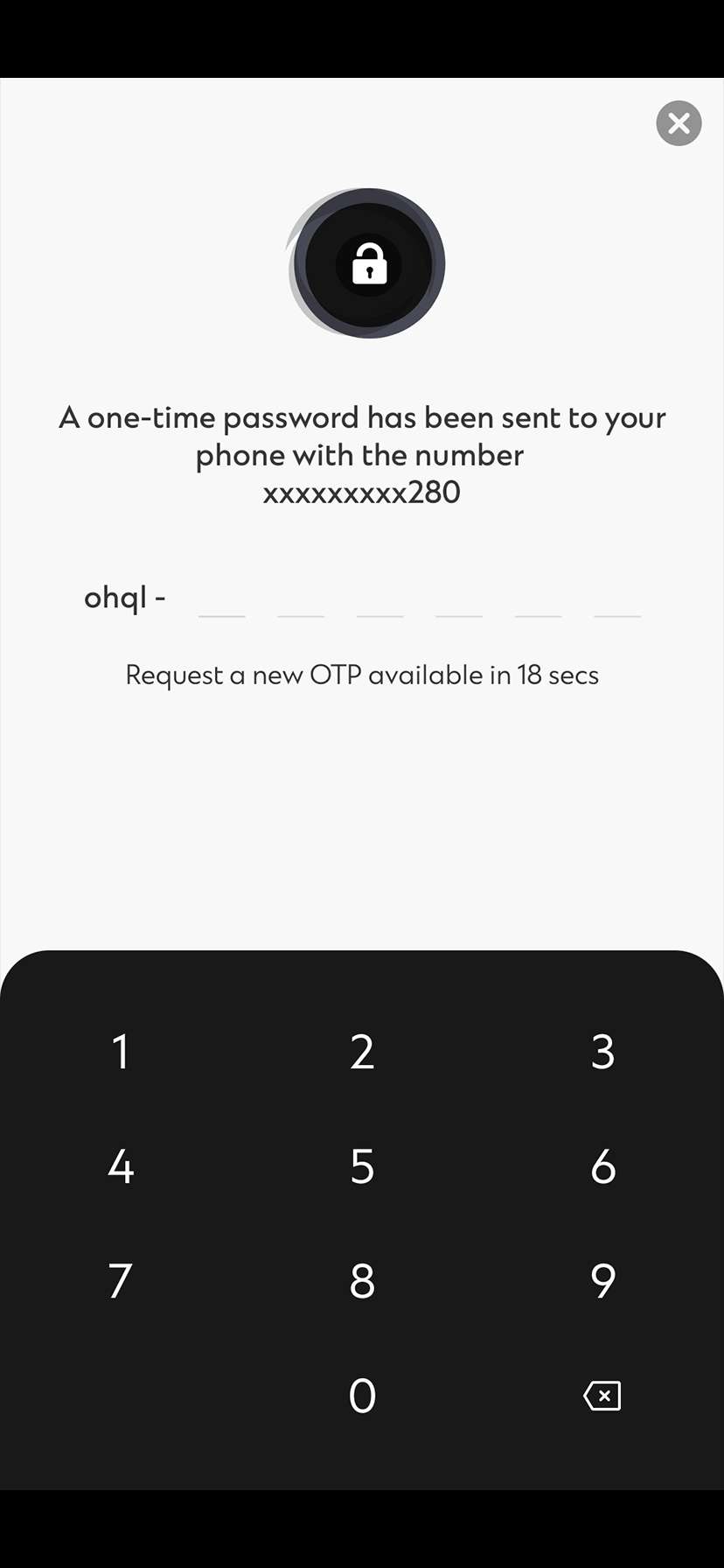
Step 5
Enter the OTP sent to you via SMS and it’s done
Push Notification
Stay on top of everything securely. Get push notification from SC Mobile app about your banking or credit card account
Step 1
After login to SC Mobile, Open ‘Services’ on the bottom right corner. Tap ‘Communication Perferences’.
Step 2
Tap 'Push Notification'.
Step 3
Allow Push notification inbox
Step 4
Agree the T&C of Alerts & Push Notification Preference
Step 5
Enter the OTP sent to you via SMS and it’s done
Biometric Activation
-
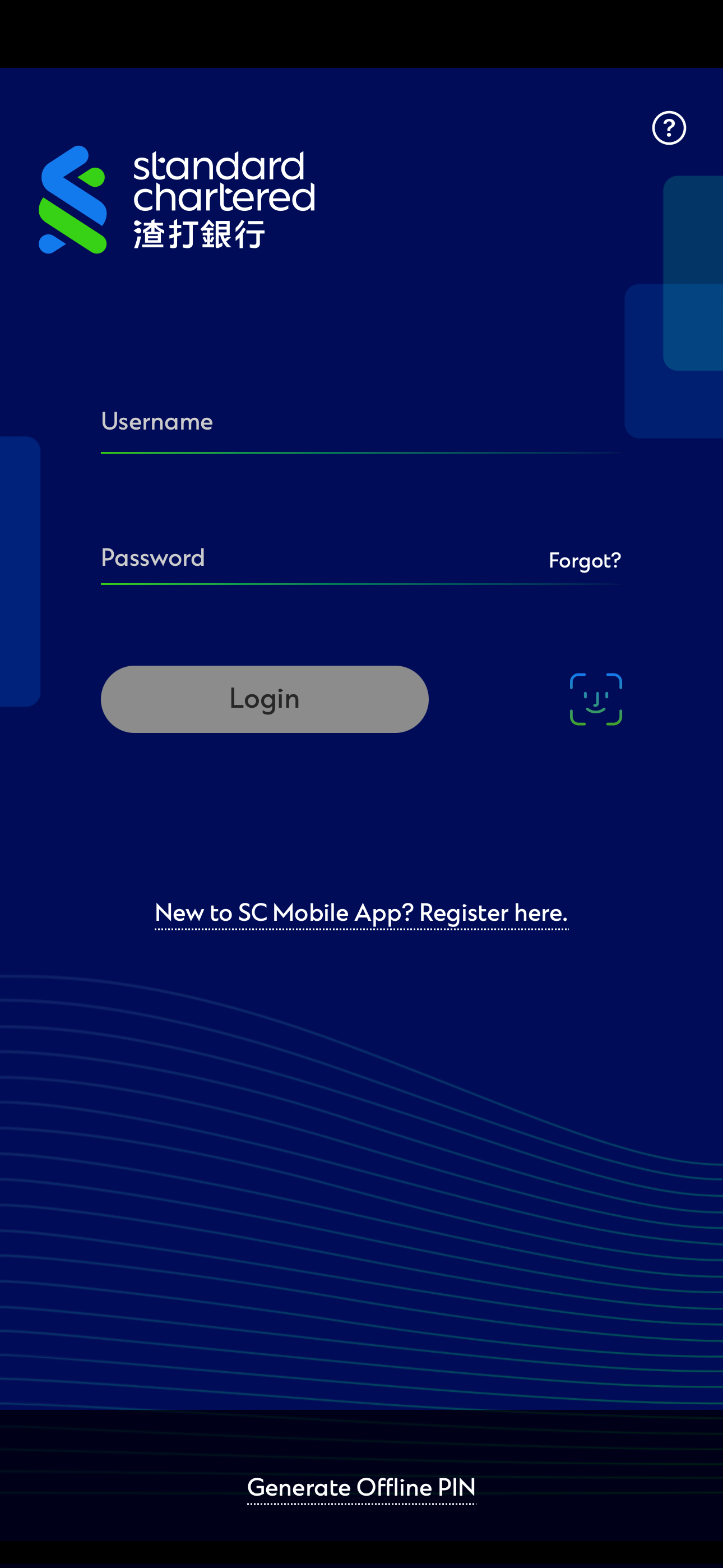
Step 1
Tap on the face icon / fingerprint icon in the Mobile Banking login screen.
-
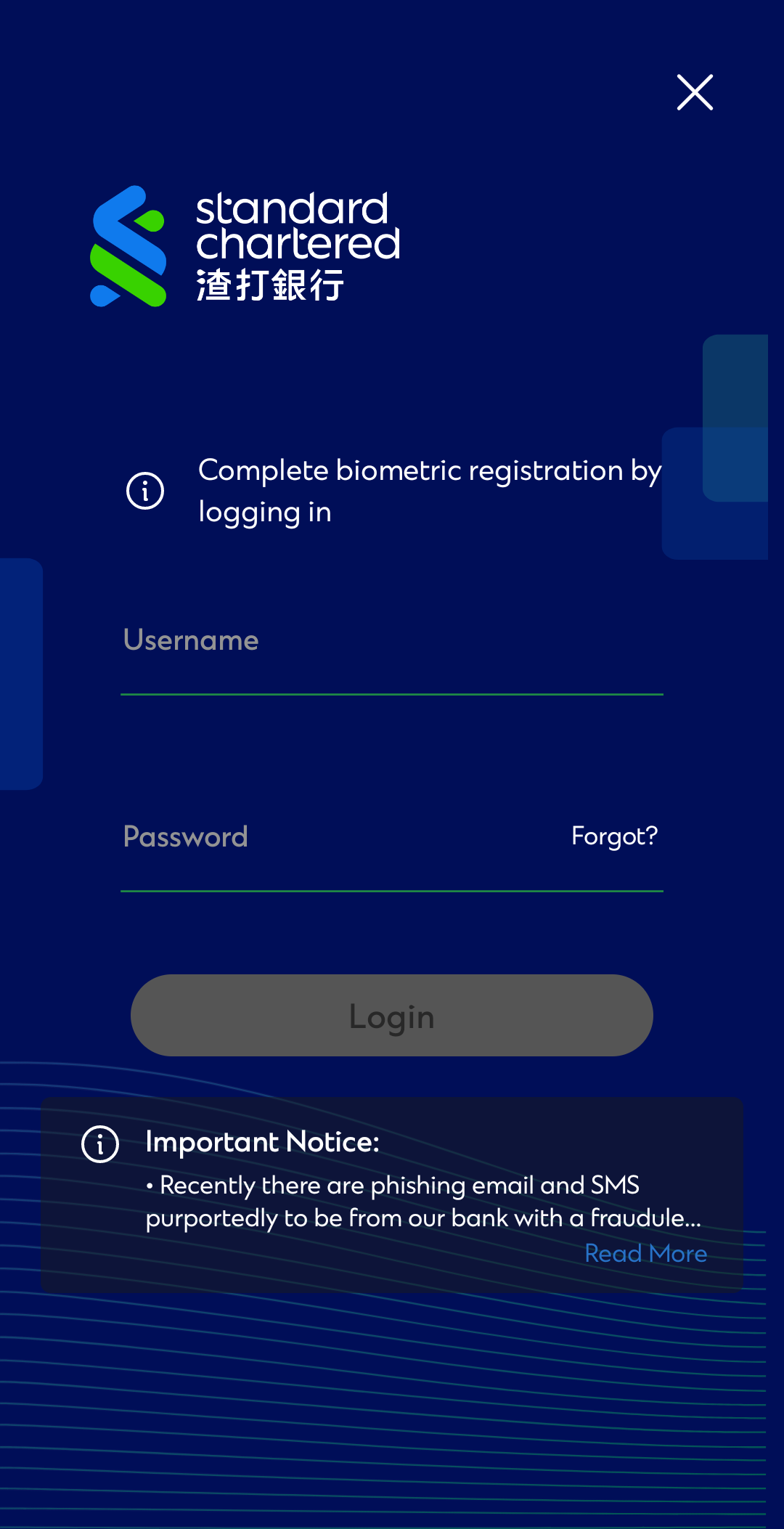
Step 2
Activate biometric service by logging in with your Digital Banking Username and Password. View and accept the terms and conditions.
-
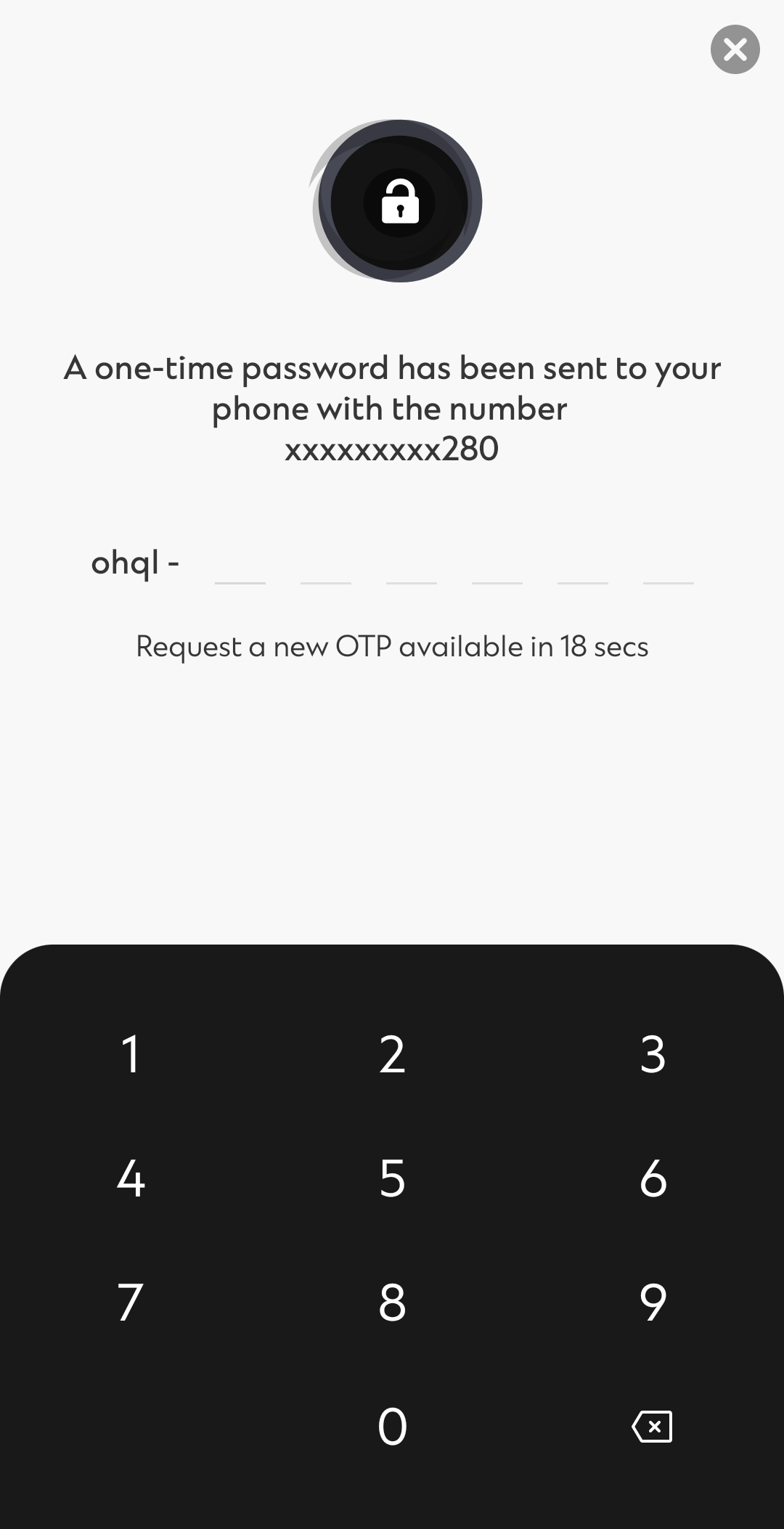
Step 3
Enter the One-Time Password (OTP) which will be sent to your registered mobile number via SMS.
-
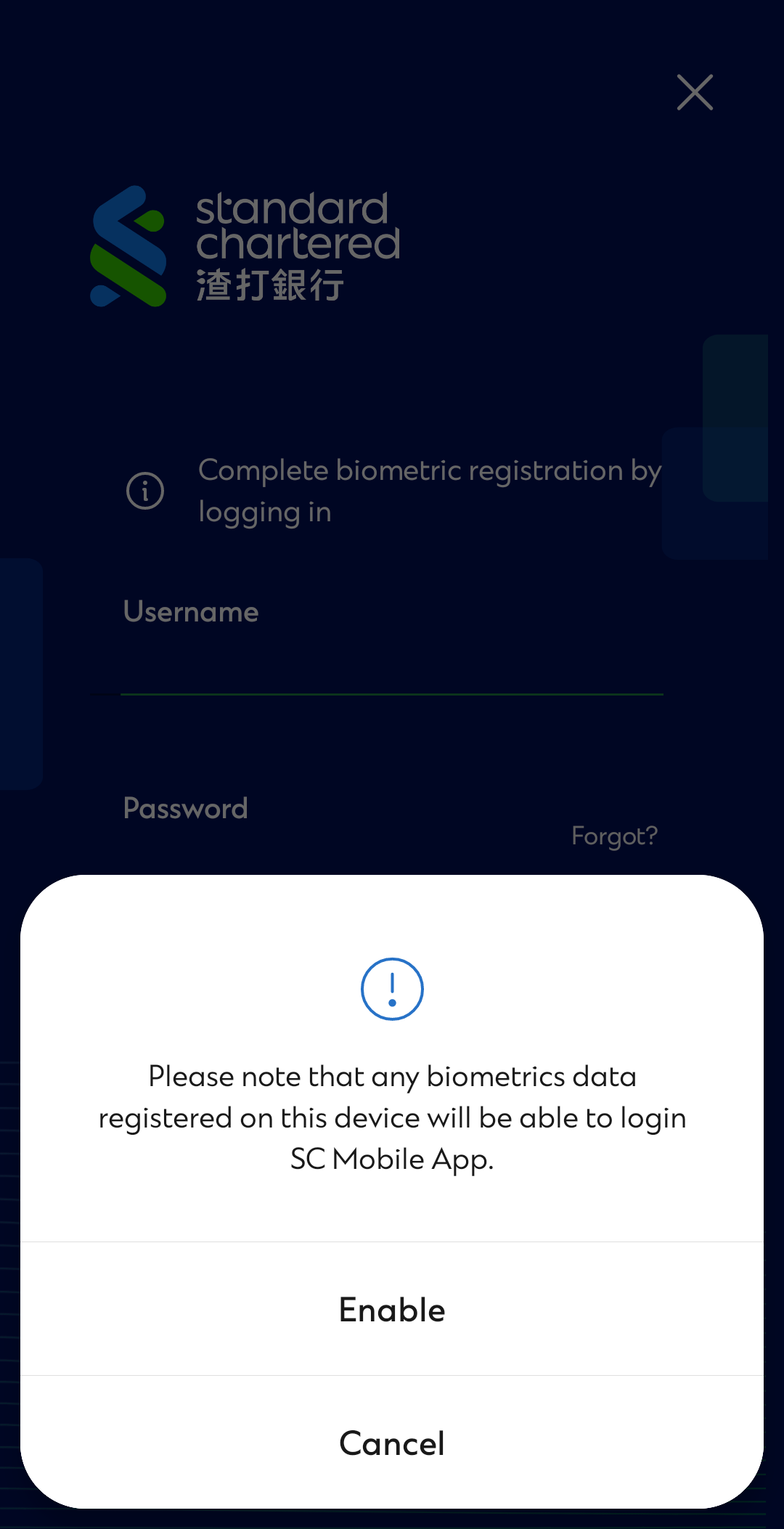
Step 4
Enable this feature to complete your registration and log in now with a glance.
Biometric Activation
Step 1
Tap on the face icon / fingerprint icon in the Mobile Banking login screen.
Step 2
Activate biometric service by logging in with your Digital Banking Username and Password. View and accept the terms and conditions.
Step 3
Enter the One-Time Password (OTP) which will be sent to your registered mobile number via SMS.
Step 4
Enable this feature to complete your registration and log in now with a glance.
FAQs
Please visit any branches to request
For full services, please register with your ATM/ Debit card with PIN or your Credit Card with PIN via SC Mobile App.